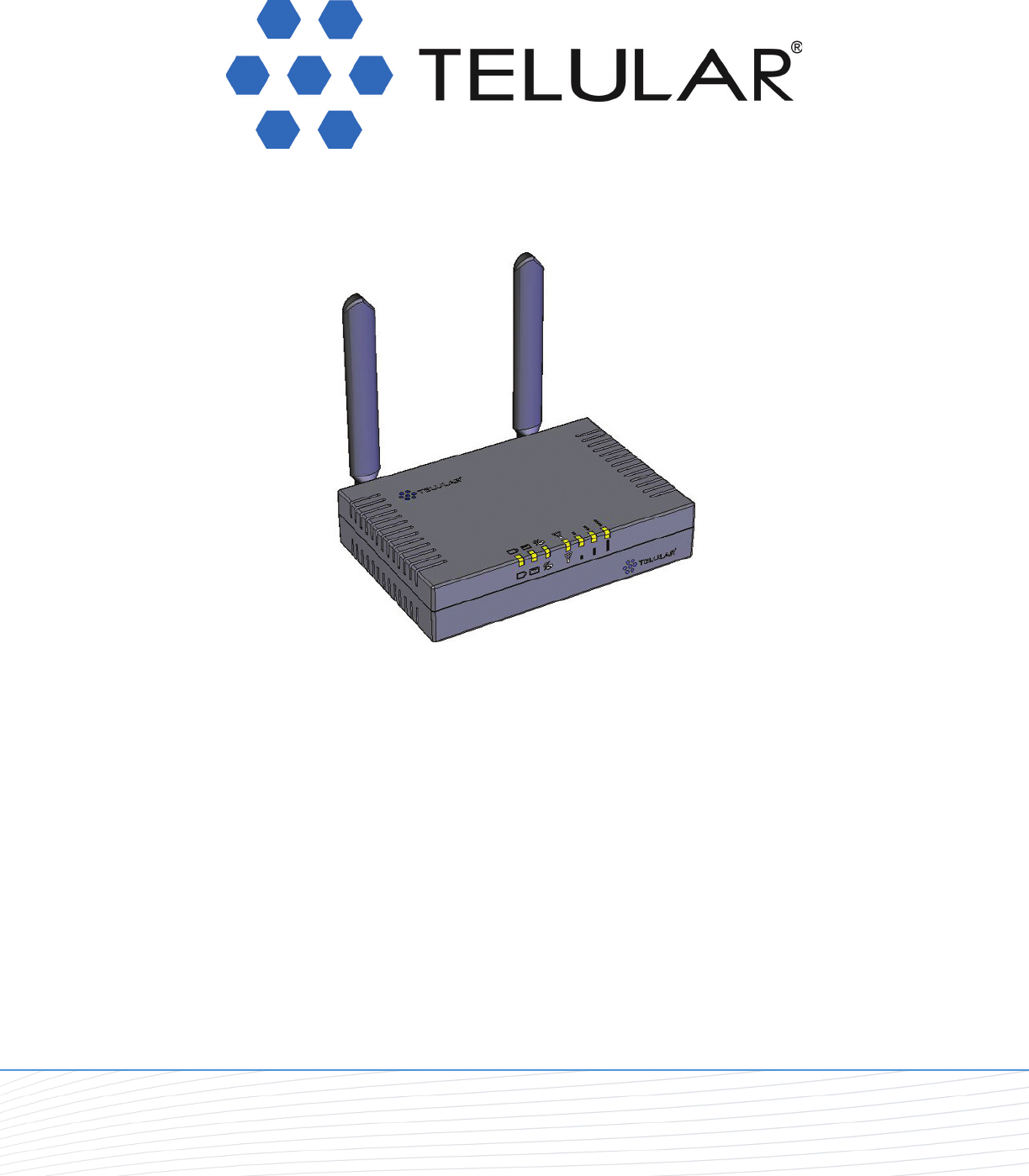
Wi PATHTM SX7T Terminal and SX7M Modem User Guide CDMA/EVDO 12/19/07 Part Number 56038602
Contents Table of Contents Introduction . . . . . . . . . . . . . . . . . . . . . . . . . . . . . . . . . . . . . . . . . . . . . . . . . . . . . . . .1 Getting Started With the Wi PATH SX7 . . . . . . . . . . . . . . . . . . . . . . . . . . . . . . . . . . .1 Your Wi PATH SX7 Components . . . . . . . . . . . . . . . . . . . . . . . . . . . . . . . . . . . . . . . . . . . . . .1 Set Up Your SX7 . . . . . . . . . . . . . . . . . . . . . . . . . . . . . . . . . . . . . . . . . . . . . . . . . . . . . . . . .
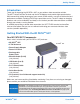
Getting Started Introduction Thank you for choosing the Wi PATHTM SX7 as your wireless data connection solution. The SX7T Voice/Fax/Data Terminal and the SX7M Modem each provide high-speed wireless WAN connectivity, taking advantage of your current CDMA wireless services to deliver the best performance available, including EVDO high-speed data service.
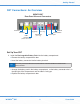
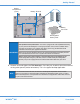
Getting Started SX7 Connections: An Overview WiPATH SX7 Rear Panel View and Connectors Antenna Ethernet USB (Type A) USB (Type B) Phone Antenna (SX7T only) Power Switch Phone/Fax Power Input (SX7T only) (inactive / future use) Set Up Your SX7 1. Install the Rechargeable Battery Pack into the battery compartment. Remove the battery compartment door. Insert the battery connector into the battery terminal.
Getting Started Battery Compartment (open) Battery Terminal Battery Connector Rechargeable Battery Pack E911 (Enhanced 911) Information – Your unit is equipped with a GPS (Global Positioning System) antenna for utilizing E911 emergency location services where available. When you place an emergency 911 call from your device (SX7T only), the GPS feature will calculate and transmit your approximate location.
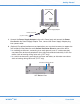
Getting Started TNC Antennas Power Input Power Supply Adapter Power Line Cord (to power outlet) 3. Connect the Power Supply Adapter to the unit’s Power Input and connect the Power Line Cord to the Power Supply Adapter. Then, connect the Power Supply Adapter plug into a power outlet. 4. (Optional) For optimal performance and protection, you may elect to connect a copper wire (not included) to the protective earth Ground Connector Screw to ground the device.
Getting Started 5. Connect the Ethernet (RJ-45) cable to the Ethernet Port on the SX7. (This cable will serve as the connection to your computer in most configurations, including the primary Wireless WAN data connection.) Ethernet Port Note It is recommended that you use the Ethernet connection for your primary Wireless WAN data connection; however, you may also use Dial-Up Networking (DUN) using the supplied USB cable (see “Using the USB Connection Option” on page 12).
Using the Telular Device Manager Power Up the SX7 1. With the Ethernet cable connected to both your computer and the SX7, ensure that your SX7 is off, and power up your computer. 2. Slide the Power Switch from right to left to power up your SX7. 3. Wait a few minutes for the SX7 to initialize. Once the signal strength LEDs are illuminated, you are ready to proceed.
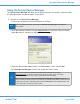
Using the Telular Device Manager Using the Telular Device Manager The Telular Device Manager will allow you to configure all your connections, view your status, and manage all your connection options in one place. 1. Connect to the Telular Device Manager. Launch your Web browser (Internet Explorer or FireFox). Note When you launch the browser, you may get a “Cannot display web page” or similar error. This is normal. Go to the browser’s address bar, type http://192.168.1.
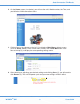
Data Connection: The Basics 2. On the Home screen (see below), you will see the unit’s Model number, the Time, and your Wireless WAN connection status. 3. Click an item in the column on the left (1) to display a Main Menu subject screen (such as Setup, below). From a main menu screen, click a Sub Menu item in the tabs at the top (2) to display the corresponding settings menu. 4. After selecting or adjusting your desired settings and clicking Save (1), you will need to click Restart (2).
Data Connection: The Basics Activating Your Wireless Services on the SX7 Before you can set up a data connection, you will need to enter your account activation information in the Telular Device Manager. Note If you purchased your SX7 through your wireless service provider, it may already be provisioned with your account information. If it has been provisioned, please skip ahead to “Setting Up Your Wireless WAN Data Connection” on page 9. 1. Connect to the Telular Device Manager.
Data Connection: The Basics Setting Up Your Wireless WAN Data Connection Once the computer and the SX7 are connected and powered up, you will need to set up your Wireless WAN data connection. The Wireless WAN connection is the primary data service connection for your SX7. 1. Connect to the Telular Device Manager. (See “Using the Telular Device Manager” on page 6.) 2. From the Home screen, click Setup (1) > Wireless WAN (2). 2 1 3a 3b 4 5 6 3.
Status Indicators 6. To confirm your data connection, click Status (1). The Status > Router page will auto-refresh every few seconds. Your WAN address from your wireless service provider will be displayed next to WAN IP Address (3). Note Tip If the Current WAN Connection Status (2) indicates Not Connected or Unknown Connection Problem, go back through the previous steps to verify your information.
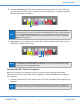
USB Connection Option Status LEDs In addition to checking your status through the Telular Device Manager on your computer, you can also use the LED indicators on the unit for a quick check of valuable connection and coverage information. WiPATH SX7T LED Indicators Signal Signal Signal Strength Strength Strength 1 2 3 Power Messaging Phone/Fax/Data Service/SIM The following table explains how the LED colors and blink rates indicate your device’s coverage and connection status.
USB Connection Option Using the USB Connection Option The preferred method for establishing a data connection with the SX7 is through the Ethernet Port (see “Connect the SX7 to Your Computer” on page 4). However, you may also use the supplied USB cable instead of the Ethernet connection. The USB connection uses Dial-Up Networking (DUN) to achieve Wireless WAN connectivity to the network.
USB Connection Option Connect the SX7 to Your Computer With a USB Cable 1. With your computer and the SX7 powered on, connect the terminal end of the USB cable to the USB Type B Port on the SX7. USB (Type B) Note The USB host (Type A) port on the SX7 is not currently active. It is reserved for future use 2. Connect the other end of the USB cable to an available powered USB Type A port on your computer. 3. A Found New Hardware Wizard will open.
USB Connection Option On the Select a Device screen, select Modem - SX7 USB Modem and deselect any other hardware listed. On the Connection Name screen, enter a name for the connection (such as SX7 USB Modem). On the Phone Number to Dial screen, enter *telular* (with asterisks). Leave the User name and Password blank, click Next, and then click Finish.
Voice and Fax Options (SX7T Only) 4. The Connect dialog will open. Click Properties > Options. Uncheck Prompt for phone number and Prompt for name and password, certificate, etc.. Set Time between redial attempts to 10 seconds and click OK. 5. Your computer will dial the new connection. 6. Follow the instructions found in “Using the Telular Device Manager” on page 6 and “Setting Up Your Wireless WAN Data Connection” on page 9 to launch the Telular Device Manager and complete your USB data connection.
Voice and Fax Options (SX7T Only) Using the Voice and Fax Options (SX7T Only) The Wi PATH SX7T Voice/Fax/Data terminal lets you use your wireless service provider for voice calling and faxing (similar to standard PSTN telephone operation) in addition to using the Wireless WAN data features. Note Before proceeding, please confirm with your wireless service provider that your account has been provisioned for voice services. Using the Voice Calling Features on Your SX7T 1.
Voice and Fax Options (SX7T Only) Using the Fax Function on Your SX7T Note Before proceeding, please confirm with your wireless service provider that your account has been provisioned for CSD (Circuit Switched Data) and WFAX and that your service provider supports these technologies. The CSD feature in the SX7T is dependent on the technology deployed in your service providers network and only functions when CSD is enabled as part of your cellular service plan. 1.
Voice and Fax Options (SX7T Only) For RJ-11 Jack Mode (4) select the appropriate combination of J1 Voice, J2 Voice or J2 FAX, J2 Data. Click Save (5), and then click Restart (6) to save your settings and restart the SX7T. 2. Plug an RJ-11 cable into the Phone/Fax input on the back panel. Phone/Fax 3. Connect the other end of the RJ-11 cable into your fax machine’s RJ-11 input jack. 4. If the fax machine has a handset, lift it off the receiver and listen for a dial tone.
Voice and Fax Options (SX7T Only) Voice/Fax Programming The Telular Device Manager allows you to program all the voice and fax options for service on your SX7T. 1. From your Web browser, launch the Telular Device Manager. (See “Using the Telular Device Manager” on page 6.) 2. From the home page, click PSTN (1). 3. Click Basic, Call Control, and POTS Setup (2) to display the programming pages (see “PSTN Options” on page 36 for examples of each page). 2 1 3 4 4.
Voice and Fax Options (SX7T Only) Basic (cont.) Select a configuration for the Phone jack (J1) and the Fax jack (J2): J1 Voice, J2 Voice to set both jacks for voice calls only (default setting). RJ-11 Jack Mode J1 Voice, J2 FAX to set the phone jack for voice calls and the fax jack to send and receive fax data. J1 Voice, J2 Data to set the phone jack for voice calls and the fax jack for CSD data calls.
Advanced Data Connection Options POTS Setup Select a dialtone frequency based on region: Normal Dialtone 350Hz +440Hz – North American standard (default). 425Hz – European standard. POTS Coarse Volume Adjusts phone volume in large increments (Low, Normal, or High). Audible ring pitch for an incoming call: 20Hz (low), 25Hz (medium), 50Hz (high) (20Hz is default). Line Impedance Select setting to match phone (600 ohms is default).
Advanced Data Connection Options Advanced Data Connection Options The following pages outline all the advanced programming options and settings available through the Telular Device Manager interface. For information about accessing and using the Telular Device Manager, please see “Using the Telular Device Manager” on page 6. Note The default settings of the SX7 accommodate most common configurations. Many of the advanced settings should be implemented or supervised by qualified IT specialists.
Advanced Data Connection Options DHCP Settings DHCP Server (Ethernet only): Dynamic Host Configuration Protocol. Select Enable to allow the unit to receive IP address, subnet mask, default gateway, and other settings dynamically through a server. Number of DHCP Users: Maximum number of connections allowed. (Default is 50.) Client Lease Time: Amount of time new DHCP settings remain in effect. (Default of 0 minutes signifies 1 day [24 hours].
Advanced Data Connection Options Setup > Keep Alive Keep Alive lets you prevent the wireless network from closing your data connection during extended periods of inactivity by having the unit ping a DNS address at set intervals. Keep Alive: Select Enable to enable this feature. Select Disable to allow your connection to terminate when the DHCP lease expires (usually 24 hours). Ping Address: Select DNS1 to use the assigned address.
Advanced Data Connection Options Setup > DDNS DDNS (Dynamic Domain Name Server) settings allow the SX7 to be accessed via the Internet even when dynamic IP addresses are being assigned. DDNS allows a static domain name to be used in place of the unit’s IP address. DDNS Service: Select a DDNS server option (such as Telular) or select Off to disable. User Name: Enter the user name. Password: Enter the password. Host Name: This is the name of the server you are connecting to.
Advanced Data Connection Options Activation Options The Activation settings may be preconfigured by your wireless provider. ESN: This is your unit’s Electronic Serial Number. It is generated internally and cannot be changed. Activation Status: This reflects your wireless account activation status. Active indicates that the network recognizes your account and it is ready for use. If Inactive appears, please contact your wireless service provider for assistance.
Advanced Data Connection Options Network Options Network > Routing 1 Routing settings allow you to control the unit’s network routing configuration. There are two primary options available, by selecting a Working Mode (1): Gateway (NAT on) and Router (NAT off). Gateway (NAT on): Select this option (above) only if you need to use a Network Access Translator (NAT) to alter IP packets as they pass through a router or firewall.
Advanced Data Connection Options Router (NAT off): (Default setting) In addition to the options available under Gateway mode, Router mode offers the following options: ● Dynamic Routing (RIP): Select Enable to use Dynamic RIP (Routing Information Protocol) to adjust to changing network environments. (Default is Disable.) ● ● RIP Transmit: Select Enable to allow the SX7 to communicate its RIP. (Default is Disable.) RIP Version: Select v1 or v2 (default).
Advanced Data Connection Options Network > Firewall/Filters The Firewall/Filters settings allow you to customize the following access settings for the SX7 on your network. Firewall (SPI): Select Enable to use the SPI (Stateful Packet Inspection) firewall to monitor network connections and reject any that do not match its criteria. LAN Port Filter Range: Select an option (see below) and a range (from 0 to 65535) of ports through which to allow connections.
Advanced Data Connection Options Network > Port Forwarding This screen allows you to enter an Application Name, Port Extension range, select TCP or UDP protocols (or both), and complete an IP Address for up to 10 forwarded ports. Network > DMZ This screen allows you to enable and define a DMZ (Demilitarized Zone or Perimeter Network) host to act as a buffer between an internal network and any external networks (usually the Internet). Select Enable and enter a DMZ Host IP Address to use this feature.
Advanced Data Connection Options Administration Options Admin > Management The Administration > Management screen allows you to change the following settings. Device Manager User Name: For security purposes, you may want to change your user name for the Telular Device Manager from the default (telular). Enter a user name in this field. Device Manager Password: For security purposes, you may want to change the SX7 password from the default (1234).
Advanced Data Connection Options Admin > Factory Defaults Click Restore Defaults to reset all the device settings to the factory default settings. Any settings you have customized through the Telular Device Manager will be reset. Admin > Firmware Upgrade If you have received a firmware upgrade for the SX7, click Browse to locate the upgrade file on your computer, select the file, and then click Proceed with Upgrade to update your unit.
Advanced Data Connection Options Status Options The screens available under the Status menu provide information about your unit. The fields in the Status screens cannot be edited directly, but they may be changed as a result of other settings you select using the Telular Device Manager. Status > Router The Status > Router page displays most of the unit’s important information. Firmware Version: Displays the firmware version and release date for your SX7.
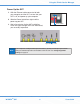
Advanced Data Connection Options Radio Service Type: This displays your current data service type (such as EVDO DATA for full EVDO service or 1X DATA for 1xRTT CDMA data service). RSSI: This is the signal strength, which is recorded in negative numbers. The farther away from zero, the better the signal strength (for example, -90 dBm represents a fairly weak signal strength; -20dBm represents good signal strength).
Advanced Data Connection Options Status > LAN USB Status > Wireless WAN Status Wi PATHTM SX7 36 User Guide
Advanced Data Connection Options PSTN Options See “Voice/Fax Programming” on page 19 for available PSTN (Public Switched Telephone Network) options. Below are examples of each of the PSTN programming pages.
Advanced Settings PSTN > POTS Setup Wi PATHTM SX7 38 User Guide
Glossary, References Advanced Settings This section explains some of the advanced configuration settings that may be required in some instances to make the SX7 operational on your computer. Configuring TCP/IP Settings If your computer is set up with a preset IP address (as may be the case with certain DSL and cable subscribers), you will need to configure your TCP/IP settings to automatically retrieve an IP address from the SX7. Windows XP 1. In the Windows taskbar, click Start > Control Panel. 2.
Glossary, References Glossary CDMA - Code Division Multiple Access. Digital cellular phone technology. DDNS - Dynamic Domain Naming System DHCP - Dynamic Host Configuration Protocol Dial Tone - The tone heard when a phone receiver is off-hook. DMZ - Demilitarized Zone. A perimeter network area (subnetwork) that acts as a buffer between an internal network and an external network such as the Internet. DTMF - Dual-Tone Multi-Frequency. The standard keytones used by telephones in tone dialing.
Glossary, References computer.) USB B Device - Universal Serial Bus type B device connector. (The “USB-out” connector on the SX7.) WINS - Windows Internet Name Service. Wi PATH - Wireless Premise Access Transport Hub. Wireless WAN - Wireless Wide Area Network. This provides data and Internet access over a GSM cellular network.