
Operation Manual




Camtasia Studio Version 8 Help
www.techsmith.com - 84 -
Create Library Asset from Timeline Selec-
tion or Timeline Media
You can create Library assets from the content on the timeline. Timeline sequences may contain markers,
zoom and pan animations, video, audio, callouts, and more.
You can add the following file formats to the Library:
Video files (CAMREC, AVI, MP4, MPG, MPEG, WMV, MOV, SWF)
Camtasia Studio does not support multiple tracks in an MOV. Camtasia Studio imports
one video and one audio track from an MOV file.
Only SWF files created from Jing or a previous version of Camtasia Studio can be
imported.
Image files (BMP, GIF, JPG, PNG)
Audio files (WAV, MP3, WMA)
Zipped Library file (LIBZIP)
You can also add this timeline media to the Library:
Callouts
Any timeline selections with or without transitions and animations
A group with or without transitions and animations
Quizzes that are pinned to media in a group
Quizzes pinned to media that are in a timeline selection
Captions in a group
Captions in timeline selection
If you have a particular sequence you want to use at the beginning or end of every video that you make, create
the sequence one time and save it to the Library to be used in other video projects.
If your company uses a standard callout, title clip, or transition for their videos, add those elements to the
Library then export them and share with everyone on your team.
When a timeline sequence that includes a portion of a video saved in the Library, the entire
video is actually saved. When you drag the sequence to the timeline, only the saved selection
appears.
Add a Timeline Sequence
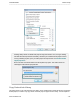
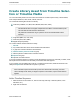
1. Make a selection on the timeline. Or, select a video clip, audio clip, or element (callouts, zoom
animations, etc.).
2. Right-click the selection.
_________________________________________________________________________________________________________