
Operation Manual




Camtasia Studio Version 8 Help
www.techsmith.com - 74 -
Import Media into Clip Bin
Editor adds imported media files into the Clip Bin.
You can import the following file formats into a Camtasia Studio project:
Video files (CAMREC, AVI, MP4, MPG, MPEG, WMV, MOV, SWF)
Camtasia Studio does not support multiple tracks in a MOV. Camtasia Studio imports
one video and one audio track from a MOV file.
Only SWF files created from Jing or a previous version of Camtasia Studio can be
imported.
Image files (BMP, GIF, JPG, PNG)
Audio files (WAV, MP3, WMA)
Zipped project files
To Import Media into the Clip Bin
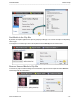
1. In Editor, select the Clip Bin tab.
2.
Select Import media .
3. Select the file(s) to import. Hold <CTRL> to select multiple files.
4. Click Open. The media appears in the Clip Bin.
To add a clip to the video, drag the clip from the Clip Bin onto the timeline or right-click
on a clip and select Add to Timeline.
See also
Editing Dimensions
Welcome Window
Clip Bin
Library
Add Media to the Library
Manage Library Content
Export Library Assets as a ZIP File (LIBZIP)
Import a Zipped Library File (LIBZIP)
Editor Preview Window and Canvas
_________________________________________________________________________________________________________