
Operation Manual




Camtasia Studio Version 8 Help
www.techsmith.com - 69 -
Export a Project as a Zip File
Use the Export Project as Zip option to:
Transfer a project to a new location on a network.
Save a backup copy of the project files.
Send the project file to others for team collaboration.
Moving or deleting original files (for example, on a hard drive or network) that have been
imported into the Clip Bin can break your Camtasia Studio projects. Before moving or deleting
any files, open your video projects and export them as a Camtasia Studio zipped project file.
Be sure to check the Include all files from the Clip Bin in zip option. This creates a self-
contained project with backed up Clip Bin files.
Create A Zipped Project
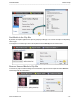
1. In Editor, select File > Export Project As Zip.
2. The Export Project as Zip dialog box appears. Click Browse to select a folder destination for the zip
file. Click Save.
3. Check the Include all files from Clip Bin in zip option to include a copy of all media files in the Clip
Bin in the zip file.
4. Click OK.
See also
Import a Zipped Project
Back up a Project Automatically (AutoSave)
_________________________________________________________________________________________________________