
Operation Manual




Camtasia Studio Version 8 Help
www.techsmith.com - 51 -
Click to choose the magnification level of the video on the canvas. This does not
change the editing dimensions of the video.
Choose Shrink to Fit to view the entire video within the boundaries of the canvas.
Get help using Camtasia Studio
Choose Help > Camtasia Studio Help or click the help icon to open the help
file. The help file contains valuable information to help you learn how to record,
edit, produce, and share your video.
Click the Online Tutorials icon to access training videos and documentation
on the www.techsmith.com website.
Preview Window View Options
Toggle Pan View
Turn panning on or off. When zoomed in on the video at a high magnification
level, use the pan option to move the video around within the boundaries of the
canvas.
In pan mode, the cursor turns into a hand while hovered on the canvas. Click and
drag the video on the canvas to get a better view.
While in pan mode, the canvas editing features are disabled.
Switch to Full Screen Mode
View the entire canvas in full screen mode.
All editing features are enabled while working in full screen mode.
Press the Esc key on the keyboard to exit full screen mode.
Detach or Attach the Preview Window
Click to detach the entire Preview Window from the Editor.
Click again to reattach the Preview Window to the Editor.
Canvas
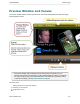
The Preview Window's canvas is the work area where you arrange, rotate, resize, and
order the content on the timeline.
When a clip, group, or other media is selected on the timeline, it is also selected
on the canvas.
To size, grab a handle and drag .
To rotate, grab center handle and turn.
To reorder media, right-click and choose the placement from the menu. Media
reordered on the canvas is automatically reordered to a different track on the
timeline.
_________________________________________________________________________________________________________