
Operation Manual





Camtasia Studio Version 8 Help
www.techsmith.com - 39 -
Record a PowerPoint Presentation
Use the Camtasia Studio PowerPoint Add-in to record and produce PowerPoint presentations from within
Microsoft PowerPoint®.
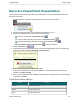
1. In Camtasia Studio, choose Record PowerPoint from the Record the Screen menu:
2. Microsoft PowerPoint® opens. Open a PowerPoint presentation to record.
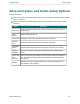
3. Select the recording options from the PowerPoint Add-In Toolbar.
To record voice narration, enable Record Audio .
To record camera video (Picture-in-Picture), enable Record Camera .
To preview the camera stream while recording, enable Camera Preview .
Click Camtasia Studio recording options to change the settings.
4.
Click the Record button .
5. The presentation opens in presentation mode. A Camtasia Studio dialog box opens in the lower right
corner of the screen. Click the Click to begin recording button.
6. Progress through the PowerPoint presentation slides.
7. To stop the recording before the last slide, press ESC. To stop the recording at the end of the pre-
sentation, click Stop recording.
8. Enter a file name and location and click Save. The presentation recording saves as a Camtasia Studio
recording file (CAMREC).
PowerPoint Add-In Hotkeys
Option Hotkey
Record CTRL+SHIFT+F9
Pause CTRL+SHIFT+F9
Stop CTRL+SHIFT+F10
_________________________________________________________________________________________________________