
Operation Manual




Camtasia Studio Version 8 Help
www.techsmith.com - 239 -
Produce Audio Only (MP3)
To Produce an Audio Only MP3
1. Make all edits to your video.
2. Click Produce and Share.
3. The Production Wizard appears. Select Custom production settings from the dropdown. Click Next.
4. Select the MP3-audio only option. Click Next.
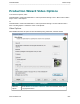
5. Select the MP3 Encoding Options (see descriptions below). Click Next.
6. On the Produce Video screen, enter a video name and choose the post production and upload
options.
7. Click Finish. The video begins rendering.
8. Once production is completed, the Production Results screen appears. Click Finish to exit the Pro-
duction Wizard.
Click the Preview button at any time in the Production Wizard to produce a 30 second sample
of your video using the current settings.
MP3 Encoding Options
Option Description
Options
Opens the Project Properties dialog box to enter author and copyright infor-
mation. See Add Metadata.
Audio encoding
bitrate
Select the data transfer rate for the audio encoding.
_________________________________________________________________________________________________________