
Operation Manual




Camtasia Studio Version 8 Help
www.techsmith.com - 216 -
Produce to MP4 Flash / HTML5 Player
The MP4 Flash file format creates a high quality, low file size video for playback on multiple Web browsers
and mobile devices.
To Produce to MP4 Flash Format
1. In Camtasia Studio, click Produce and Share.
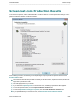
2. The Production Wizard appears. Select Custom production settings from the dropdown. Click Next.
3. Select the MP4 Flash / HTML5 player output option. Click Next.
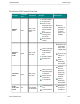
4. In the Flash / HTML5 Player Options screen, select a controller theme, choose the features to
include in the video, and more. Click Next.
5. Select the Video Options. Click Next.
6. Customize TOC (if markers or quiz are in the video). Click Next.
7. Customize Quiz (if there is a quiz in the video). Click Next.
8. On the Produce Video screen, enter a production name, select the post production and upload
options.
9. Click Finish. The video begins to render.
10. When video is complete, read the Production Results screen then click Finish.
See also
Produce and Share Directly to Screencast.com
Produce and Share Directly to YouTube
Produce Audio Only (MP3)
Produce to Audio Video Interleave (AVI)
Produce to iPod, iPhone, or iTunes (M4V)
Produce to QuickTime Movie (MOV)
Produce to Windows Media Video (WMV)
_________________________________________________________________________________________________________