
Operation Manual




Camtasia Studio Version 8 Help
www.techsmith.com - 208 -
Screencast.com Production Results
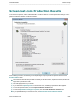
To access these options, select Camtasia Studio > Produce video as > Custom production settings > Com-
plete the Production Wizard > Production Results.
After rendering the video, the following occurs depending on the post-production options selected on the
Produce Video screen.
The Production Results area provides a summary of the file location, output files created, and the set-
tings used to produce the video.
The video plays back for your review.
If you selected to upload by FTP or to Screencast.com, the dialog to upload the video appears.
To view the production files, click the Open Production Folder button.
To save the production settings as a preset, click the Create Production Preset button.
If you uploaded directly to Screencast.com, see Screencast.com Production Results.
_________________________________________________________________________________________________________