
Operation Manual





Camtasia Studio Version 8 Help
www.techsmith.com - 201 -
Record Camera (Webcam) Video in Editor
The Record Camera option records camera video from a Web camera and synchronizes it with the video on
the timeline.
1. In Editor, position the playhead on the timeline.
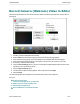
2. From the More tab, select Record camera. The Record Camera task page appears.
3. If the camera is set up properly, the camera appears in the Available video devices dropdown.
4. Select the recording and audio options. These options are specific to the camera you are using.
5. If necessary, adjust the audio settings.
6. Click the Start Recording button. The video on the timeline (if applicable) plays back in the Preview
Window as you record the Web camera.
7. Click the Stop Recording button.
8. The Save Video Capture As dialog appears. Enter a file name and click Save.
9. Click Finished.
The video clip appears in the Clip Bin and on the timeline at the location of the playhead.
See also
Picture-in-Picture (PIP)
Choose the Editing View for the PIP Video
Modify a Picture-in-Picture (PIP) Video
Editor Audio Setup Wizard
Record a Webcam in Camtasia Recorder
_________________________________________________________________________________________________________