
Operation Manual



Camtasia Studio Version 8 Help
www.techsmith.com - 124 -
Add Callouts
Callouts are graphics that appear on top of a video to draw viewers’ attention to important objects or proc-
esses in a video.
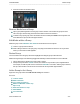
From Images on the Timeline
All images added to the timeline are callout-ready.
To edit the callout, double-click it on the timeline. The Callout task page appears for text editing.
More effects such as drop shadow, border, color, and opacity can be found in the Visual Properties
tab.
From the Callouts Tab
1. In Editor, click the Callouts tab. The Callouts task page appears.
2. Position the playhead on the timeline where the callout will be added.
3. Click Add Callout.
4. Select a callout from the dropdown gallery. The callout appears on the canvas and on the timeline at
the playhead.
5. Enter text into the text box. The text is updated to the callout on the canvas.
6. Resize, move, or rotate the callout on the canvas.
Press and hold the ALT key while dragging for 3-D rotation.
7. Make changes to the Border color and width, Fill color, and other Effects such as shadow, opac-
ity and style.
8. To include a fade in or out effect, use the zoom slider.
Fade effects are visible on the callout on the timeline.
9. More effects such as drop shadow, border, color, and opacity can be found in the Visual Properties
tab.
_________________________________________________________________________________________________________