Targus Digital Camera for Handspring™ Handheld Computers
Targus Digital Camera Congratulations on your purchase of the Targus Handcam Digital Camera. The camera driver software self-loads the first time you insert the Handcam into the expansion slot on your Handspring™ Visor™, allowing you to immediately capture images and video clips from your handheld computer. The camera’s pivoting lens allows you to aim the camera while viewing the display and the adjustable focus permits clear, sharp close-up and scenic images.
Targus Digital Camera 3 • Transfer images and video clips between computers using the supplied USB Handcam socket adapter or beam technology NOTE: To transfer images or video clips, the receiving computer must have the camera driver already installed.
Targus Digital Camera Using the Targus Handcam Digital Camera with Your Handheld Computer Connecting the Camera To connect the Targus Handcam Digital Camera to your Visor handheld computer, slide the camera into the computer’s expansion slot until it is firmly in place. Identifying Function Icons Use the following icons to control the camera application.
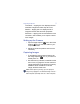
Targus Digital Camera 5 Thumbnail — tapping this icon displays several small-size images and video clips at a time. Details — tapping this icon displays a list of images and video files and their properties. Self-timer — tapping this icon activates the timer countdown, which allows you to capture “hands free” images. Setting up the Camera 1 Tap the Image Capture icon or the Video Capture icon to view live video on your computer’s screen. 2 Adjust the camera’s position and focus as necessary.
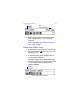
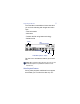
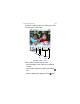
Targus Digital Camera Memory indicator Size indicator/changer Image Capture Menu options 3 When you are ready to capture an image, press the Up button on your handheld computer. To save the image, see “Saving Images and Video Clips” on page 7. Recording Video Clips 1 To activate the video recording feature, tap the Video Capture icon if you have not already done so. 2 To start recording, press the Up button on your handheld computer.
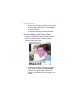
Targus Digital Camera 3 When you are ready to stop recording video, press the Up button again or, tap the Stop on-screen button. To save the video clip, see the next section. Saving Images and Video Clips When you capture an image or stop recording video, the “Save picture? Yes/No” prompt appears below the image.
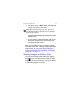
Targus Digital Camera 8 2 Tap Yes to save, or No to delete, the captured image and return to live video. NOTE: When capturing images and video, you can use your handheld computer’s Up button for Yes and Down button for No responses. The file is automatically named with the current date and time. 3 To give the file a descriptive title, tap on the file name, located in the upper-left corner, and enter the new name. Now you are ready to view or transfer images and video clips.
Targus Digital Camera The View Menu has additional icons that allow you to do the following with images and video clips: • View information • Add notes • Transfer the file using beam technology • Delete the file Scroll Size indicator/changer Information Notes Beam Delete View Menu options - image Tap the icon to activate the feature you want to use. NOTE: When viewing images and video, you can use your handheld computer’s Up and Down buttons to scroll between files.
Targus Digital Camera example, to edit the name of a video, tap on the title and enter a new name. Time counter Pause Play Progress Looping bar on/off View Menu options - video During video playback you can also: • View the length of the video clip via the time counter. • Pause video playback by tapping the Pause icon. • Resume playback by tapping the Play icon.
Targus Digital Camera • Skip forward or backward during playback by dragging the Progress bar with your stylus. • Activate continuous playback by tapping the Loop icon. To turn off this feature, tap the Loop icon again. Use the scroll arrows, or the Up and Down buttons on your handheld computer, to view other videos. Thumbnail Viewing To view several images at the same time, tap the Thumbnail icon. Tapping an individual thumbnail opens the file for full-screen viewing.
Targus Digital Camera The image and video count indicate how many images and video clips are present in the current category. Thumbnails with sprocket hole borders indicate that the file is a video clip. Video thumbnail Viewing Image and Video Details To view a list of saved images and video clips, tap the Details icon.
Targus Digital Camera 13 The Details list displays the file name, image size (Full or Palm), file size in memory and note attachments. From the Details list you can: • Open an individual file for viewing by tapping on the file name. • View note attachments by tapping the Attached Note icon. • Beam files to other handheld computers by tapping the box next to each required file so that a check mark appears and then tapping the Beam icon.
Targus Digital Camera are copied, you can delete them from your handheld computer. • Delete files by tapping the box next to each obsolete file so that a check mark appears and then tapping the Delete icon. Copy Delete Beam Detail Menu options Using the Targus Handcam Digital Camera with Your Notebook or Desktop Computer To use the Targus Handcam Digital Camera with your notebook or desktop computer, you must first install the camera driver software.
Targus Digital Camera 15 2 Insert the camera software CD-ROM into your computer’s CD-ROM drive. 3 If Setup does not begin automatically, click Start, then Run, and enter D:\setup.exe (where D: is the path of your CD-ROM drive) and then click OK. The Camera Install screen appears. 4 Click Install. The following screen appears. Install Selected Software screen 5 To install the digital camera driver only, click the box next to each additional software item listed so that the check mark disappears.
Targus Digital Camera 16 NOTE: If you choose to install the additional software, follow the on-screen procedures for each program. The InstallShield Wizard for Targus Camera screen appears. 7 Click Next. The License Agreement screen appears. 8 Click Yes to accept the agreement or No to cancel installation. The InstallShield Wizard Complete screen appears. 9 Click Finish and restart your computer to complete installation.
Targus Digital Camera 17 3 Slide the camera into the Handcam socket adapter’s slot until the camera is firmly in place. Inserting the Handcam into the Handcam socket adapter Attaching the Camera Clip Use the supplied camera clip to steady the Handcam and improve image and video quality. To attach the clip to the Handcam, slide the tracks on the top of the clip into the grooves on the bottom of the camera until the camera is centered on top of the clip.
Targus Digital Camera between the overhang and the lever) and release the spring lever.
Targus Digital Camera 19 Using the Camera Desktop Application To open the camera desktop application, doubleclick the Targus Camera icon on your desktop.
Targus Digital Camera Once the desktop application is active, live feed appears on the screen and, from the main menu bar, you can select the following options: Capture an image Record video mail Record video clip Flip images horizontally Access camera settings Open and close the album Save recorded video to the album You can also open additional installed software, such as ArcSoft PhotoImpression, by clicking the drop-down arrow next to Applications, located at the upper-left of the screen.
Targus Digital Camera image, right-click the image’s thumbnail in the album, select Rename and then enter a new title. Recording, Viewing, Saving and Sending Video Clips To record video mail, click the Video Mail icon, or to record a regular video clip, click the Video icon from the main menu. When you are ready to stop recording, click the Stop icon. A menu bar appears.
Targus Digital Camera 22 right-click the video’s thumbnail, select Rename and then enter a new title. To send the video recording as an email attachment, click the Send Mail icon. Your default mail agent opens with the video clip attached as an AVI file to a new message. Send as you would a regular message. You can also send images and videos from the album application. See “Accessing Images and Video Clips in the Album” on page 25.
Targus Digital Camera Changing the Camera Settings In the desktop application you can change the camera settings to best suite your needs. To access the setting options, click the Camera Settings icon from the main menu.
Targus Digital Camera From the Video tab you can adjust the camera’s composition or reapply the default settings. Video settings From the Mail agent tab you can select which mail agent opens when sending images or video clips as an attachment. Mail Agent settings When you are done changing the settings, click OK to save or Cancel to exit the settings option without saving your changes. From any option tab, you can adjust the Video Quality settings by clicking the Advanced button.
Targus Digital Camera Accessing Images and Video Clips in the Album To view saved images and video clips, click the Album icon from the main menu. Thumbnails of the most recent images or video clips appear. Current album To view files from a different album, tap the dropdown arrow, located in the upper-left corner, and select an album from the list.
Targus Digital Camera 26 • Rotate an image counter-clockwise (90 degrees) • Rotate an image clockwise (90 degrees) • Flip an image horizontally • Adjust image color To use the menu options, select a thumbnail, then click the desired icon. Transferring Files From Your Handheld Computer to Your Notebook or Desktop Computer Transferred files are saved in a folder labeled “Targus Handcam,” which is created during the first file transfer. The images retain the same titles as found on your handheld computer.
Targus Digital Camera 27 NOTES: During file transfer, images and video clips are automatically converted to JPEG and AVI files respectively. You can only view the AVI files on another computer that already has either the camera desktop application or the video decoder, which is supplied on the CD-ROM, installed. If you send your AVI files via email, for your convenience, you can also send the video decoder application as an email attachment.
Targus Digital Camera 28 If the Targus Handcam Digital Camera doesn’t work: • Check that the Targus Handcam Digital Camera is fully inserted in the expansion slot. • Verify that your handheld computer is working properly. • Make sure that your computer’s battery is fully charged. • Check that your handheld computer is not in sleep mode. If your handheld computer goes into sleep mode, the Handcam will pause.
Targus Digital Camera Capacity The following table lists, on average, the number of Full or Palm size images or the total length of video clips you can store in a color or black and white handheld computer with 6 MB of free memory.
Targus Digital Camera Europe Belgium Denmark France Germany Italy Netherlands Spain Sweden Switzerland United Kingdom Eastern Europe & others +32 0 02-717-2451 +45 0 35-25-8751 +33 0 1-64-53-9151 +49 0 21-16-579-1151 +39 0 24-827-1151 +31 0 53-484-9470 +34 0 91-745-6221 +46 0 8-571-4058 +41 0 1-212-0007 +44 0 20-7744-0330 +31 0 53-484-9479 Product Registration For more efficient customer service and to activate the product’s warranty, Targus recommends that you register your Targus accessory shortly
Targus Digital Camera 31 programs, records, or data; nor any consequential or incidental damages, even if Targus has been informed of their possibility. This warranty does not affect your statutory rights. Warranty Registration at: http://www.targus.com/registration.asp Regulatory Compliance This device complies with Part 15 of the FCC Rules.
Targus Digital Camera 32 correct the interference by one or more of the following measures: • Reorient or relocate the receiving antenna • Increase the separation between the equipment and receiver • Move the computer away from the receiver • Connect the equipment into an outlet on a circuit different from that to which the receiver is connected. Handspring and Visor are trademarks of Handspring, Inc. Windows and Windows 98/Me/2000 are registered trademarks of Microsoft Corporation.
400-0136-001A