
Operation Manual



10
NAVIGATION AND VIEWING PARAMETERS
Many of the processing elements in each input and output path have features that may be controlled by the user, such as
gain, frequency or limiter threshold. We call these adjustable features parameters.
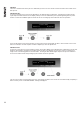
A parameter may be adjusted when it is displayed by turning one of the three-parameter knobs. Each of the three-parameter
knobs is associated with a zone on the display. Adjusting the leftmost parameter knob will change the value of the parameter
showing in the leftmost zone of the display and so on. Turn a knob clockwise to increase the value of a parameter, or
anti-clockwise to decrease it. The knobs are velocity-sensitive so turning a knob rapidly will cause the action to ‘accelerate’,
so the value changes more rapidly.
NAVIGATION
The DSP parameters are organised by channel. The currently selected channel is shown in the top left hand corner of the
display. You can navigate between the channels by pressing the channel buttons. Pressing the channel buttons will scroll
through the channels, utilities and back to the default screen. When using a Preset that is stereo linked, the channel selection
will reflect this. For example ‘1&4’ indicates outputs 1 and 4. When navigating onto an output channel, the usage of the
output, as define in the Factory Preset, will be shown briefly at the top of the screen.
Pressing the edit navigation buttons gives access to the various pages of parameters available for each channel. The
currently selected page is shown in the bottom left hand corner of the display, this is omitted on some pages where the
function is obvious. The screen shows up to three (normally related) parameters for a given part of the processing functions
on a given channel.
The edit buttons allow you to scroll, in either direction, through the different processing pages for a given Channel. When you
go past the last page, you will be returned to the default page.
The channel buttons allow you to scroll, in either direction, through the input and output channels, whilst trying to maintain the
currently viewed processing block. If the channel you scroll to does not have the currently viewed processing block, the next
one will be shown instead.
NB. When the unit powers-up, the settings will be the same as those when the unit was last switched off.
In A Freq Width Gain
EQ1 100Hz 1.4Q 0.0dB
Out1 Freq Width Gain
EQ1 100Hz 1.4Q 0.0dB