
Codec C90 Administrator Guide


Table Of Contents
- Introduction
- Getting started
- About the menus
- The Settings menu
- Administrator Settings Library
- Description of the administrator settings
- The Audio settings
- The Camera settings
- The Conference settings
- The Do not disturb setting
- The H323 Profile settings
- The Network settings
- The Camera settings
- The Phone book server settings
- The Provisioning settings
- The Serial port settings
- The SIP Profile settings
- The Standby settings
- The System unit settings
- The Time zone setting
- The Video settings
- The Experimental menu
- Description of the administrator settings
- Cameras
- Appendices
- General room guidelines
- Guidelines for the executive meeting room
- Guidelines for the high end meeting room
- The Video Input Matrix
- Software upgrade
- Upload certificates
- XML files
- Log files
- NTP Time Zone expressions
- Supported RFCs in SIP
- TANDBERG Remote Control TRC5
- TANDBERG Remote Control TRC5 key map
- The PrecisionHD camera
- CE Declaration for Codec C90
- China RoHS table
- TANDBERG Codec C90 dimensions
- PrecisionHD 1080p camera dimensions
- PrecisionHD camera dimensions
- Technical specifications
D14129.02—NOVEMBER 2008
55
Codec C90
Administrator Guide
Contents Introduction Getting started About the menus About the settings Settings Library Cameras Appendices Contact us
Appendices
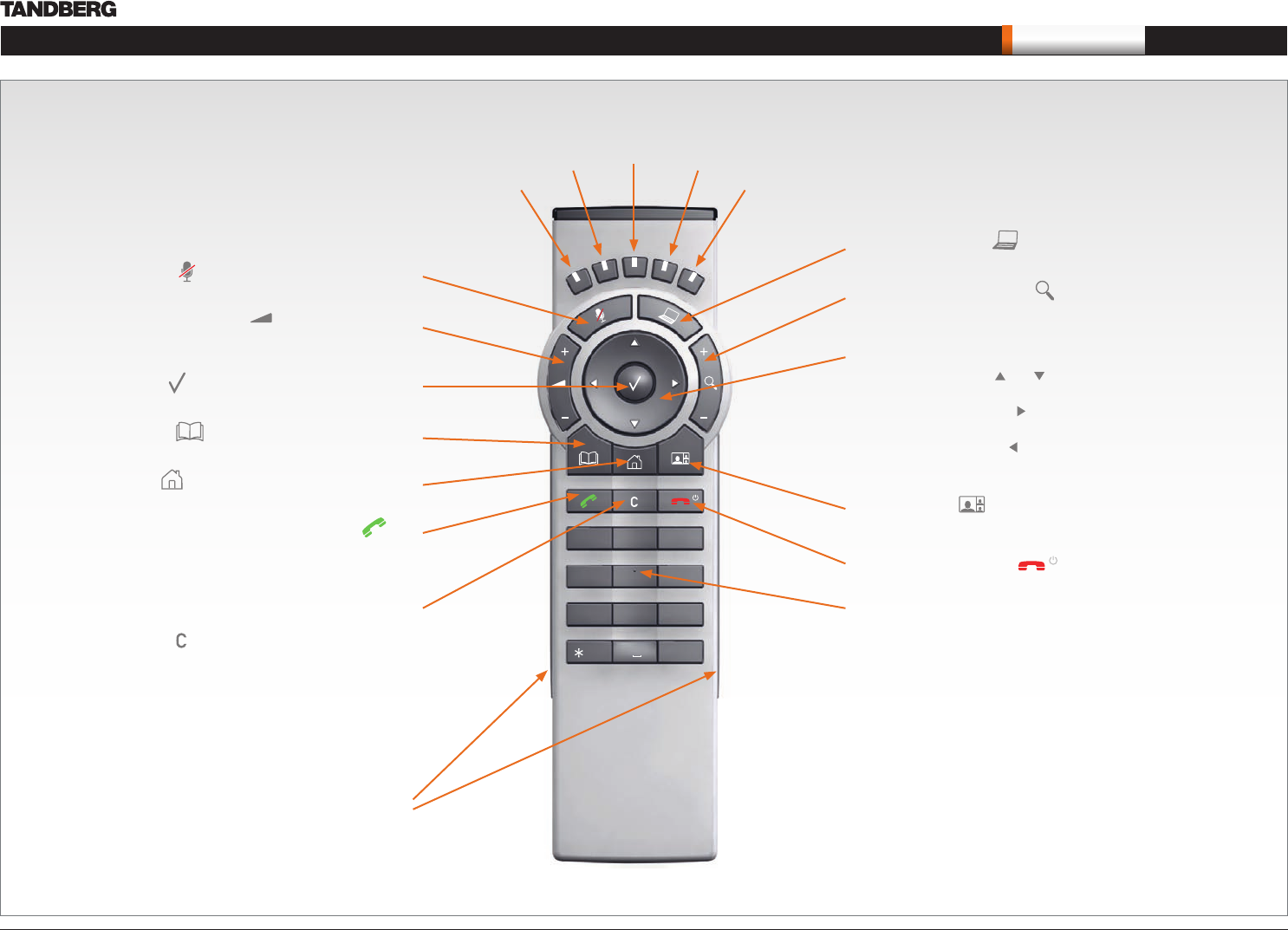
TANDBERG Remote Control TRC5
Microphone: Press the key to toggle the microphones on/off.
Volume: Press the + or – on the key to adjust the codec
volume.
OK/Select: Press the key to confirm your choice or selection.
Phone book: Press the key to display the local Phone book.
Home: Press the key to key to show the menu on screen.
Call: Using the key:
INITIATE A CALL: Select a name from the Phone book or enter the
name, number or URI and press the Call key to initiate the call.
SHORTCUT TO RECENT CALLS: Use the Call key as a shortcut to
Recent Calls when the Call menu is not visible.
Clear: Press the key to remove characters in a text field.
4
7
ghi
pqrs
6
#
abc/123
9
1
.@
5
0
8
jkl
tuv
2
abc
3
def
mno
wxyz
Function keys: Represents shortcuts and advanced
functions. Each key reflects a soft key on screen.
Presentation: Press the key to show/hide a presentation.
Zoom: Press the + or – on the key to zoom the camera in
and out.
Arrows:
Up/Down:• Use the and arrow keys to navigate in the
menu.
Arrow Right:• Press the arrow key to expand the selected
menu item or to move to the right in a text field.
Arrow Left:• Press the arrow key to go one step back in
the menu or to move to the left in a text field.
Layout: Press the key to display the Layout menu, then
select a view in the menu.
End call/Standby: Press the key to end a call, or when
idle, press and hold the key to go into standby mode.
Alphanumeric keypad: Use the keypad in the same way as you
would use a cellular phone.
0-9, a-z, period (.), @, space, *:• Press a key repeatedly to
toggle between the options displayed on each key.
abc/123 #:• Press the # key to toggle between touch tones
mode (long press), lower case characters and numbers.
Waking up the system
Grab the remote control and make sure your hand
touches the rubber line sensors going along both
sides of the remote control.
or: Touch any key on the remote control.
IR transmitter range (DIP switch setting)
The IR transmitter has a short and long range. Open the battery
cover and remove the batteries to set the DIP switch.
Short range (1 m): Move the DIP switch down.•
Longer range: Move the DIP switch up.•