
Codec C90 Administrator Guide


Table Of Contents
- Introduction
- Getting started
- About the menus
- The Settings menu
- Administrator Settings Library
- Description of the administrator settings
- The Audio settings
- The Camera settings
- The Conference settings
- The Do not disturb setting
- The H323 Profile settings
- The Network settings
- The Camera settings
- The Phone book server settings
- The Provisioning settings
- The Serial port settings
- The SIP Profile settings
- The Standby settings
- The System unit settings
- The Time zone setting
- The Video settings
- The Experimental menu
- Description of the administrator settings
- Cameras
- Appendices
- General room guidelines
- Guidelines for the executive meeting room
- Guidelines for the high end meeting room
- The Video Input Matrix
- Software upgrade
- Upload certificates
- XML files
- Log files
- NTP Time Zone expressions
- Supported RFCs in SIP
- TANDBERG Remote Control TRC5
- TANDBERG Remote Control TRC5 key map
- The PrecisionHD camera
- CE Declaration for Codec C90
- China RoHS table
- TANDBERG Codec C90 dimensions
- PrecisionHD 1080p camera dimensions
- PrecisionHD camera dimensions
- Technical specifications
D14129.02—NOVEMBER 2008
48
Codec C90
Administrator Guide
Contents Introduction Getting started About the menus About the settings Settings Library Cameras Appendices Contact us
Appendices
The certificates upload procedure
Contact your system administrator to obtain the required files (.PEM format).
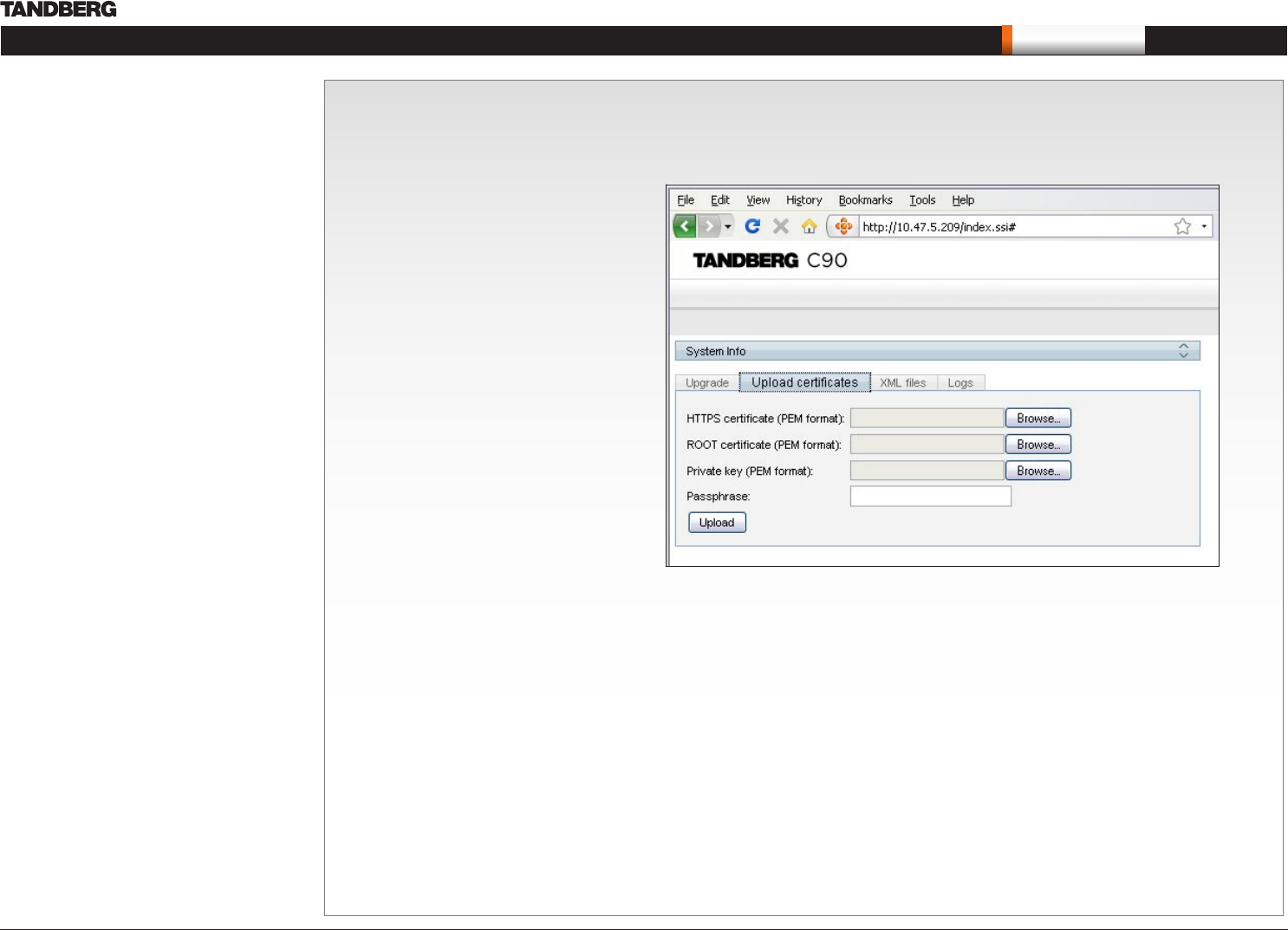
Upload certificates
The Upload certificates tab lets you upload a CA list
(ROOT certificate) to authenticate TLS connections
on SIP and a HTTPS certificate to enable HTTPS.
The system administrator issues/obtains and installs
unique certificates to each system.
For TLS connections a ROOT Certificate (CA-list) can
be uploaded from the web interface.
When the SIP setting TlsVerify is enabled, only TLS
connections to servers, whom x.509 certificate is
validated against the CA-list, will be allowed.
Go to: Settings > Administrator settings > Advanced
configuration > SIP > Profile > TlsVerify
To install a certificate, you need:
HTTPS certificate ( .PEM format)•
ROOT certificate ( .PEM format)•
Private key ( .PEM format)•
Passphrase (optional)•
How to upload the certificate
Open a web browser and enter the IP 1.
address to connect to the Codec C90
by HTTP.
Select the 2. Upload certificates tab
Click 3. Browse... and locate the
certificate files (.PEM)
Type in the 4. Passphrase
Click the 5. Upload button to start the
certificate installation.