
Codec C90 Administrator Guide


Table Of Contents
- Introduction
- Getting started
- About the menus
- The Settings menu
- Administrator Settings Library
- Description of the administrator settings
- The Audio settings
- The Camera settings
- The Conference settings
- The Do not disturb setting
- The H323 Profile settings
- The Network settings
- The Camera settings
- The Phone book server settings
- The Provisioning settings
- The Serial port settings
- The SIP Profile settings
- The Standby settings
- The System unit settings
- The Time zone setting
- The Video settings
- The Experimental menu
- Description of the administrator settings
- Cameras
- Appendices
- General room guidelines
- Guidelines for the executive meeting room
- Guidelines for the high end meeting room
- The Video Input Matrix
- Software upgrade
- Upload certificates
- XML files
- Log files
- NTP Time Zone expressions
- Supported RFCs in SIP
- TANDBERG Remote Control TRC5
- TANDBERG Remote Control TRC5 key map
- The PrecisionHD camera
- CE Declaration for Codec C90
- China RoHS table
- TANDBERG Codec C90 dimensions
- PrecisionHD 1080p camera dimensions
- PrecisionHD camera dimensions
- Technical specifications
D14129.02—NOVEMBER 2008
45
Codec C90
Administrator Guide
Contents Introduction Getting started About the menus About the settings Settings Library Cameras Appendices Contact us
PC
4
7
ghi
pqrs
6
#
abc/123
9
1
.@
5
0
8
jkl
tuv
2
abc
3
def
mno
wxyz
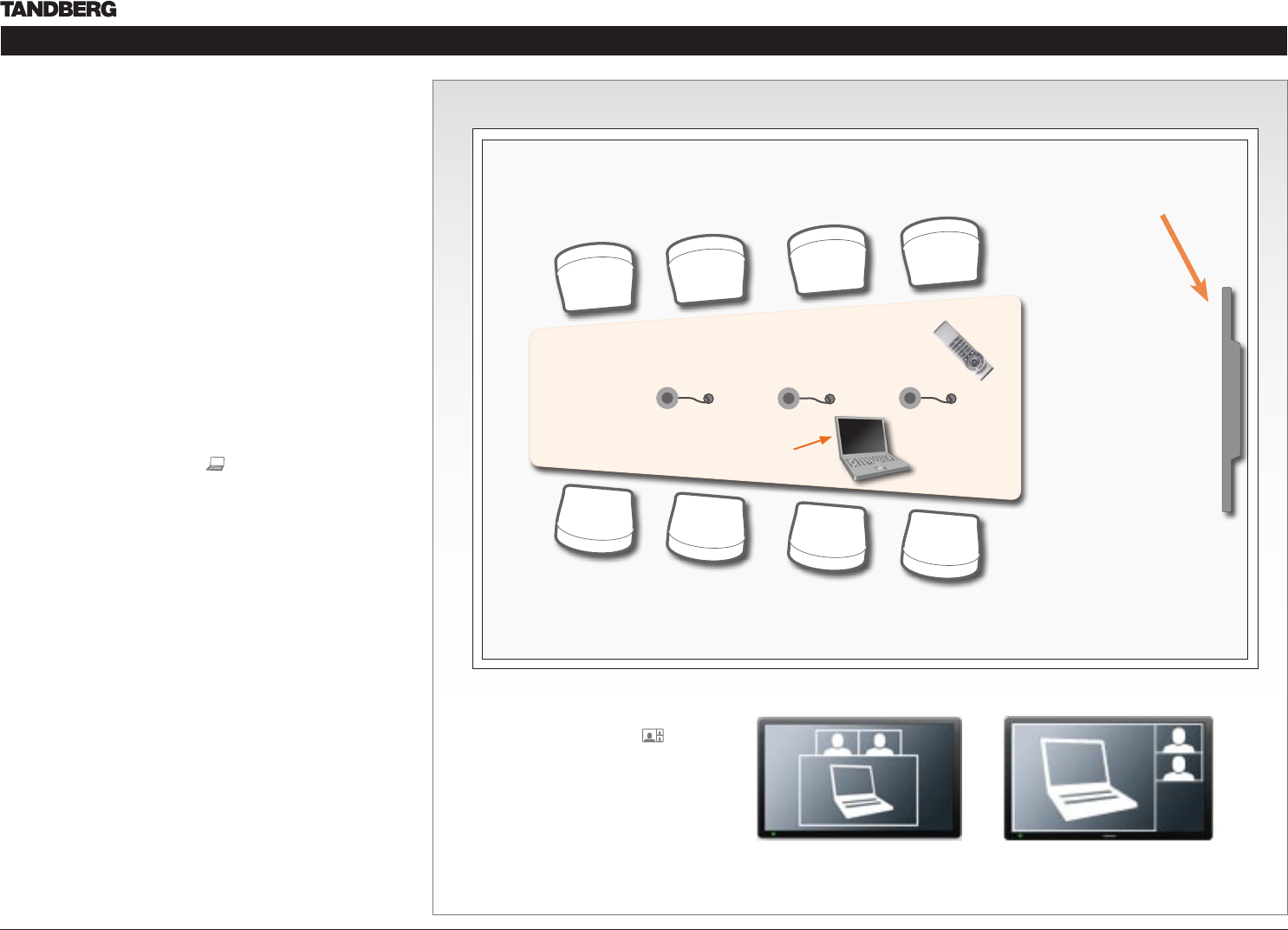
Sharing a PC presentation
General recommendations for high end team collaboration rooms,
team meeting rooms and showroom floor are described on the
previous page.
Dual video stream
With dual video stream you can view two different live video streams
simultaneously, the main video and one additional source. This could
for example be both a PC presentation and the person who gives the
presentation.
If one of the video systems does not support Dual Video Stream, no
second video stream will be established and the PC presentation will
be shown as the main video.
Sharing the presentation
Make sure the PC do not cover any of the microphones as this will 1.
reduce the audio quality at the far end
Locate the DVI cable and connect the PC to the video system2.
When pressing the PC button (3. ) on the remote control the
default presentation source is activated.
The DVI/VGA input is compliant with VESA Extended Display
Identification Data (EDID) and will be able to notify the PC of the
supported output formats.
Troubleshooting if the presentation does not show
On most PC’s you must press a special key combination to switch •
the PC image from the PC screen to the video screen
Make sure the connector used for PC presentation is configured as •
the default presentation source.
Go to: Home > Administrator settings > Advanced
configurations > Video > DefaultPresentationSource (the
default value is 3, and corresponds to ...Video > Input > Source 3)
Make sure your PC is set to activate your VGA output•
Other presentation sources
You can also connect other presentation sources like:
DVD•
Document camera•
Shows the PC presentation
and the participants
The screen layout
Press the Layout button on the
remote control to select a suitable
layout on screen.
The default layout when showing
a PC presentation is designed to
allow the participants to keep eye
contact with each other during the
presentation.
Default layout with a wide signal in
from the PC (currently only supported
on digital input)
Default layout with a 4/3 signal in from
the PC.