
Codec C90 Administrator Guide


Table Of Contents
- Introduction
- Getting started
- About the menus
- The Settings menu
- Administrator Settings Library
- Description of the administrator settings
- The Audio settings
- The Camera settings
- The Conference settings
- The Do not disturb setting
- The H323 Profile settings
- The Network settings
- The Camera settings
- The Phone book server settings
- The Provisioning settings
- The Serial port settings
- The SIP Profile settings
- The Standby settings
- The System unit settings
- The Time zone setting
- The Video settings
- The Experimental menu
- Description of the administrator settings
- Cameras
- Appendices
- General room guidelines
- Guidelines for the executive meeting room
- Guidelines for the high end meeting room
- The Video Input Matrix
- Software upgrade
- Upload certificates
- XML files
- Log files
- NTP Time Zone expressions
- Supported RFCs in SIP
- TANDBERG Remote Control TRC5
- TANDBERG Remote Control TRC5 key map
- The PrecisionHD camera
- CE Declaration for Codec C90
- China RoHS table
- TANDBERG Codec C90 dimensions
- PrecisionHD 1080p camera dimensions
- PrecisionHD camera dimensions
- Technical specifications
D14129.02—NOVEMBER 2008
13
Codec C90
Administrator Guide
Contents Introduction Getting started About the menus About the settings Settings Library Cameras Appendices Contact us
Getting started
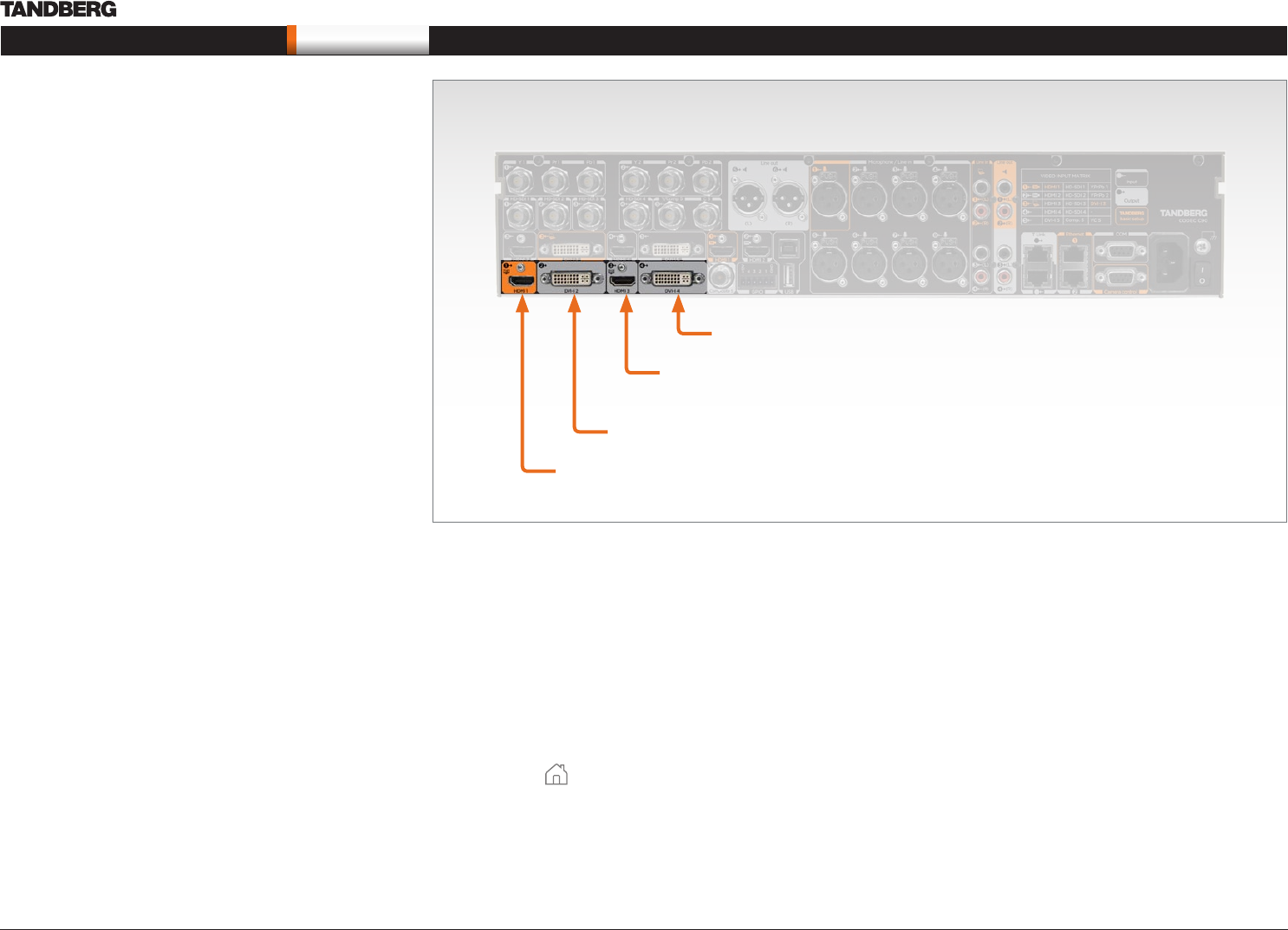
The video outputs at Codec C90
About main and dual monitors
The main monitor
The main monitor can be connected to the default video output HDMI
1 or one of the other outputs which are HDMI 3, DVI-I 2 or DVI-I 4.
Connecting to HDMI 1
When you connect the main monitor to the default video output on
Codec C90 the menu, icons and other information on screen (OSD -
on screen display) will show on this monitor.
Connecting to DVI-I 2, DVI-I 4, HDMI 3
When connecting the main monitor to another video output, and no
menu shows on screen, you must run a shortcut on the remote control
to reset the resolution and move the OSD to this output.
The resolution will be set to the default value, which is
1280x720@60Hz for HDMI and 1024x768@60Hz for DVI.
The menu on screen, icons and other information (OSD - on screen
display) will be moved to the selected output.
Key sequence
If connected to DVI-I 2, DVI-I 4 or HDMI 3 you must run the following
shortcut or key sequence on the remote control.
Disconnect * # * # 0• x # (where x is output 2, 3 or 4)
Example: Set DVI-I 2 as the OSD output:
Disconnect * # * # 0 2 #•
You can also set the resolution and the OSD output by setting up a
serial port connection and run API commands. See the Codec C90
System Integrator Guide for information about API commands.
Dual monitors
When you want to run a dual monitor setup, connect the second
monitor to video output HDMI 3 on Codec C90.
Dual monitor configuration
Go to Administrator settings to set the monitor to dual:
Navigate to Settings > Administrator Settings > Video > Output > 1.
Monitor
Set the 2. Monitor to Dual.
Press 3. Home ( ) to exit.
HDMI 1
(the default connector
for the main monitor)
DVI-I 2
HDMI 3
(the default connector
for the dual monitor)
DVI-I 4