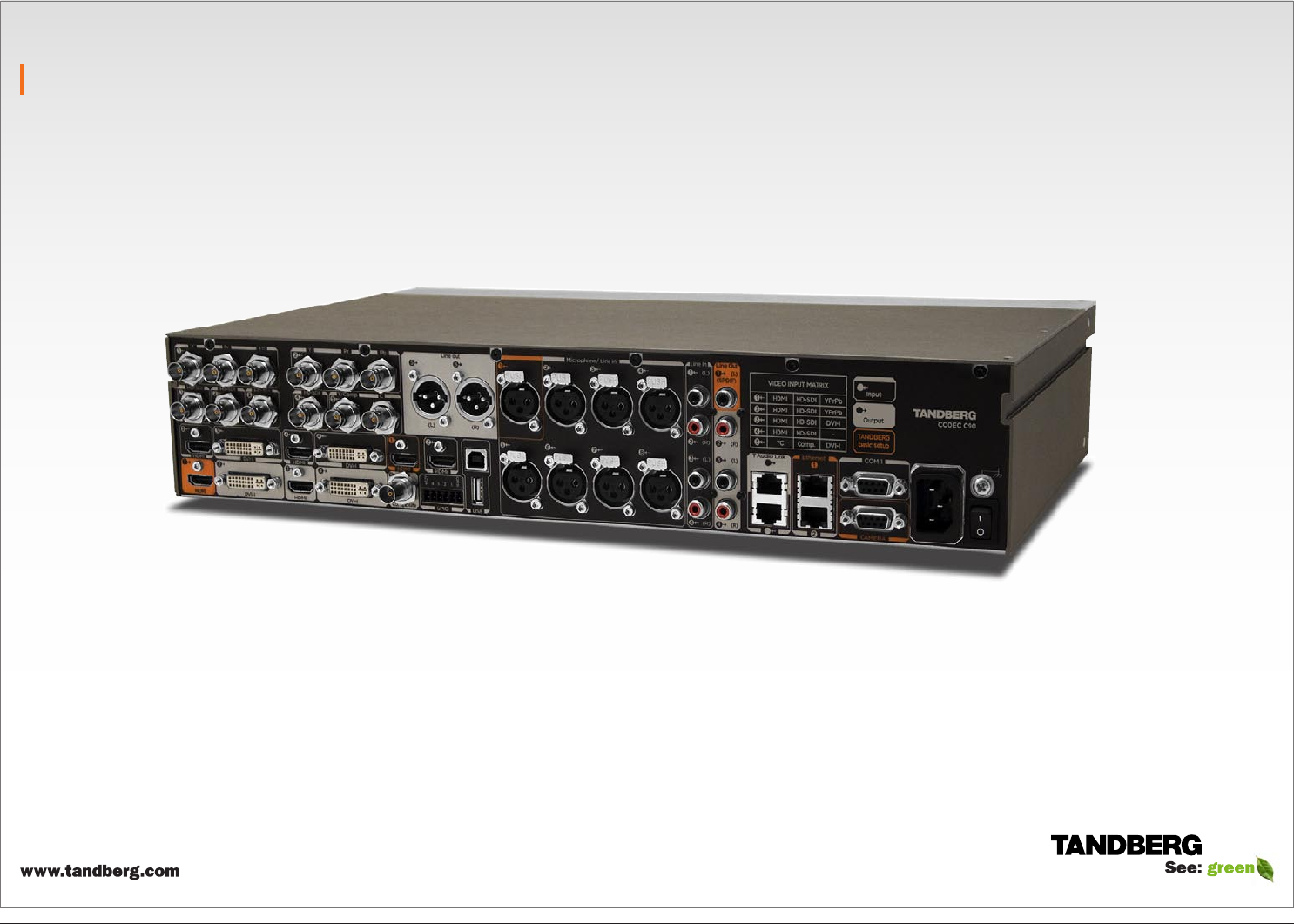
Software version TC1.0 NOVEMBER 2008 TANDBERG Codec C90 Administrator Guide D14129.
Codec C90 Contents Contents Introduction What’s in this guide? The top menu bar and the entries in the Table of Contents are all hyperlinks, just click on them to go to the topic. Administrator Guide Getting started About the menus About the settings Settings Library Table of Contents Introduction Intellectual Property Rights............................................................ 4 Trademark...................................................................................... 4 Disclaimer.......
Codec C90 Contents Introduction Introduction Administrator Guide Getting started About the menus About the settings Settings Library Cameras Appendices Contact us Chapter 1 Introduction Thank you for choosing TANDBERG! Your TANDBERG Codec C90 has been designed to give you many years of safe, reliable operation. In this chapter...
Codec C90 Contents Introduction Introduction Administrator Guide Getting started About the menus About the settings Settings Library Cameras Appendices Contact us Intellectual Property Rights Disclaimer Patent Information This Administrator Guide and the Products to which it relates contain information that is proprietary to TANDBERG and its licensors. Information regarding the Products is found on the page entitled License Agreements and Patent Information.
Codec C90 Contents Introduction Introduction Safety Instructions For your protection please read these safety instructions completely before you connect the equipment to the power source. Carefully observe all warnings, precautions and instructions both on the apparatus and in these operating instructions.
Codec C90 Contents Introduction Introduction Environmental Issues Thank you for buying a product which contributes to a reduction in pollution, and thereby helps save the environment. Our products reduce the need for travel and transport and thereby reduce pollution. Our products have either none or few consumable parts (chemicals, toner, gas, paper).
Codec C90 Contents Introduction Administrator Guide Getting started started Getting About the menus About the settings Settings Library Cameras Appendices Contact us Chapter 2 Getting started This chapter introduces you to the codec and gets you up and going. This guide has been divided into several chapters, all of which provide different information. You can access the chapters directly by clicking on the menu bar at the top of this page. In this chapter...
Codec C90 Contents 1 Introduction Administrator Guide Getting started started Getting About the menus About the settings Settings Library Cameras Appendices Contact us Assemble your system The illustration shows you the basic setup when connecting your monitor, PC, camera, microphone, loudspeakers (if applicable), LAN and line voltage to your codec.
Codec C90 Contents Introduction Administrator Guide Getting started started Getting About the menus About the settings Settings Library Cameras Appendices Contact us Using the Remote Control The functions keys in the upper part of the remote control reflects the soft keys on screen. ARROW LEFT: Press the left arrow key to go one step back in the menu or to move to the left in a text field. ... and the middle part of the remote control is used to handle the video part of the call. 1 .
Codec C90 Contents Introduction Using the Remote Control, cont... The functions keys in the upper part of the remote control reflects the soft keys on screen. Administrator Guide Getting started started Getting About the menus 1 .@ 2 abc def 3 5 jkl mno 6 7 pqrs 8 tuv wxyz 9 0 abc/123 # Cameras Appendices ALPHANUMERIC KEYPAD INITIATE CALL: Select a name from the Phone book or enter the name, number or URI and press the Call key to initiate the call.
Codec C90 Contents 1 Introduction Administrator Guide Getting started started Getting About the menus Turn on the system • Turn on the codec and wait a few minutes for the system to start • Make sure the remote control has the batteries installed. • Press Home ( • When you can see the menu on screen, proceed to Step 2.
Codec C90 Contents 4 Introduction Administrator Guide Getting started started Getting About the menus Add the system to the network Your service provider should have provided you with the information you need to get on-line. About the settings 5 Settings Library Cameras Appendices Contact us Verify your settings We strongly recommend that you verify the settings by inspecting the System Information list.
Codec C90 Contents Introduction Administrator Guide Getting started started Getting About main and dual monitors About the menus About the settings Settings Library Cameras Appendices Contact us The video outputs at Codec C90 The main monitor The main monitor can be connected to the default video output HDMI 1 or one of the other outputs which are HDMI 3, DVI-I 2 or DVI-I 4.
Codec C90 Contents Introduction Administrator Guide Getting started About the the menus menus About About the settings Settings Library Cameras Appendices Contact us Chapter 3 About the menus In this chapter... Explains the menu system D14129.
Codec C90 Contents Introduction Administrator Guide Getting started About the the menus menus About About the settings Settings Library Cameras Appendices Contact us About the menus The menu system is divided into three levels: HOME 1. The Home menu The Home menu 2. The Settings menu Press the 3.
Codec C90 Contents Introduction Administrator Guide Getting started About the menus Admin. menu About Settings the settings Settings Library Cameras Appendices Contact us Chapter 4 The Settings menu In this chapter... Explaining the administrator settings D14129.
Codec C90 Contents Introduction Administrator Guide Getting started Administrator settings About the menus Admin. menu About Settings the settings Settings Library Cameras Appendices Contact us If IP Assignment is set to DHCP the IP address, Subnet Mask and Gateway will automatically be assigned to the codec from the DHCP server. HOME The Administrator settings menu lets the user configure the IP settings and the system settings.
Codec C90 Contents Introduction Administrator Guide Getting started Administrator settings, cont... Open the IP address menu to configure the IP settings • Open the Advanced configuration menu to access the system configuration settings Settings Library Cameras Appendices Contact us HOME The Administrator settings menu lets the user: • About the menus Admin.
Codec C90 Contents Introduction Administrator Guide Getting started About the menus About the settings The settings library Settings Library Cameras Appendices Contact us Chapter 5 Administrator Settings Library In this chapter... This chapter gives a detailed description of the administrator settings The administrator settings defines the system settings and are structured in a hierarchy, making up a database of system settings.
Codec C90 Contents Introduction Administrator Guide Getting started About the menus About the settings Description of the administrator settings In the following pages you will find a complete list of the administrator settings. The examples shows either the default value or an example of a value. We recommend you visit the TANDBERG web site regularly for updated versions of the manual. Go to: http://www.tandberg.
Codec C90 Contents Introduction Administrator Guide Getting started About the menus About the settings The settings library Settings Library Cameras Appendices Audio Input Line [1..4] Level: <0..18> Audio Output Line [2, 4..6] Type: Defines the input level of each Line input in steps of 1dB from 0dB to 18 dB. Addresses the specific Audio Line input. Line output 2, 4, 5, 6 are dedicated analog outputs, hence type can be set to analog only.
Codec C90 Contents Introduction Administrator Guide Getting started About the menus About the settings The settings library Settings Library Cameras Appendices Contact us Audio SoundsAndAlerts RingVolume: <0..100> Cameras Camera [1..7] Flip: Defines the volume of the ring tone for an incoming call. Applies to cameras which supports Flip mode. Enables the video on screen to be flipped upside down. Addresses the specific camera.
Codec C90 Contents Introduction Administrator Guide Getting started About the menus About the settings Cameras Camera [1..7] Whitebalance Level: <1..16> Specify which camera to control. Define the Whitebalance Level for the camera. Requires the Whitebalance Mode to be set to manual. Addresses the specific camera. Range: 1-16 Example: Cameras Camera 1 Whitebalance Level: 1 The settings library Settings Library Cameras Appendices Contact us The Conference settings Conference [1..
Codec C90 Contents Introduction Administrator Guide Getting started About the menus About the settings Off: The system will not use encryption. The settings library Settings Library Cameras Appendices Contact us The H323 Profile settings Example: Conference 1 Encryption Mode: BestEffort Conference [1..1] DefaultCall Protocol: Specify the Default Call Protocol to be used when placing calls from the system.
Codec C90 Contents Introduction Administrator Guide Getting started About the menus About the settings H323 Profile [1..1] Gatekeeper Discovery: The settings library Settings Library Cameras Appendices Contact us The Network settings Determines how the system shall register to a H.323 Gatekeeper. Manual: The system will use a specific Gatekeeper identified by the Gatekeeper’s IP-address. Auto: The system will automatically try to register to any available Gatekeeper.
Codec C90 Contents Introduction Administrator Guide Getting started About the menus About the settings The settings library Settings Library Cameras Appendices Contact us Network [1..1] IPv4 QoS Diffserv Audio: <0..63> Network [1..1] DNS Server [1..5] Address: The DiffServ Audio setting is used to define which priority Audio packets should have in an IP network. Enter a priority, which ranges from 0 to 63 for the packets. The higher the number, the higher the priority.
Codec C90 Contents Introduction Administrator Guide Getting started About the menus About the settings The settings library Settings Library Cameras Appendices NetworkServices SNMP Mode: NetworkServices H323 Mode: SNMP (Simple Network Management Protocol) is used in network management systems to monitor network-attached devices (routers, servers, switches, projectors, etc) for conditions that warrant administrative attention.
Codec C90 Contents Introduction Administrator Guide Getting started About the menus About the settings The Phone book server settings The settings library Settings Library Cameras Appendices Contact us Provisioning ExternalManager Protocol: Determines whether or not to use secure management. Phonebook Server [1..5] ID: Enter a name for the external phonebook. Addresses the specific phonebook. HTTP: Set to HTTP to disable secure management.
Codec C90 Contents Introduction Administrator Guide Getting started About the menus About the settings The SIP Profile settings The settings library Settings Library Cameras Appendices Contact us SIP Profile [1..1] Proxy [1..1] Discovery: Manual: When Manual is selected, the manually configured SIP Proxy address will be used SIP Profile [1..1] URI [1..1]: The SIP URI or number is used to address the system.
Codec C90 Contents Introduction Administrator Guide Getting started About the menus About the settings The settings library Settings Library Cameras Appendices Contact us The System unit settings The Video settings SystemUnit Name: Video Selfview: Enter a System Name to define a name of the system unit. If the H.323 Alias ID is configured on the system then this ID will be used instead of the system name.
Codec C90 Contents Introduction Administrator Guide Getting started About the menus About the settings The settings library Settings Library Cameras Appendices Video OSD Mode: Video Input Source 2 Connector: The Video OSD (On Screen Display) Mode lets you define whether or not information and icons on screen should be displayed.
Codec C90 Contents Introduction Administrator Guide Getting started About the menus About the settings Video Output HDMI [1, 3] Resolution: <640_480_60/800_600_60/1024_768_60/1280_1024_ 60/1280_720_60/1920_1080_60/1280_768_60/1360_768_60/1366_768_60> Select the preferred resolution for the monitor connected to video output HDMI 1 or 3. This will force the selected resolution on the monitor.
Codec C90 Contents Introduction Administrator Guide Getting started About the menus About the settings Settings Library Cameras Cameras Appendices Contact us Chapter 6 Cameras Your TANDBERG PrecisionHD 1080p Camera has been designed to give you many years of safe, reliable operation. Additional information about the camera is found in the TANDBERG PrecisionHD 1080p User Guide. In this chapter...
Codec C90 Contents Introduction Administrator Guide Getting started About the menus About the settings Cameras Cameras Settings Library Appendices Contact us The PrecisionHD 1080p camera Video out (HDMI, HD-SDI). For video signals, connect from the video out on the camera to the video in on the codec. Power and camera control. For power in and camera control, connect from the camera control & power on the camera to the Camera port on the codec.
Codec C90 Contents Introduction Administrator Guide Getting started About the menus About the settings Settings Library Cameras Cameras Appendices Contact us Connecting the camera The HDMI and HD-SDI can be used simultaneously. HDMI cable The HDMI cable delivered with the camera is 5 meters. Maximum length is 15 meter with a category 2 certified good quality HDMI cable. HD-SDI cable HD-SDI socket The HD-SDI cable must be purchased separately.
Codec C90 Contents Introduction Administrator Guide Getting started About the menus About the settings Settings Library Cameras Cameras Appendices Contact us Best view—Face recognition This camera is capable of face recognition when used with TANDBERG C90 Codecs. Consequently, the functionality is subject to change without further notice in order to take advantage of further developments. NOTE: Observe that the Best view feature is still a preview feature.
Codec C90 Contents Introduction Administrator Guide Getting started About the menus About the settings Cameras Cameras Settings Library Appendices Contact us Video output formats This section describes the video output formats for the TANDBERG PrecisionHD 1080p camera. DIP switch settings for video output formats The video output format for the camera is set by DIP switches. The DIP switches are found on the bottom side of the camera.
Codec C90 Contents Introduction Cameras in daisy chain Administrator Guide Getting started About the menus About the settings Settings Library Cameras Cameras Appendices Contact us Example. Four daisy chained TANDBERG PrecisionHD 1080p cameras. A single daisy chain can have up to seven cameras. Cascaded cameras The sockets named Extra Camera and Power In are used when connecting cameras in daisy chain. • HDMI and HD-SDI. The HDMI and HD-SDI can be used simultaneously on the same camera.
Codec C90 Contents Introduction Administrator Guide Getting started About the menus About the settings Settings Library Cameras Appendices Appendices Contact us Chapter 7 Appendices In this chapter...
Codec C90 Contents Introduction Administrator Guide Getting started General room guidelines About the menus About the settings Settings Library Lighting • The illumination should be distributed evenly in the room to obtain low contrast • The ideal light intensity is a little higher than in an ordinary meeting room.
Codec C90 Contents Introduction The audio quality To keep the high quality audio, make sure there is free sight to the speaker module • There should be free sight between the ears of the participants and the system speaker module • Participant sitting too far away from the video system may not have the same audio quality as the others.
Codec C90 Contents Introduction Administrator Guide Getting started About the menus About the settings Settings Library Cameras Appendices Contact us Guidelines for the executive meeting room For executive meeting rooms and the executive office. General recommendations for the room layout Video system To fully utilize the telepresence experience there are some guidelines you should consider.
Codec C90 Contents Introduction Administrator Guide Getting started About the menus About the settings Settings Library Cameras Appendices Contact us Sharing a PC presentation General recommendations for the executive meeting room and executive office are described on the previous page. Dual video stream With dual video stream you can view two different live video streams simultaneously, the main video and one additional source.
Codec C90 Contents Introduction Administrator Guide Getting started About the menus About the settings Settings Library Cameras Appendices Contact us Guidelines for the high end meeting room For high end team collaboration rooms, team meeting rooms and showroom floor. General recommendations for the room layout To fully utilize the telepresence experience there are some guidelines you should consider.
Codec C90 Contents Introduction Administrator Guide Getting started About the menus About the settings Settings Library Cameras Appendices Contact us Sharing a PC presentation General recommendations for high end team collaboration rooms, team meeting rooms and showroom floor are described on the previous page.
Codec C90 Contents Introduction Administrator Guide Getting started About the menus About the settings Settings Library Appendices Appendices Cameras Contact us The Video Input Matrix The video input matrix is found at the rear side of the codec and illustrates the combinations in which the video inputs can be connected. Line in About the matrix Video input matrix Only one video input source from each row can be active at any time.
Codec C90 Contents Introduction Software upgrade The Upgrade tab lets you select the software upgrade file for TANDBERG Codec C90 and install the new software. Please follow the procedure described on this page. Administrator Guide Getting started About the menus About the settings Settings Library Cameras Appendices Appendices Contact us The software upgrade procedure Contact your TANDBERG representative to obtain the software upgrade file. 1.
Codec C90 Contents Introduction Upload certificates The Upload certificates tab lets you upload a CA list (ROOT certificate) to authenticate TLS connections on SIP and a HTTPS certificate to enable HTTPS. The system administrator issues/obtains and installs unique certificates to each system. For TLS connections a ROOT Certificate (CA-list) can be uploaded from the web interface. When the SIP setting TlsVerify is enabled, only TLS connections to servers, whom x.
Codec C90 Contents Introduction XML files The XML files tab gives a complete overview of the status of the system and the commands available on XML format.
Codec C90 Contents Introduction Administrator Guide Getting started About the menus About the settings Log files Debug log files In the Logs tab you will find debug log files. Select a debug log file by clicking on the name of the file. These are TANDBERG specific debug files which may be required by TANDBERG in the need of technical support. Some of the log files can be opened or saved. Settings Library Cameras Appendices Appendices Contact us Some of the log files can be saved.
Codec C90 Contents Administrator Guide Introduction Getting started About the menus About the settings Settings Library Cameras Appendices Appendices Contact us NTP Time Zone expressions With reference to the Time zone setting in the Administrator settings menu, see the Settings library section. Specifies the NTP time zone where the system is located.
Codec C90 Contents Administrator Guide Introduction Getting started About the menus About the settings Settings Library Cameras Appendices Appendices Contact us NTP Time Zone expressions, cont...
Codec C90 Contents Introduction Administrator Guide Getting started About the menus About the settings Settings Library Cameras Appendices Appendices Contact us NTP Time Zone expressions, cont...
Codec C90 Contents Introduction Administrator Guide Getting started About the menus About the settings Settings Library Cameras Appendices Appendices Contact us Supported RFCs in SIP Current RFCs and drafts supported in SIP • RFC 4574 The Session Description Protocol (SDP) Label Attribute The RFC (Request for Comments) series contains technical and organizational documents about the Internet, including the technical specifications and policy documents produced by the Internet Engineering Task F
Codec C90 Contents Introduction Administrator Guide Getting started TANDBERG Remote Control TRC5 About the menus About the settings Settings Library Cameras Contact us Function keys: Represents shortcuts and advanced functions. Each key reflects a soft key on screen. Presentation: Press the Microphone: Press the Appendices Appendices key to show/hide a presentation. key to toggle the microphones on/off. Volume: Press the + or – on the Zoom: Press the + or – on the and out.
Codec C90 Contents Introduction TANDBERG Remote Control TRC5 key map The TANDBERG Remote control TRC5 has the following button codes and IR signal parameters.
Codec C90 Contents Introduction Administrator Guide Getting started About the menus About the settings Settings Library The PrecisionHD camera Cameras TANDBERG Precision HD camera Connecting the camera Video out. For video out signals, connect from the HDMI on the camera to a HDMI video input on the codec. Power and camera control. For power in and camera control, connect from the camera control & power on the camera to the Camera port on the codec.
Codec C90 Contents Introduction Administrator Guide Getting started About the menus About the settings Settings Library Cameras Appendices Appendices Contact us CE Declaration for Codec C90 For an official, signed version of this document, or details regarding documentation from the technical construction file, please contact TANDBERG.
Codec C90 Contents Introduction Administrator Guide Getting started About the menus About the settings Settings Library Cameras Appendices Appendices Contact us China RoHS table This product complies with the Chineese RoHS. D14129.
Codec C90 Contents Introduction Administrator Guide Getting started About the menus About the settings Settings Library Cameras Appendices Appendices Contact us TANDBERG Codec C90 dimensions The TANDBERG Codec C90 dimensions in mm. 465,0 68,0 10,0 Left side view 66,0 88,0 Front view 32,0 486,0 442,0 285,0 Top view D14129.
Codec C90 Contents Introduction Administrator Guide Getting started About the menus About the settings Settings Library Appendices Appendices Cameras Contact us PrecisionHD 1080p camera dimensions 142,0 105,0 4,4 148,1 105,9 (eye centre) 32,2 62,4 20,5 2,5 2,5 220,0 125,4 190,0 ø79,6 14,0 63,0 114,6 34,5 106,3° ø82,0 D14129.
Codec C90 Contents Introduction Administrator Guide Getting started About the menus About the settings Settings Library Cameras Appendices Appendices Contact us PrecisionHD camera dimensions D14129.
Codec C90 Contents Introduction Technical specifications Administrator Guide Getting started About the menus About the settings Settings Library Cameras 1280x720@30 fps (720p30) • 1280x768@60fps (WXGA) • 1280x720@25 fps (720p25) • 1024x768@60fps (XGA) • 2 x RCA/Phono, Line Level: Stereo PC input • 1280x1024@60fps (SXGA) • 2 x RCA/Phono, Line Level: Stereo auxiliary/ DVD input • 2 x HDMI, digital: Stereo PC/DVD inputs 2 x DVI-I inputs, supported formats: • 640x480@60fps (VGA) Video
Codec C90 Contents Introduction Administrator Guide Getting started About the menus About the settings Settings Library Appendices Appendices Cameras Contact us IP NETWORK FEATURES • 1920x1080@25fps STORAGE AND TRANSPORT TEMPERATURE MTBF PRODUCT RELIABILITY/MTBF • DNS lookup for service configuration • 1280x720@60fps • • Differentiated Services (QoS) • 1280x720@50fps • IP adaptive bandwidth management (including flow control) • 1280x720@30fps • Auto gatekeeper discovery • 1280x
Codec C90 Contents Introduction Administrator Guide Getting started About the menus About the settings U.S. HEADQUARTERS TANDBERG 1212 Avenue of the Americas 24th Floor New York, NY 10036 Telephone: +1 212 692 6500 Fax: +1 212 692 6501 Video: +1 212 692 6535 E-mail: tandberg@tandberg.com D14129.