SV-2003-X2 Server Operations Manual TAG 22355 TAG Way Dulles, VA 20166
Operations Manual 1 Copyright © 2008 Technology Advancement Group®, Inc. (TAG®) All rights reserved. This publication and its contents are proprietary to TAG. No part of this publication may be reproduced in any form or by any means without the written permission of TAG, 22355 TAG Way, Dulles, Virginia 20166-9310. TAG has made every effort to ensure the correctness and completeness of the material in this document. TAG shall not be liable for errors contained herein.
Operations Manual 2 About This Manual 2.1 Scope and Audience This manual provides information on the SV2003-X2 Server. The SV-2003-X2 Server allows for up to 8 cores in a 2U chassis as well as up to 64GB of RAM. Each server features (2) Dual Core LV Xeon processors to maximize processing performance, while reducing power dissipation. Each server is capable of handling (2) Quad-Core Xeon processors. The dual server suite meets military standards such as shock, vibration, and humidity.
Operations Manual 2.2 About TAG 2.2.1 Summary of Qualifications Providing engineering services and solutions for our national defense and homeland security is a responsibility that we don't take lightly. TAG is a recognized industry leader in developing defense technologies and advanced electronics that support some of the most complex solutions for battlespace information networks and management systems in the world.
Operations Manual as DSN, GIG, STEP, GBS, and JTRS. This includes the custom ruggedization of commercial-off-the-shelf (COTS) and nondevelopmental items (NDI). TAG's mechanical engineering division designs and fabricates custom hardened enclosures, using high performance metal materials, to house and protect a variety of sensitive devices and controls.
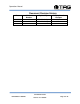
Operations Manual Document Revision History Date 02/14/2008 03/20/2008 Version Number 1.0 1.1 Updated By Alan Huckerby Alan Huckerby Description of Changes Author Author SV-2003-X2 Server Part Number: 1006446 Page 6 of 72 Version 1.0.
Operations Manual Table of Contents Contents 1 Copyright © 2008 Technology Advancement Group®, Inc. (TAG®) ............................ 2 1.1 Trademarks ............................................................................................................ 2 2 About This Manual ....................................................................................................... 3 2.1 Scope and Audience ..............................................................................................
Operations Manual 5.4 Upgrading Memory and Replacing Hot-Swap and LRU Components .................... 58 5.4.1 Preventing Static Electricity ............................................................................... 58 5.5 Replacing a Hot-Swap Power Supply Module ........................................................ 59 5.6 Replacing a Hot-Swap Hard Drive .......................................................................... 60 5.6.1 147GB SAS Hard Drive ..........................................
Operations Manual List of Figures Figure 4-1 SV-2003-X2 Server Components and Connectors (Front View) ................. 17 Figure 4-2 Server Mother Board .................................................................................... 18 Figure 4-3 Server Mother Board .................................................................................... 19 Figure 4-4 I/O Connectors .............................................................................................
Operations Manual Figure 5-38 Processor Configuration............................................................................. 51 Figure 5-39 Processor Configuration............................................................................. 52 Figure 5-40 Memory Configuration ................................................................................ 52 Figure 5-41 ATA Controller Configuration .....................................................................
Operations Manual Chapter 1 Cautions and Warnings. Electronically distributed. Subject to user discretion when printed. SV-2003-X2 Server Part Number: 1006446 Page 11 of 72 Version 1.0.
Operations Manual 3 Safety Instructions 3.1 Types of warnings used in this manual Read this manual thoroughly, paying special attention to the cautions and warnings. 3.1.1 Safety Symbols and Labels DANGER WARNING CAUTION These warnings and cautions indicate situations or practice that might result in property damage. 3.1.2 Conventions 3.1.2.1 Important Messages Important messages appear where mishandling of components is possible or when work orders can be misunderstood.
Operations Manual 3.1.2.3 Cautions Cautionary messages should also be heeded to help you reduce the chance of losing data or damaging the system. Cautions are easy to recognize. The word “caution” is written as “CAUTION,” both capitalized and bold and is followed by text in italics. The italicized text is the cautionary message. 3.1.2.4 Notes Notes inform the reader of essential but noncritical information.
Operations Manual Chapter 2 SV-2003-X2 Server. Electronically distributed. Subject to user discretion when printed. SV-2003-X2 Server Part Number: 1006446 Page 14 of 72 Version 1.0.
Operations Manual 4 Server Overview 4.1 Product Information This chapter provides an introductory overview of the TAG family of rugged servers. TAG servers are highly customizable; the specific components vary depending on the mission requirements. Your system may contain components not described in this chapter. For detailed information on these components, refer to the manufactures website or contact TAG Technical Support at tech.support@tag.com.
Operations Manual • • • • • • • • Intel 5000P chipset, 1333MHz FSB On-board ATI graphics controller with 16MB RAM On-board SATA controllers (2) 10/100/1000 Ethernet ports One serial port (RJ-45 connection (2) USB 2.0 ports front, (2) USB 2.
Operations Manual 4.2.3 Server Highlights • The SV-2003-X2 is unlike any other server that is currently on the market.
Operations Manual 4.3.1 Motherboard and Type The version of an Intel server motherboard can be determined by decoding the last three digits of the board part number. For example: For the product C44686-703, the number following the "-" is as follows: 7 = Fabrication (FAB) Number 03 = Revision 3. The board part number can be found on the motherboard. The board part number can also be determined by using Intel Server Management software. 4.3.
Operations Manual 4.3.3 Connector and Component Locations Figure 4.3 shows the board layout of the server board. Each connector and major component is identified by a number or letter, and a description is given below in Table 4.3. Figure 4-3 Server Mother Board SV-2003-X2 Server Part Number: 1006446 Page 19 of 72 Version 1.0.
Operations Manual Table 4-1 Mother Server Board Components 4.4 System Memory The type and amount of system memory, or RAM (random access memory), on your server depends on the motherboard installed and how it was configured. 4.4.1 Identifying System Memory Refer to your Motherboard and Type on Page 19.” Once you have identified the motherboard, TAG technical support can assist you in determining the type and amount of system memory in your system.
Operations Manual For information on replacing or upgrading your system memory, refer to “Adding and Replacing System Memory on page 58.” 4.5 TAG Approved BIOS The BIOS (basic input/output system) is the program stored on the CMOS that the server's microprocessor uses to get the system started after you turn it on. The BIOS also manages data flow between the computer's operating system and attached devices such as the hard disk, video adapter, keyboard, and mouse.
Operations Manual 4.5.1.2 Com / Serial Port Most personal computers have two serial ports. In the BIOS you can assign COM1/COM2/COM3/COM4 to serial port 1 or 2. Most BIOS' also allow you to set the I/O and IRQ but this is mostly done automatically. 4.5.1.3 Hard Drives Most modern BIOS' allow automatic detection of disk parameters. The settings can be individually configured for the primary master and slave device and the secondary master and slave device.
Operations Manual 4.5.1.4 Boot Sector Virus A common setting related to hard drives. When enabled, the BIOS issues a warning message/beep if an attempt is made to write to the boot sector or partition table of a hard disk. 4.5.1.5 Memory Parity adds an extra bit (odd or even) to the 8bit data-string to ensure data integrity in memory modules. Its successor, ECC, provides improved data integrity by adding information about individual bits. 4.5.1.
Operations Manual 4.5.1.9 Plug and Play BIOS Today's BIOS' are Plug and Play (PnP)-aware. This means they are able to automatically assign resources such as IRQ and DMA to PnP devices. Information about PnP devices is stored in a separate area of non-volatile CMOS memory, called the Extended System Configuration Database (ESCD). Both the PnP BIOS and the operating system can access this area and communicate with each other about resource settings assigned to PnP devices as well as non-PnP devices.
Operations Manual Figure 4-4 I/O Connectors 4.7 Standard Server Components The following sections provide information on the standard system components installed on TAG servers 4.7.1 CD/DVD Drive The type of optical drive installed in your server varies per configuration. Figure 4.5. Figure 4-5 Slot-loading low-profile DVD±R (DL)/-RAM/CD-RW Drive SV-2003-X2 Server Part Number: 1006446 Page 25 of 72 Version 1.0.
Operations Manual 4.7.2 Dual-redundant, auto-sensing power supply Power for all the equipment in the system is a dual redundant Hot-Swap AC input Power supply with an Input AC Voltage Range of 115 Vrms nominal, 98 to 138 Vrms (-15%, +20%). Input Power Line Frequency The system shall operate over the input power frequency range of 60 Hz nominal, 56.4 to 63.6 Hz (- 6%, + 6%). Power Connector The AC input power connector is IEC 320 WARNING Power supplies contain dangerous voltages.
Operations Manual Figure 4-6 Hot-Swap Power Supply NOTE: If your server has two power input receptacles, then the server is equipped with a redundant Hot-Swap power supply. Section 5.8. 4.8 PCI I/O Expansion Cards The following sections provide on overview of the PCI I/O components that may be included with your server. For detailed information on these components, refer to the manufacturers' websites, or contact TAG Technical Support at tech.support@tag.com.
Operations Manual 4.8.2 PCI Audio Card The SV-2003-X2 server carries a PCI Sound Blaster 24 –bit Audio card with: • Patented CMSS 3D Audio Technology • EAX Music Enhancements • Full Windows Media Player 9 Support • Complete Cinematic Surround Sound 4.8.3 Intel Remote Management Module The Intel RMM2 is used for the initial server set-up, on-going production monitoring and troubleshooting, and for server recovery and maintenance.
Operations Manual • Security SSL, SSH, KVM Encryption, authentication using LDAP or RADIUS • Remote Management, power control or reset remote servers, monitor system sensors, and view the hardware event log • SMASH CLP, WS-MAN • Email Alert sends system administrators notifications via email of system changes . SV-2003-X2 Server Part Number: 1006446 Page 29 of 72 Version 1.0.
Chapter 3 Chapter 3 Procedures. Electronically distributed. Subject to user discretion when printed. SV-2003-X2 Server Part Number: 1006446 Page 30 of 72 Version 1.0.
Chapter 3 5 Procedures The procedures within this Chapter contain relevant information to ensure your SV-2003X2 Server maintains its maximum performance potential. 5.1 Installing Red Hat 4.5 for S5000PAL and Adaptec 3805 system 1. Make sure that the supplied floppy is in a USB floppy drive and attached to the system; be sure the DVD is in the DVD-ROM. 2. With the hard drives set in RAID, enter BIOS and confirm the boot order: [IDE PM: MATSHITACD...], [AAR-3805 PCI-E RAI...], [IBA GE Slot 0500 v...
Chapter 3 This will trigger the automated format and install onto the RAID. After the install is complete the DVD will eject and boot into the Linux OS. Figure 5-2 Introductory Screen 4. Press Enter Figure 5-3 Loading Drivers SV-2003-X2 Server Part Number: 1006446 Page 32 of 72 Version 1.0.
Chapter 3 After the drivers have been installed you will see the full welcoming screen that will allow you to install the full version of Linux 4.5. Figure 5-4 Welcome Screen 5. Press Next. This will take you to the language screen. Figure 5-5 Language Screen SV-2003-X2 Server Part Number: 1006446 Page 33 of 72 Version 1.0.
Chapter 3 6. At the language screen select English (English) and Press Next. Figure 5-6 Keyboard Selection 7. Select the appropriate keyboard selection and press Next. Figure 5-7 Search for previously installed installations SV-2003-X2 Server Part Number: 1006446 Page 34 of 72 Version 1.0.
Chapter 3 8. At the keyboard screen and after keyboard is chosen the system will automatically search for previously installed configurations. Press Next. Figure 5-8 Disk Partitioning Setup 9. Select Automatic Partitioning and Press Next. Figure 5-9 Disk Partition Warning SV-2003-X2 Server Part Number: 1006446 Page 35 of 72 Version 1.0.
Chapter 3 10. At the Disk Partitioning Warning Select YES and Press Next. Figure 5-10 Automatic partitioning At the Automatic partitioning screen Select “Remove all Partitions on this system.” Ensure that both driver sda-139784 MB ADAPTEC RAID stripe and Review (and modify if needed) the partitions created are checked. Press Next. Figure 5-11 Automatic Partitioning (Warning) SV-2003-X2 Server Part Number: 1006446 Page 36 of 72 Version 1.0.
Chapter 3 11. At the Automatic Partitioning screen a further warning will appear. Select YES and Press Next. Figure 5-12 Disk Setup 12. Leave the settings on default and Press Next. Figure 5-13 Boot Loader Configuration SV-2003-X2 Server Part Number: 1006446 Page 37 of 72 Version 1.0.
Chapter 3 13. Leave the settings on default and Press Next Figure 5-14 Firewall Configuration 14. Check “Enable Fire Wall” Press Next. Figure 5-15 Additional Language Support 15. At the “Additional Language Support” screen Check English (USA). Press Next. SV-2003-X2 Server Part Number: 1006446 Page 38 of 72 Version 1.0.
Chapter 3 Figure 5-16 Time Zone Selection 16. At the “Time Zone Selection” screen Select America/New York, Eastern Time. Press Next. Figure 5-17 Set Root Password SV-2003-X2 Server Part Number: 1006446 Page 39 of 72 Version 1.0.
Chapter 3 17. Enter and confirm account password. Must enter Password as “Password” selection. Press Next. Figure 5-18 Set Root Password (Confirmation) 18. Confirm Root User password selection. Press Next. Figure 5-19 Package Installation Defaults SV-2003-X2 Server Part Number: 1006446 Page 40 of 72 Version 1.0.
Chapter 3 19. On the “Package Installation Default” screen Select “Install Default Software Packages”. Press Next. Figure 5-20 About to Install CAUTION: Once you click Next there is no undo. 20. Press NEXT to begin installation. Figure 5-21 Installation SV-2003-X2 Server Part Number: 1006446 Page 41 of 72 Version 1.0.
Chapter 3 21. Press Next Figure 5-22 Still Installing Buttons are disabled. Figure 5-23 Installation Complete 22. Remove all diskettes or CD ROMs. Press REBOOT. 23. SV-2003-X2 Server Part Number: 1006446 Page 42 of 72 Version 1.0.
Chapter 3 Figure 5-24 System Check Figure 5-25 Welcome 24. Press Next. SV-2003-X2 Server Part Number: 1006446 Page 43 of 72 Version 1.0.
Chapter 3 Figure 5-26 License Agreement Check YES If you agree to the licensing agreement. Press Next. Figure 5-27 Set Date and Time 25. Set Date and Time for the system. Press Next. SV-2003-X2 Server Part Number: 1006446 Page 44 of 72 Version 1.0.
Chapter 3 Figure 5-28 Set Display Color and Resolution. 26. Press Next. Figure 5-29 Set Color Depth 27. Change the Resolution to “1024 x 768” (Your displays optional resolution. Default is 1024 x 768.). Press Next. SV-2003-X2 Server Part Number: 1006446 Page 45 of 72 Version 1.0.
Chapter 3 Figure 5-30 Display 28. Select Color display and Resolution. Press Next. Figure 5-31 System User (Non Administrative) 29. Press Next. SV-2003-X2 Server Part Number: 1006446 Page 46 of 72 Version 1.0.
Chapter 3 Figure 5-32 Personal user Account 30. Create a Personal User Account. Click Continue and Press Next. Figure 5-33 Additional CDs 31. Installation as required. Press Next. SV-2003-X2 Server Part Number: 1006446 Page 47 of 72 Version 1.0.
Chapter 3 Figure 5-34 Finish Setup 32. Press Next Figure 5-35 Log In Screen 33. Enter User name. SV-2003-X2 Server Part Number: 1006446 Page 48 of 72 Version 1.0.
Chapter 3 Figure 5-36 Log in Screen 34. Enter Password. Installation Complete. SV-2003-X2 Server Part Number: 1006446 Page 49 of 72 Version 1.0.
Chapter 3 5.2 Server Startup 1. Check to make sure that all the cables are seated and connected correctly to the back of the unit such as keyboard, mouse, monitor VGA cable and both power cables. 2. Then Press the power switch ON to start the computer (power switch is located in the front of the unit) 3. Once the unit starts, System will go thru Power On self Test (POST) (no action is required at this time) 4. At windows dialog box press Ctrl, Alt, Delete at once to login 5.
Chapter 3 5.3.1 BIOS Configuration for SV-2003-X3 1. On the Main page, change Quiet Boot to [Disable]. Set the System date and time. (Figure 5-11). Figure 5-37 BIOS Setup 2. No changes for Processor Configuration. (Figures 5-12 & 5-13) Figure 5-38 Processor Configuration SV-2003-X2 Server Part Number: 1006446 Page 51 of 72 Version 1.0.
Chapter 3 Figure 5-39 Processor Configuration 3. No changes for Memory Configuration. (Figure 5-14) Figure 5-40 Memory Configuration SV-2003-X2 Server Part Number: 1006446 Page 52 of 72 Version 1.0.
Chapter 3 4. No changes for ATA Controller Configuration. (Figure 5-15) Figure 5-41 ATA Controller Configuration 5. No changes for Serial Port Configuration. (Figure 5-16) Figure 5-42 Serial Port Configuration SV-2003-X2 Server Part Number: 1006446 Page 53 of 72 Version 1.0.
Chapter 3 6. No changes for USB Configuration. (Figure 517) Figure 5-43 Floppy/USB Configuration 7. No changes are necessary for PCI Configuration. (Figure 5-18) Figure 5-44 PCI Configuration SV-2003-X2 Server Part Number: 1006446 Page 54 of 72 Version 1.0.
Chapter 3 8. No changes for System Acoustic and Performance Configuration. (Figure 5-19) Figure 5-45 System Acoustic Configuration 9. No changes for Security. (Figure 5-20) Figure 5-46 Security 10. No changes for Server Management. (Figure 5-21) SV-2003-X2 Server Part Number: 1006446 Page 55 of 72 Version 1.0.
Chapter 3 Figure 5-47 Server Management 11. Set boot order as follows: DVD (IDE PS), RAID (AAR-3805), LAN (IBA GE) and finally the EFI Shell. (Figure 5.22). Figure 5-48 Boot Order. SV-2003-X2 Server Part Number: 1006446 Page 56 of 72 Version 1.0.
Chapter 3 12. Select Save changes and Exit.. (Figure 5-23) Figure 5-49 Save Changes SV-2003-X2 Server Part Number: 1006446 Page 57 of 72 Version 1.0.
Chapter 3 5.4 Upgrading Memory and Replacing Hot-Swap and LRU Components 5.4.1 Preventing Static Electricity This section provides procedures for replacing all Hot-Swappable and LRU components, including procedures for replacing or adding system memory. The components inside your computer are extremely sensitive to static electricity, also known as electrostatic discharge (ESD). ESD can permanently damage electrostatic discharge-sensitive components in your server.
Chapter 3 • • • 5.5 Before working with computer components, follow these guidelines: Avoid static-causing surfaces such as carpeted floors, plastic, and packing foam. Remove components from their antistatic bags only when you are ready to use them. Do not lay components on the outside of antistatic bags because only the inside of the bags provide electrostatic protection. Always hold memory modules and components by their edges or their metal mounting brackets.
Chapter 3 3. Loosen the thumb screws on the desired module to be replaced. 4. Depress the module safety latch and gently pull the handle as shown in Figure 4-12. Figure 5-51 Hot-Swap of 2U Server Power Supply Module 5. Slide the replacement module into the power supply. 6. Press firmly and evenly on the power module until you feel the module seat in the back of the power supply. 5.
Chapter 3 When you remove a drive using the Hot-Swap operation, you need to stop the hard drive and take it offline to remove the logical software links to the hard drive, and to reconfigure the file system so that it will now ignore the removed drive. You might also have to reconfigure your application software to operate without the removed drive. Therefore it is strongly recommended that you contact TAG Technical Support at tech.support@tag.com before attempting to Hot-Swap a hard drive.
Chapter 3 NOTE: It is important to make note of the location from which screws are removed since different screw lengths may be used to secure the cover. CAUTION It is not safe to operate TAG servers without the cover in place. Failure to take this precaution may result in personal injury and system damage. 5.8 Adding or Replacing System Memory This section lists the procedures for adding or replacing system memory.
Chapter 3 designed to meet and exceed many MIL-STD requirements to ensure survivability in the field. 5.8.1 Install system memory. Unlatch both DIMM socket levers, as shown in Figure 4-14. Figure 5-53 DIMM Module Bank 1. Note the location of the alignment notch. 2. Align the notches on the new module with the notches on the memory and press it firmly into the bank. NOTE: The tabs on the sides of the memory module should secure the DIMM automatically. When the DIMM locks into place, you will hear a click.
Chapter 4 Chapter 4 RAID. Electronically distributed. Subject to user discretion when printed. SV-2003-X2 Server Part Number: 1006446 Page 64 of 72 Version 1.0.
Chapter 4 6 RAID RAID is an acronym for Redundant Array of Inexpensive (or Independent) Disks. This section provides a high-level overview that defines RAID, the advantages and disadvantages of various RAID levels, and guidelines to observe when implementing RAID. 6.1 RAID Defined RAID is a way of storing data on two or more physical disks for the purpose of redundancy, improved performance, or both. The combined physical disks make up what is called an array.
Chapter 4 6.1.1 Reasons for RAID Depending on how you implement RAID (which RAID level you use), the benefits include one or both of the following: • Faster performance: In RAID 0, 10, or 50 arrays, the host system can access multiple disks simultaneously. This improves performance because each disk in an array has to handle only part of the request. For example, in a two-disk array, each disk needs to provide only its part of the requested data.
Chapter 4 Figure 6-1 RAID Level 1 (Mirroring) SV-2003-X2 Server Part Number: 1006446 Page 67 of 72 Version 1.0.
Chapter 4 6.2 Configuring RAID 1 ON ADAPTEC 3805 1. When prompted, press Ctrl A to enter the RAID menu. (Figure 6.2) Figure 6-2 Raid Setup Utility 1. Select Array Configuration Utility from the menu then press “Enter” (Figure 6.3). Figure 6-3 Array Configuration Utility SV-2003-X2 Server Part Number: 1006446 Page 68 of 72 Version 1.0.
Chapter 4 3. Select Create Array from the menu and press Enter. (Figure 6-4) Figure 6-4 Create Array 2. Press the Space bar twice to select both drives. Then press Enter to continue. (Figure 6.5). Figure 6-5 Select Both Drives SV-2003-X2 Server Part Number: 1006446 Page 69 of 72 Version 1.0.
Chapter 4 3. Highlight RAID 1(Mirror) press Enter. (Figure 6-6 Figure 6-6 Highlight RAID 4. Press Enter to continue. (Figure 6.7) Figure 6-7 Array Properties SV-2003-X2 Server Part Number: 1006446 Page 70 of 72 Version 1.0.
Chapter 4 5. Select Disable for Write Caching and press Enter. Then select Quick Init and press Enter twice to continue. (Figure 6-8) Figure 6-8 Array Properties 6. A warning will appear, press Enter to create the RAID. SV-2003-X2 Server Part Number: 1006446 Page 71 of 72 Version 1.0.
CONTACT 6.2.1 22355 TAG Way Dulles, VA 20166 Tel: 1-800-824-8693 www.tag.com Technical Support USA 1-800-TAG-TECH Outside USA While every precaution has been taken to ensure the accuracy and completeness of this literature. TAG assumes no responsibility and disclaims and liability for damage resulting from use of this information or for any errors or omissions.