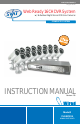
SVAT ELECTRONICS now you can see Web Ready 16CH DVR System w/ 16 Outdoor Night Vision CCD Color Cameras COMPLETE SYSTEM INSTRUCTION MANUAL Version 1.0 Model# CLEARVU4 www.svat.
SVAT ELECTRONICS now you can see !IMPORTANT! PLEASE READ! NEED HELP? DO NOT RETURN THIS PRODUCT TO THE STORE Please contact a SVAT customer support representative first regarding any additional information on product features, specifications or help with set-up. Please contact us via one of the methods below: Email: support@svat.com Online live web chat: Visit www.svat.com Toll free telephone: 1.866.946.7828 Toll free fax: 1.888.771.1701 For more product information visit www.svat.
SVAT ELECTRONICS now you can see PRODUCT WARRANTY & REGISTRATION Please keep a copy of your Receipt/Order Confirmation to verify your 1-Year Warranty We take quality very seriously. This is why all of our products come with a one year warranty from the original purchase date against defects in workmanship and materials. If you have warranty or support issues please contact us using any of the following methods: SVAT Electronics USA 2315 Whirlpool St.
SVAT ELECTRONICS now you can see TABLE OF CONTENTS 1. WHAT IS INCLUDED...................................................................................... 1 2. BUTTON FUNCTIONS AND CONNECTIONS.................................................................1 2.1 Front Panel . .......................................................................................... 1 2.2 Rear Panel............................................................................................. 2 3. INSTALLATION.............
SVAT ELECTRONICS now you can see 8. FUNCTION SETUP....................................................................................... 35 8.1 Main Display......................................................................................... 35 8.1.1 View............................................................................................. 36 8.1.2 Image Recording......................................................................... 36 8.1.2.1 Save As JPEG:........................
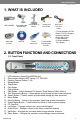
SVAT ELECTRONICS now you can see 1. WHAT IS INCLUDED 1 10ft RCA to RCA (male) A/V Wire 16 Indoor/Outdoor Night 16 Camera Mounts w/ Hardware Vision CCD Cameras 1 DVR (320GB HDD) 18 RCA to BNC Connectors Software CD 16 x 60ft 4 PIN DIN to RCA (male)Video/ Power Wires 10ft RJ45 Ethernet Cable 1 RCA Female to 3.5mm (male) A/V Wire •1 Power Adapter for DVR •Online/ Toll Free Support •Instruction Manual •Quick Start Guide •1 Year Warranty •16 Power Adapters for Cameras 2.
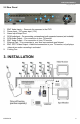
2 1 4 5 6 8 7 9 10 11 12 13 14 18 SVAT ELECTRONICS now you can see 2.2 Rear Panel 1 2 1. 2. 3. 4. 5. 6. 7. 8. 9.
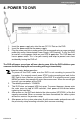
SVAT ELECTRONICS now you can see 3.1 Camera Installation 1. 2. 3. 4. 5. 6. Plug the 4 pin DIN female connection on the camera into the 4 PIN DIN male connection on the 60ft video/power wire. Match the two arrows on top of both connecting cables. Plug the camera’s power supply into the power jack located on the 60ft video/power wire. Plug the camera’s power adapter into an AC outlet. Connect the 60ft video/power wire’s male RCA plug to the VIDEO IN port of your TV/monitor/VCR/DVR.
SVAT ELECTRONICS now you can see 4. POWER TO DVR 1. 2. 3. Insert the power supply wire into the rear DC 12V Port on the DVR. Insert the power cord into the power supply. Plug the power cord into a power outlet. We recommend using a surge protected power bar and/or Uninterrupted Power Supply (UPS) backup. To turn the DVR on and off, use the power switch on your UPS or power bar. This DVR does not have a power switch.
SVAT ELECTRONICS now you can see 5. DVR OPERATION 5.1 Live Mode 1. Press the “DISP” button to turn the onscreen display ON or OFF. The onscreen display shows the channel, date, and time. 2. Press the “INFO” button to display system information and configuration. 3. When the hard disk information icon turns to red, this indicates that the hard drive is full. To avoid this situation, set the DVR recording mode to OVERWRITE. 4. Press the channel buttons to switch between full screen camera views.
SVAT ELECTRONICS now you can see System Information: Screen shot CLEARVU4 6
SVAT ELECTRONICS now you can see 5.2 Record Mode Quick Glossary of Recording Terms: Manual Record: This is the simplest of recording modes. Just press record to record video from your cameras. The system will continue recording until you press stop. Continuous Record: This is a schedule record mode that allows you to specify what hours of the day you would like to record. The system will continue to record for those specified hours. During this time, you cannot press stop to halt recording.
SVAT ELECTRONICS now you can see 5.3 Playback Mode 1. 2. 3. When pressing the PLAY button and when the playback password is set to “ON”, the system will request to enter a password. When the correct password has been entered, all recording activities will stop and playback mode will begin. Press the “PLAY” button to play back starting from the previous playback end time (continues from where you left off). Press the “DISP” button to switch on/off the channel, date, and time message display. 4. 5. 6. 7.
SVAT ELECTRONICS now you can see 5.4 Search 1. When you press the SEARCH button and the playback password is set to “ON”, the system will request password entry. When the correct password has been entered, all recording activities will stop. 2. Press the SEARCH button for quick search by date and time. Press the ENTER or PLAY button to enter 9-split screen display. 3. YEAR/ MONTH/ DAY/ HOUR: • White Index Bar: No recorded data available under this date period.
SVAT ELECTRONICS now you can see 6. MENU SETUP DESCRIPTION The password is requested after the “MENU” button is pressed. 1. 2. CLEARVU4 In order to enter the main menu, the password entered must be correct. After entering the main menu all recording activities will stop. Default Password: 12345678 (CH1~CH16 represents number 1~16).
SVAT ELECTRONICS now you can see 6.1 Eight/ Sixteen Camera Mode Rescan 1. 2. 3. When only 8 cameras has been connected (whether it is the first 8 or last 8 cameras), the system will enter 8-ch monitoring display mode. For all cameras to be displayed you will have to reboot the DVR or enter the menu to re-detect 16-ch monitoring display mode.
SVAT ELECTRONICS now you can see 6.3 Camera Setup 6.3.1 Edit Camera Title 1-8 1. 2. 3. CLEARVU4 Maximum 8 character titles. Move the cursor to the desired camera number by using the “UP/DOWN” buttons. Move between the characters of the camera title by using the “LEFT/ RIGHT” buttons and use “UP/ DOWN” buttons to edit the camera title (letters A-Z, numbers 0-9 or blank spaces).
SVAT ELECTRONICS now you can see 6.3.2 Edit Camera Title 9-16 6.4.2 VIDEO ADJUST Adjustable brightness, contrast, saturation, and hue for 1 –16 CH videos. 6.3.3 Video Adjust Adjustable brightness, contrast, saturation, and hue for 1 – 16 CH videos.
SVAT ELECTRONICS now you can see 6.3.4 Motion Detection You can use these settings to adjust the area and sensitivity of motion detection on each camera channel. These settings are important if you are using motion activated recording, because if adjusted correctly, they can help prevent false triggering of motion recording. 1. Channel – Select the camera channel in which you would like to make changes 2. Set Detection Area – Select this setting to enter a grid screen for the selected camera channel.
SVAT ELECTRONICS now you can see • • 3. Press the “UP/ DOWN/ LEFT/ RIGHT” buttons to drag the window and set the ending point of the detection area. Press the “ENTER” button to confirm the ending point of the detection area. Sensitivity: The blue bar shown on the Motion Detection screen indicates the motion variation of the detection window. When the amount of motion detected exceeds the preset sensitivity threshold, it triggers motion detection recording.
SVAT ELECTRONICS now you can see 6.5 Schedule Setup Use this menu to set up a 24 hour recording schedule. Specify which hours to record when motion is detected, and when to record continuously or not at all. The recording schedule is based on a 24 hour clock that goes from 0~24. Using the directional arrows, move the cursor to the hour of the day you would like to change, and adjust the letter to the one that represents the type of recording you would like.
SVAT ELECTRONICS now you can see 6.6 Hard Disk Setup 1. 2. 3. Displays the hard disk total capacity and the remaining capacity. Displays the start and end date of the recorded material and when no recorded materials are available, current date is displayed. FORMAT: Format the HDD. Warning: This will erase all your recorded footage. 6.7 CF Card Setup 1. 2. 3. 4. CLEARVU4 CF TOTAL CAPACITY: Total Capacity CF REMAIN CAPACITY: Remaining Capacity CF CARD COPY: Copy the selected file to the CF card.
SVAT ELECTRONICS now you can see 6.7.1 CF Card Copy Use this feature to backup your footage onto CF card (CF card reader required to view on a computer). Note that only one camera channel can be recorded at a time. 1. 2. 3. 4. CH: Selectable 1 -16 camera option. AUDIO: Specify whether to record audio or not. BEGIN/END: Specify the start and end time of the desired video clip. COPY: Select “COPY” to start copying to your CF card.
SVAT ELECTRONICS now you can see 6.8 OTHERS 1. PASSWORD: ON: Enable password protection, password is required before entering the main menu. OFF: Disable password protection, password will not be required before entering the main menu. 2. KEY STOP BUZZER/ RELAY: Use this option if you have an external relay device attached (advanced users). When the buzzer or relay device is triggered by an event, enabling this setting will allow you to press any key to deactivate. 3.
SVAT ELECTRONICS now you can see 6.8.1 Password 1. 2. 3. Search/ Playback Password: Specify whether the search or playback mode is password protected. When password is stored on the CF card, after inserting the CF card the password will not be requested by the system. Default Password: 12345678 (CH1~CH16 represents number 1~16). Press the “ENTER” button to enter new password, confirm settings, and press “EXIT” button to exit. 6.8.2 Buzzer BUZZER: ON: Buzzer is enabled. OFF: Buzzer is disabled.
SVAT ELECTRONICS now you can see Period: Duration time of the buzzer output. Buzzer event includes the following: 1. 2. 3. 4. 5. KEY PRESSED: Disable/Enable beeping when keys are pressed. MOTION DETECTION: Disable/Enable motion detect alarm ALARM: Disable/enable motion sensor alarm. VIDEO LOSS: Disable/enable video loss alarm DISK FULL: Disable/enable disk full alarm. 6.8.
SVAT ELECTRONICS now you can see 6.8.4 Alarm Input (Advanced users) The installation of any external alarm sensor is optional and SVAT does not offer technical support on such alarms. Contact the alarm sensor manufacturer for more information. Sensor Type NC → Normal Close (NC) Alarm Setup NC (Normal Close), the alarm will be triggered during NC status. NO → Normal Open (NO) Alarm Setup NO (Normal Open), the alarm will be triggered during NO status.
SVAT ELECTRONICS now you can see 6.8.5 Sequence Dwell Time 1. SEQUENCE: Specify how long each camera will be displayed when in sequence mode. 2. SPOT MONITOR: Specify how long video will be displayed on the SPOT monitor when motion is detected. 3. SPOT MONITOR ALARM: Specify the dwell time for the spot monitor alarm. 6.9 Factory Default To return to factory default settings, select the “YES” option and then press “ENTER” to load the factory defaults. Press “EXIT” to exit.
SVAT ELECTRONICS now you can see 7.DVR NETWORKING GUIDE 7.1 Introduction Congratulations on taking a step forward in protecting your valued possessions. Now that you have your video security system in place, connecting it to the internet will allow you to view what’s important to you with ease. You will learn about your product and will see that you can do this on your own. The following is a step by step instruction manual on how to connect your system to the internet.
SVAT ELECTRONICS now you can see 7.2 Prepare Your Computer Following these steps will allow your computer to view the video. Before starting to set-up your network connection, you have to be sure that your computer is able to view the footage from the DVR. If you are running Windows XP, you will most likely have this pre-installed. NOTE: You will need to do this to any computer that you want to view the footage from. 1. Open Internet Explorer.
SVAT ELECTRONICS now you can see 7.3 Prepare Your DVR Next we will set up the DVR to connect to the internet and allow you to view online. 1. Place the CD-ROM that was included with the DVR system into your computer’s CD-ROM drive. If your computer does not automatically open the CD folder, go to Start/My Computer and double-click on the CD-ROM icon. 2. Drag and drop the IPEDIT.EXE program onto your desktop.
SVAT ELECTRONICS now you can see 7. The first time you logon to the DVR, an ActiveX Installation window will appear. Install the ActiveX control. 7.4 Connect To The Internet If your Internet connection is DSL (a broadband connection that comes through your phone line) you may need to configure PPPoE settings in your DVR. If you do not know what type of broadband connection you have, contact your internet service provider. Ask your ISP if your internet connection is cable or DSL.
SVAT ELECTRONICS now you can see NOTE: Your router may require a user name and password. If you do not know it, ask the person who configured your network. Portforward.com will provide you with each router’s default user name and password. D-LINK ROUTER You will need to enable the ports by locating the port range forwarding screen. With some D-LINK routers the port forwarding screen is located within the Applications & Games or Filters tab; in others it is located in the Advanced Tools tab. 1.
SVAT ELECTRONICS now you can see 4. • • • • • • • • Select the Virtual Server tab. Enable the Virtual server In the Name field type in “DVR” In the Private IP field enter the DVR’s IP address. In the Protocol field, select Both (This will enable both TCP and UDP). In the Private port enter the port number you need to forward. By default this DVR is set to port 80. Use port 80 unless you have a reason to change the DVR to another port (not recommended).
SVAT ELECTRONICS now you can see 2. Press ENTER, and your DVR’s login window should pop up. If it does not pop up, your router is not properly forwarding the necessary port. This could be due to a number of problems including incorrect settings, presence of a firewall, or a DSL modem that has its own IP address. If your DSL modem has its own internal IP address, it will not properly forward the necessary port.
SVAT ELECTRONICS now you can see 5. Now check your email for the confirmation message. You will need to click the link in the body of this message to activate your account. The message may take up to 24 hours to arrive in your inbox. If you cannot find the message in your inbox, please check your junk/spam mail folder. 6. When you click the link, a window will appear that displays “Account Confirmed.” Click on the login link and enter the user name and password you created. 7.
SVAT ELECTRONICS now you can see 9. Click on the Get Started link located on the right menu 10. Type in a host name (subdomain name). We recommend you use your first name or company name. 11. Choose a domain name from the dropdown menu. We recommend using the dvrdns.org suffix. 12. In the IP address field, type in your external IP address (it may also be shown below the field). 13. Leave all the rest of the options as-is, and click Create New Host. 14. Your dynamic DNS settings have been created.
SVAT ELECTRONICS now you can see 7.7 Finalizing The Set-Up Now you must associate your DVR with the DynDNS account you just created. This will ensure that when your external IP address changes, your domain name (address in the Internet Explorer Address Bar) will remain associated with your new IP address. This will ensure that you will only need to type in your domain name in order to access your DVR, whether you are inside or outside of your network: 1.
SVAT ELECTRONICS now you can see 5. 6. 7. Enter the username, password, and full domain name you configured at www. dyndns.com. Example: UserName: myname Password: mypassword DomainName: myname.dvrdns.org Click the OK button located in this section to save your configuration. Reboot the DVR by powering it off and then on again to confirm the changes. You must reboot the DVR any time a change is made in the configuration menu.
SVAT ELECTRONICS now you can see NOTE: When entering an external or internal IP address, the port number is required and should be in the following format: 192.168.0.100 :80 OR 192.168.0.100:80 (some browser versions require a space, some do not) 8. FUNCTION SETUP 8.1 Main Display Optimal browsing resolution is 1024 x 768.
SVAT ELECTRONICS now you can see 8.1.1 View Two types of display methods: 1. Re-sizable: Adjustable image size. 2. Actual size: The actual image size. 3. Status Bar: Reveals current status. 8.1.2 Image Recording This mode allows you to save picture or video files from the DVR to your computer. Image Recording Setup Display: 1. 2. Save as JPEG: Save as picture file Save as AVI: Save as AVI animation file Note: To prevent asynchronous AVI recording both functions should not be simultaneously selected.
SVAT ELECTRONICS now you can see 8.1.2.1 Save As JPEG: The following options allow you to customize how the jpeg image files are saved: • No Limit: Unrestricted image storage (continuous jpeg saving) • Number: Image storage according to number of frames. For example, if set to 50, 50 frames will be stored in 50 separate jpeg files. • Save interval: Image storage according to one tenth of a second. For example, if you enter 10, then one frame is stored per second.
SVAT ELECTRONICS now you can see 4.PLAY Play Button 5.PAUSE Pause Button 6. SPLIT Full Screen/ Quad Screen/ 9-Split Screen 7.SEQ Automatically cycle between cameras 8.SEARCH Quick search of recorded videos 9.MENU Change DVR settings 10.EXIT/INFO Returns to Previous Menu/ System Information Display Toggle/Confirm Button/ Message Display Toggle 12.ENTER/ DISP Return to Previous Menu/ System Information Display Toggle/ Confirm Button/ Message Display Toggle 11.
SVAT ELECTRONICS now you can see 8.2 Advanced Network Setup Only “Admin” can select “configuration” (advanced setup). 8.2.1 Advanced Network Setting 1. LAN Setting: LAN IP address setting is the same as IPEdit. 2. DHCP: Select item “Automatically by DHCP” to get an IP address. 3.
SVAT ELECTRONICS now you can see 4. PPPoE: If you have an ADSL modem, you may need to set up PPPoE in order to view your DVR from outside your network. You will need your login information. If you do not have it, please contact your Internet Service provider to provide you with the login information. 5. Optional: Send mail (about new IP) after connected should be selected if you want to receive an email when your external IP address changes from your ISP.
SVAT ELECTRONICS now you can see Delete User: Delete user account. Current Users: Currently registered users. Reboot: Restart the Network DVR. Firmware update: Updates the firmware, if a new firmware version becomes available. Firmware updates may be available at www.SVAT.com (advanced users only). Restore factory default configuration: Click “Restore factory default configuration” to return to factory default settings (Please restart the Network DVR after setup has been completed) 9.
SVAT ELECTRONICS now you can see 10. NETWORK INSTALLATION 11. HARD DISK INFORMATION 1. 2. 3. Supports 3.5” ATA 2/ 3/ 4/ 5/ 6 format hard disk. Supports high-capacity hard disk storage (up to 500 GB capacity). This HDD is not hot swappable. To prevent damage, please enter the main menu to stop all HDD activities, then power-off the device before replacing the hard disk. 12.
SVAT ELECTRONICS now you can see 13. CAMERA GUIDE 13.1 Features Of The CV67 1. 2. 3. 4. 5. 6. Sun Shield - Helps prevent glare from bright lights. Infrared (IR) - LEDs Allows the camera to see in the dark up to 15ft away. CDS Sensor- Turns on the infrared LEDs when it gets dark out. Camera Housing - Made of anodized aluminum to prevent rust. Camera Mount - Allows the camera to be desk or wall mountable. Connection to Video / Power Wire Converts to RCA.
SVAT ELECTRONICS now you can see 13.2.1 Mounting 1. Plug the 4 pin DIN female connection on the camera into the 4 PIN DIN male connection on the 60ft video/power wire. 2. Match the two arrows on top of bothconnecting cables. 3. Plug the camera’s power supply into the power jack located on the 60ft video/ power wire. 4. Plug the camera’s power adapter into an AC outlet. 5. Connect the 60ft video/ power wire’s male RCA plug to the VIDEO IN port of your TV/ monitor/VCR/DVR. 6. 1.
SVAT ELECTRONICS now you can see 13.2.2 Troubleshooting - No picture/signal - Picture is too bright - Picture is too dark - Make sure your TV/monitor is on the correct video input channel. This is NOT channel 3. Common terms for this channel is INPUT, AV CHANNEL, LINE 1, LINE 2 and AUX. Please use your TV or VCR manual to correctly identify this channel. If your camera is connected to a VCR/DVR, make sure that it is properly connected to your TV/monitor.
SVAT ELECTRONICS now you can see Storage Capacity............................................Max 500GB (HDD), 320GB included Video Format...........................................................................................NTSC/PAL Video Loss Alarm................................................................................................Yes Audio Codec................................................................................................... G.711 Audio Output............................
SVAT ELECTRONICS now you can see Focus Type......................................................................................................Fixed Night Vision........................................................................................................Yes Number of IR LEDs and Range...........................................................12, up to 15ft IR LED Control................................................................. Automatic (CDS Sensor) Min. Illumination..................
SVAT ELECTRONICS now you can see NOTES CLEARVU4 www.svat.
SVAT ELECTRONICS now you can see SVAT SUPPORTS CRIME STOPPERS Crime Stoppers programs are operated as non-profit charities and are managed by a volunteer board of directors who raise funds and pay rewards to individuals who anonymously call with information that helps solve crime. Rewards are paid for tips that lead to the arrest and indictment of people charged with felony offenses, and to date Crime Stoppers statistics show a conviction rate of approximately 95%. CLEARVU4 P.O.
SVAT ELECTRONICS now you can see SVAT SUPPORTS CRIME STOPPERS To receive more information about Crime Stoppers or to make a charitable donation please fill in the fields below, cut on the dotted line an mail in. CRIME STOPPERS INTERNATIONAL Crime Stoppers International is an organization of community based civilian Crime Stoppers programs, which assist police in solving crime. You can find more information about Crime Stoppers at www.c-s-i.org.
SVAT ELECTRONICS now you can see www.svat.com Disclaimer SVAT does not endorse any of SVAT products for any illegal activities. SVAT is not responsible or liable in any way shape or form for any damage, vandalism, theft or any other action that may occur while a SVAT product is in use by the purchaser. Model# CLEARVU4 www.svat.