
Server Module Installation Guide
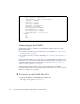
Table Of Contents
- Sun Blade™ X6450 Server Module Installation Guide
- Contents
- Preface
- Introduction
- Installing and Configuring the Server Module
- Installation Worksheet
- Using the BIOS Configuration Utility to Configure the Sun Blade RAID 5 Expansion Module
- Introduction to the BIOS RAID Configuration Utility
- Understanding Hot-Plug Limitations and Conditions Within the BIOS RAID Configuration Utility
- Running the BIOS RAID Configuration Utility
- Using the ACU to Create and Manage Arrays
- Using the -Select Utility to Modify REM Settings
- Using the Disk Utilities to Manage Disk Drives
- Initializing a RAID Array
- Index

30 Sun Blade X6450 Server Module Installation Guide • September 2008
■ Default password: changeme
The ELOM displays login information and its command prompt. For example:
3. To log out, type exit.
Configuring the Service Processor’s
Network Settings (Optional)
The CMM ILOM allows you to change the server module network information,
including the IP address, and DHCP settings.
Note – You can also change these settings using the ILOM or ELOM. See the
corresponding ILOM or ELOM documentation for details.
▼ To Configure the Service Processor’s Network
Configuration:
1. Log in to the CMM ILOM.
See the Integrated Lights Out Manager (ILOM) Administration Guide For the Sun
Blade 6000 Modular System for details.
2. Navigate to /CH/BLn/SP/network.
Where n is 0 through 9 for server modules 0 through 9 respectively.
3. Type the following commands:
$ ssh root@122.138.17.17
root@122.138.17.17's password:
Sun Microsystems Embedded Lights Out Manager
Copyright 2008 Sun Microsystems, Inc. All rights reserved.
Hostname: SUNSP00nnnnnnnnn
IP address: 122.138.17.17
MAC address: nn:nn:nn:nn:nn
Warning: password is set to factory default.
->