
Server Module Installation Guide
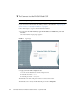
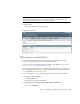
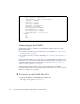
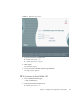
Table Of Contents
- Sun Blade™ X6450 Server Module Installation Guide
- Contents
- Preface
- Introduction
- Installing and Configuring the Server Module
- Installation Worksheet
- Using the BIOS Configuration Utility to Configure the Sun Blade RAID 5 Expansion Module
- Introduction to the BIOS RAID Configuration Utility
- Understanding Hot-Plug Limitations and Conditions Within the BIOS RAID Configuration Utility
- Running the BIOS RAID Configuration Utility
- Using the ACU to Create and Manage Arrays
- Using the -Select Utility to Modify REM Settings
- Using the Disk Utilities to Manage Disk Drives
- Initializing a RAID Array
- Index

28 Sun Blade X6450 Server Module Installation Guide • September 2008
Connecting to the ELOM
The ELOM provides two interfaces, a command line interface (CLI) and a web
interface (web GUI).
■ To connect to the web GUI, use a web browser, as described in “To Connect to the
ELOM Web GUI” on page 28.
■ To connect to the CLI, use SSH, as described in “To Connect to the ELOM CLI” on
page 29.
These procedures require you to know the server module ELOM’s IP address. If you
don’t know it, you can look it up and change it using the chassis service processor,
called the CMM ILOM. This is described in “Configuring the Service Processor’s
Network Settings (Optional)” on page 30.
Certain service conditions require you to access the ELOM from a terminal
connected directly to the server module. If this becomes necessary, see the Sun Blade
X6450 Server Module Service Manual.
▼ To Connect to the ELOM Web GUI
1. Type the IP address of the ELOM into your browser.
The login screen appears. See
FIGURE 2-4.
Properties:
type = Network Configuration
commitpending = (Cannot show property)
ipaddress = IPaddress
ipdiscovery = dhcp
ipgateway = IPgateway
ipnetmask = 255.255.252.0
macaddress = Macaddress
pendingipaddress = IPaddress
pendingipdiscovery = dhcp
pendingipgateway = IPgateway
pendingipnetmask = 255.255.252.0
Commands:
cd
set
show
->