
Operation Manual




8-2
Prole Management
The profile management feature allows installers and users to set up more than one camera of similar
configurations at great ease. After the current camera is properly configured, users can export current
camera's conguration to a prole on PC and then load it into other cameras, thereby making least changes
possible like changes on IP address or a few other settings that might need to be modied individually when
conguring a newly added camera. In addition, this feature can also be considered as a backup mechanism
for future service need.
1. After the current camera is properly configured, go to [Maintenance] > [Profile Management], and
click on [Export] to download camera prole to a user-specied location.
2. To load an existing profile into a different camera, log in to the maintenance page of a different
camera, press [Browse…] and locate the profile you wish to load, and then click on [Import] to
proceed.
3. Camera will start to reboot, which will take approximately 60 seconds to complete. Do not interrupt
browser action during the process as doing so may cause problems to your camera system.
Caution!
you may only cross-import prole among identical camera models.
Reset All Settings to Default
This will reset IP camera to its factory default settings, producing the same result as pressing the hardware
reset button at the back of camera. If you need to perform hardware reset, refer to the Troubleshooting
chapter.
Firmware Update
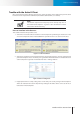
After downloading the rmware, please log in to the setup page of your IP camera and click [Maintenance]
on the top menu and then look for firmware update section. Press the [Browse] button and locate the
downloaded rmware le and press [Upgrade] button to update camera rmware. Once the update process
begins, it must not be interrupted.
Figure 8-4. Firmware update
If you log in to the live view page after camera is rebooted and nd that some icons are in the wrong place.
Try pressing [Ctrl] + [F5] to force a cache refresh of your browser.
Caution!
Before updating rmware, please close all other browser windows and
background applications that are consuming network bandwidth.
Storex DNR-30H Network Camera
<頁頁頁頁頁頁>Maintenance