
Operation Manual






5-4
Storex DNR-30H Network Camera
<頁頁頁頁頁頁>Enable Digital Zoom
Enable Digital Zoom
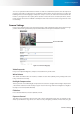
To enable the digital zoom feature:
1. Click on the magnier icon located on the lower-left corner of real-time video display, and then the
digital zoom control window will pop up.
2. Check [Enable Digital Zoom] option and set desired zoom ratio by dragging the adjustment bar. Then
set the area to be enlarged by dragging the black square shown on preview window. Click on the [X]
button shown above or press [Esc] key to save the changes and/or close the preview window
Figure 5-2. Digital zoom window
Voice Communication
Pressing the [Communicate] button allows you to speak into your PC microphone and broadcast
through the camera’s speaker or audio line out. To talk through the external speaker connected to the IP
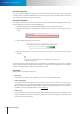
camera,placeyourcursoronthe[Communicate]button(thetooltip“Rightclicktosetup”willappear),and
right-click on the button and select [Setting] to choose input device and input source.
Figure 5-3. Communication setting
Havingconguredthedevice,pleasehitthe[Communicate]button,(whichthenshallremainin“pressed”
status for 90 seconds and automatically be released later, unless it is hit again) and talk through the
microphone.
Note:
When using the voice communication feature, you may experience
various degrees of delay between transmission from the computer
and playback on the camera end depending on the condition of your
network environment.