
Operation Manual






Page 47
9.6 – PTZ CONTROL
You must have a PTZ camera (not included) connected to the system in order to use the PTZ controls.
To control a PTZ camera:
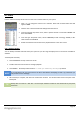
1. Select the channel of the connected PTZ camera.
2. Click the ← or → navigation arrows to pan, and ↑ or ↓ keys to tilt the camera.
3. Click + / - to adjust zoom, focus, and aperture values.
4. Enter presets.
5. Click SETTING, HAND and CLEAR to further control presets.
9.7 – SCREEN CAPTURES
You can use the remote surveillance software to take a snapshot of the channels on the main display screen. Screen
captures can be useful for your own records, or may be needed by authorities in case of a security incident.
To take a screen capture:
1. From Live Viewing, select the channel you want to capture. The selected channel will be highlighted in a red
frame.
2. Click to take a screenshot.
3. Click OK in the confirmation window. Screen captures are saved as BMP files to C:\DVR\ by default.