
Operation Manual






Page 46
9.3 – LIVE VIEW
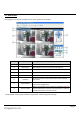
By default, the browser-based remote surveillance system opens in Live View mode (split-screen).
To use Live View:
1. Click LIVE at the top of the main screen.
2. Click the display mode icons to view the main screen in single-channel, quad or split-screen configurations.
You can also double-click a channel at any time to view it in single-channel mode.
3. Click to show or hide all the channel windows.
4. Click to start / stop manual recording to your computer on ALL channels. For more details see section
“9.4 – Recording” below.
5. Select a channel (the current channel is outlined in red) and then click the audio bars to increase / decrease
listen-in volume. Click the speaker icon to mute / unmute sound.
NOTE
The Talk function is not supported.
9.4 – RECORDING
You can record video directly to your PC using the remote surveillance software.
To record video to your PC:
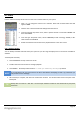
From Live View, click to start/stop manual recording to your PC on ALL channels.
TIP
Recorded files are saved in C:\DVR\[IP address]\Record\ by default.
9.5 – SUB MENU
Right-click any channel to open the sub menu.
The sub menu contains the following options:
Open Window
Close
Open All
Close All
Start Record
Stop