
Operation Manual






Page 45
9.2 – MAIN SCREEN
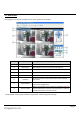
Once logged in, the Remote Surveillance main screen appears in the browser.
REFERENCE
ITEM
DESCRIPTION
1
Modes
Choose from LIVE (default view), REPLAY and SETUP.
2
Main Screen
Main display screen for live viewing and playback.
3
Time Stamp
Time and date for each channel.
4
Channel
Appears in each channel to indicate channel number.
5
PTZ Control
Pan Tilt Zoom controls for compatible cameras.
6
Functions
Click icons to show / hide channels, take screen captures
and record.
7
Display Modes
Click icons to view channels in full-screen, quad grid and
split-screen configurations.
8
Volume / Mute
Select a channel (the current channel is outlined in red) and
then click the bars to increase / decrease volume. Click the
speaker icon to mute / unmute sound.*
* Audio capable cameras (not included) are required for audio listening and recording.