
Operation Manual






Page 41
8.13 – DDNS
A DDNS account allows you to set up a web site address that points back to your local network. A Web site address
is easier to remember than a WAN IP.
NOTE
You must register an account with a DDNS service provider prior to configuring DDNS settings on the DVR.
Visit http://www.dyndns.com to register a free account.
To configure DDNS settings:
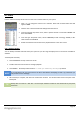
1. From the Network Setup menu, enter Primary or Secondary DNS from the WAN settings of your router in the
MANUAL DNS field.
2. Click DDNS SETTINGS.
3. Under DDNS, select ON.
4. Under SERVICE, select 3322, DYNDNS or PERFECTEYES.
(e.g. If you registered for a DynDNS account as instructed above, please choose DYNDNS for this option)
5. Under DOMAIN NAME, enter your DDNS domain from the confirmation email.
(e.g. If your domain name is “user@dyndns.com”, you need to enter user@dyndns.com in the text field)
6. Enter your DDNS user name and password in the respective fields.
7. Click APPLY to save changes, then click CLOSE in the confirmation window.
8. Click EXIT. The system will tell you that it needs to restart. Click CLOSE to restart the DVR.