
Operation Manual


Page 15
6.4 – MOUSE CONTROL
The mouse can be used for navigating system menus.
NOTE
Unless otherwise stated, all system functions described in this manual are achieved through mouse input.
To use a mouse with the DVR system:
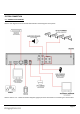
Connect the mouse to the lower USB port located on the rear panel (labelled with a mouse icon).
Left Button:
Click to select a menu option.
During live viewing, double-click on a channel to view it in full-screen.
Double-click the channel again to return to split-screen grid view.
Right Button:
Click to open the Sub Menu.
Scroll Wheel:
Forward – switch to VGA.
Backward – switch to CVBS.
6.5 – USING THE SUB MENU
When using the mouse, open the Sub Menu to access system options, including the Main Menu and PTZ control.
1. Right click anywhere on screen to open the Sub Menu.
2. To close the menu, left-click anywhere on screen (outside the menu).
MAIN MENU:
Opens the system menu
KEYLOCK:
Locks the front panel buttons
CHN SWITCH:
Select split-screen display type
VIDEO SEARCH:
Open the Search Menu to view previously recorded video
PTZ:
Opens the PTZ control menu
MUTE:
Mute audio on the system
MANUAL REC:
Start manual recording
STOP REC:
Stop manual recording
ROTATION:
Video rotation
START CRUISE:
Start cruise mode
STOP CRUISE:
Stop cruise mode