
Instruction manual




Table Of Contents
Instruction Manual
7
all windows are closed, click on the USB storage icon on the desktop,
and drag it to the Trash Can icon on the desktop. Allow 5 seconds
before physically removing the enclosure/drive from the computer.
Initializing the Hard Drive
1. If the SATA Hard Drive is blank it may need to be initialized and
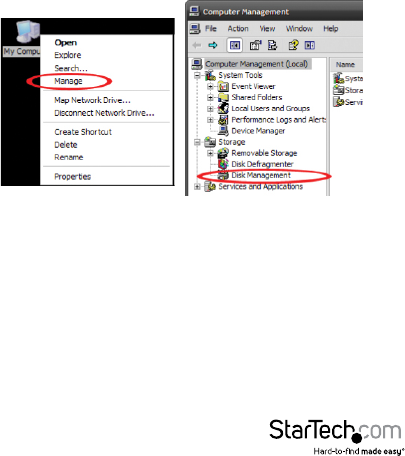
formatted before use. From the main Windows desktop, right-click
on “My Computer” (“Computer” in Vista/ 7 / 8/ 8.1), then select
Manage. In the new Computer Management window, select Disk
Management from the left window panel.
2. A dialog window should automatically appear, asking you to
initialize the drive.Depending on the version of Windows, it will
give you the option of either creating an “MBR” or “GPT” disk. GPT
(GUID partition) is not compatible with some older operating
systems, while MBR is supported by newer and older operating
systems.
3. Once initialized, locate the Disk that says it is “Unallocated” (check
the listed hard drive capacity to conrm it’s the correct hard drive)
and then right-click in the section that says “Unallocated” and
select “New Partition”.