3-228-141-12 (1) MagicGate Memory Stick Reader/Writer Operating Instructions GB Mode d’emploi FR Bedienungsanleitung DE MSGC-US10 2001 Sony Corporation
English Notice for users On the supplied software • Copyright laws prohibit reproducing the software or the manual accompanying it in whole or in part, or renting the software without the permission of the copyright holder. • In no event will SONY be liable for any financial damage, or loss of profits, including claims made by third parties, arising out of the use of the software supplied with this unit.
Program©2000 Sony Corporation Documentation©2001 Sony Corporation OpenMG and its logo are trademarks of Sony Corporation. “MagicGate Memory Stick,” , “Memory Stick,” , are trademarks of Sony Corporation. “MagicGate” and are trademarks of Sony Corporation. IBM and PC/AT are registered trademarks of International Business Machines Corporation. Microsoft, Windows, Windows NT and Windows Media are trademarks or registered trademarks of Microsoft Corporation in the United States and/or other countries.
Table of Contents Before You Begin Overview ............................................................................................................... 5 System requirements ............................................................................................ 8 Step 1 : Unpacking .............................................................................................. 10 Step 2 : Installing the OpenMG Jukebox software .........................................
BBefore You Begin Overview “Memory Stick” is a new compact, portable and versatile Integrated Circuit recording medium with a data capacity that exceeds a floppy disk. “Memory Stick” is specially designed for exchanging and sharing digital data among “Memory Stick” compatible products. Because it is removable, the “Memory Stick” can also be used for external data storage. Types of “Memory Stick” There are two kinds of “Memory Stick.
Overview (continued) What is “MagicGate”? MagicGate is a copyright protection technology for “MG Memory Stick” and compliant products, such as this unit. Authentication ensures that protected content is transferred only between compliant devices and “MG Memory Stick,” and that protected content is recorded and transferred in an encrypted format to prevent unauthorized copying or playback. PNotes • Do not touch terminals on the “Memory Stick” with your finger or metallic objects.
Using “MG Memory Stick” PNotes 7-GB Before You Begin • Music data transferred (Checked-out) to “MG Memory Stick” from OpenMG Jukebox is stored in folder called “Hifi” Folder. Do not edit data that is stored in the “Hifi” Folder. You cannot playback and check-in data that has been copied or edited using the Windows Explorer. OpenMG Jukebox must be used for playback and editing.
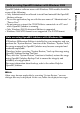
System requirements • IBM PC/AT or Compatible – CPU: MMX™ Pentium® 233 MHz or higher – Hard disk drive space: 60 MB or more – RAM: 64 MB or higher – CD-ROM drive – Sound Board – USB port • Operating System: Windows® 98/Windows® 98 Second Edition/ Windows® 2000 Professional/Windows® Me (manufacturer installed) The following environments are not supported. – Windows® 95, Windows® NT – Upgraded from Windows® 3.
Note on using OpenMG Jukebox with Windows 2000 Note on using OpenMG Jukebox with Windows Me If Windows Millennium Edition is installed in your computer, and you perform the “System Restore” function of the Windows “System Tools,” the songs managed by OpenMG Jukebox may become corrupted and rendered unplayable. Therefore, before executing “System Restore,” back up the songs using OpenMG Jukebox Backup Tool first.
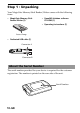
Step 1 : Unpacking Your MagicGate Memory Stick Reader/Writer comes with the following items. • MagicGate Memory Stick Reader/Writer (1) • OpenMG Jukebox software CD-ROM (1) • Operating Instructions (1) Access lamp • Dedicated USB cable (1) Connector A Connector B About the Serial Number The serial number provided for your device is required for the customer registration. The number is printed on the rear side of the unit.
Step 2 : Installing the OpenMG Jukebox software Be sure to install the software before connecting the unit to your personal computer. Do not install the software while the dedicated USB cable is connected. Connect the dedicated USB cable only after you have restarted the computer after installation, and then start the OpenMG Jukebox. Install the OpenMG Jukebox software to the hard disk drive of your computer. Turn on your computer and start Windows in advance.
Step 2 : Installing the OpenMG Jukebox software (continued) 3 Click to select [Install OpenMG Jukebox Ver.2.0 and Driver] or [Install Driver only]. •If installing OpenMG Jukebox for the first time, select [Install OpenMG Jukebox Ver.2.0 and Driver]. •If an older version of OpenMG Jukebox is installed, select [Install OpenMG Jukebox Ver.2.0 and Driver] (see page 13 ). •If OpenMG Jukebox Ver.2.0 is already installed, select [Install Driver only] to add only the driver for a new external device/media.
zHint The message “Remove shared File?” will appear during uninstallation. If you click [Yes to All], “Are you sure you want to proceed?” will appear. Click [Yes ]. If you do not see the message, click the minimize buttons to try minimizing all windows to check for the message on the Desk top. When you start using a new Network Walkman/ Music Clip Player whose supplied CD-ROM is an older version of OpenMG Jukebox If you have already installed OpenMG Jukebox 2.
Step 2 : Installing the OpenMG Jukebox software (continued) Uninstalling the OpenMG Jukebox For Windows 98/Windows 98 Second Edition/Windows Me users 1 2 Click [Start]–[Settings]–[Control Panel] to display the Control Panel. Double-click [Add/Remove programs]. The Add/Remove programs Property window appears. 3 4 Click “OpenMG Jukebox” from the list. Click [Add/Remove]. The OpenMG Jukebox software is uninstalled.
Step 3 : Connecting to your computer Operation when connected as follows has been confirmed. When a USB keyboard is connected to the USB port on a personal computer on which a USB keyboard and mouse are equipped as standard, and this unit is connected to the other USB port by the dedicated USB cable: PNotes • Operation is not guaranteed when two or more USB devices (excluding the keyboard and mouse) are connected to a single personal computer.
About this manual This manual explains how to operate the MagicGate Memory Stick Reader/Writer and the basic operations of the OpenMG Jukebox software. For details about the OpenMG Jukebox software, refer to the online Help for OpenMG Jukebox. To display online Help Online Help consists of two sections. OpenMG Jukebox Help Explains how to use OpenMG Jukebox software.
To search topics To perform a search, click the tabs on the left side frame as follows: • [Contents] tab Click the tab to display the Contents. Click or double-click the item in the Contents to display a topic on the right side frame. • [Index] tab Click the tab to display a list of Index. Enter the first few letters of the topic you want to search for or select a keyword from the Index list and click [Display] to display a topic on the right side frame.
BBasic Operations Using as a removable disk Using with other “Memory Stick” - compatible devices You can use this unit to transfer data such as video clips and still images from/to “Memory Stick”-compatible devices (such as a Sony digital video camera recorder, digital still cameras, etc.) by reading/writing the files on the “Memory Stick.” Refer to the user's manual for the equipment you are using for details. Removing “Memory Stick” 1 2 Close softwares such as Explorer running for this unit.
BEnjoying digital music with OpenMGTM Jukebox About the OpenMG Jukebox software What you can do with the OpenMG Jukebox software Two copyright protection technologies* “OpenMG” and “MagicGate” allow you to enjoy digital music, while maintaining the copyrights of its holders. The OpenMG compliant software “OpenMG Jukebox,” which is supplied with your unit enables you to store digital music data on your computer’s hard drive, transfer and record it on “MG Memory Stick.
About the OpenMG Jukebox software (continued) The supplied OpenMG Jukebox software allows you to import digital sound data to the hard drive of your computer as follows: – downloads sound data provided by Electronic Music Distribution (EMD) services over digital networks such as the Internet. – records audio CDs onto the hard drive of your computer (the imported tracks are compressed and encoded in ATRAC3 format).
On copyright protection The OpenMG technology allows you to enjoy digital music, while maintaining the copyrights of its holders. OpenMG Jukebox encrypts audio files in OpenMG format and stores them on the hard disk of your computer to prevent unauthorized distribution. This unit has some restrictions on recording and playback to protect copyrights. You can check-in audio files only to the same computer from which they were checked-out. They cannot be copied or checked-in to other computers.
About the OpenMG Jukebox software (continued) Restrictions on sound data High quality digital sound data is widely available through music distribution services on the Internet. To protect the copyrights of its holders from unauthorized distribution, some sound data is distributed with certain restrictions on recording and playback. For example, the playback period or playback count for the data may be limited.
Transferring songs from the computer to the “MG Memory Stick” (Check-out) The registered songs on the Playlist of OpenMG Jukebox can be transferred (checked-out) to the “MG Memory Stick“. 1 Insert “MG Memory Stick” to the unit PNote “MG Memory Stick” should be set correctly with care taken to the direction. Inserting it incorrectly, it may damage the “Memory Stick” slot or “MG Memory Stick” itself.
Transferring songs from the computer to the “MG Memory Stick” (Check-out) (continued) 2 1 Transfer the song to the “MG Memory Stick”(Check-out) Run OpenMG Jukebox, then click [Check-In/Out] tab to display the Check-in/Check-out window. Your computer recognizes the connected “MG Memory Stick” and the list of songs are displayed on the right side of the window. [Check-In/Out] tab 2 3 (Out) button Playlist view Select the Playlist containing the songs you want to checkout.
4 Click (Out). Check-out starts and the song is added to the end of the song list in “MG Memory Stick.” PNote You can set to “1 step mode” or “2 step mode” for checking-out. In “2 step mode,” click the (Start) button after selecting the songs. Refer to the online Help for details. To stop check-out Click (Stop). PNote Once check-out has started, do not disconnect the USB cable or “Memory Stick” until the check-out is complete. Doing so may damage the data or cause malfunction.
Importing MP3 and WAV format audio files, etc. The following audio files are converted to the ATRAC3 format and can be imported to OpenMG Jukebox. •MP3 file MP3 files of 16 bits, monaural/stereo, 32 kHz/44.1 kHz/48 kHz. •WAV file WAV files of linear PCM, 16 bits, monaural/stereo, 32 kHz/44.1 kHz/48 kHz. •WMT (Windows Media Technologies) compliant audio file WMT files of 16 bits, monaural/stereo, 44.1 kHz.
PNotes • The original MP3/WAV files imported are referred by the OpenMG Jukebox when playing back or checking-out the data. Therefore, to prevent moving or deleting the files, copy them to a specific folder in the hard disk before importing them to the OpenMG Jukebox. If the referred file is stored in a removable media and the media is removed, the following messages are displayed when you try to playback or check-out the data. For playing back: “Cannot play selected song. The song file not found.
BOther Information Notes on using “Memory Stick” On formatting the “Memory Stick” The “Memory Stick” is shipped with a FAT format as the standard format. To format the “Memory Stick,” please use devices conformable with the “Memory Stick.” When formatting a “Memory Stick” on this unit, follow the procedure below using the supplied Memory Stick Formatter software. Refer to the online Help of the software for details. You can also format a “Memory Stick” by OpenMG Jukebox.
To write-protect data The tab on “Memory Stick” allows you to prevent from accidentally changing the data stored on it. By sliding the tab from side to side, the write-protection tab changes from write enable to write protect. • Write-free Allows you to write data. • Write-protected By sliding the tab to the right, the write-protection changes to write protect. Data can be read, but not written.
Troubleshooting Symptom You cannot install the USB driver software. Memory Stick icon does not appear in Explorer or My computer. The music data on your computer cannot be read. After inserting “Memory Stick” into the drive, the access lamp blinks. 30-GB Cause/Solution •The dedicated USB cable is not correctly connected. t Connect the cable correctly (page 15). •Device other than this unit is connected to the USB jack on the personal computer.
Features of copyright protection by OpenMG The OpenMG Jukebox software features OpenMG, a copyright protection technology developed by Sony to protect music copyrights. OpenMG uses a high-level cryptographic technology to protect music contents with computers. Users should be notified of the restrictions mentioned below. 31-GB Other Information •Music recorded on the hard disk using the OpenMG Jukebox software cannot be played if copied onto other computers.
Français Notice à l’intention des utilisateurs A propos du logiciel fourni • La législation sur la protection des droits d’auteur interdit la reproduction, que ce soit en tout ou en partie, du logiciel et du manuel qui l’accompagne ainsi que la location du logiciel sans l’autorisation du détenteur des droits d’auteur.
Program©2000 Sony Corporation Documentation©2001 Sony Corporation OpenMG et son logo sont des marques commerciales de Sony Corporation. “MagicGate Memory Stick”, , “Memory Stick”, sont des marques commerciales de Sony Corporation. sont des marques commerciales de Sony “MagicGate” et Corporation. IBM et PC/AT sont des marques commerciales déposées d’International Business Machines Corporation.
Table des matières Avant de commencer Présentation ........................................................................................................... 5 Configuration requise .......................................................................................... 8 Etape 1 : déballage .............................................................................................. 10 Etape 2 : installation du logiciel OpenMG Jukebox .......................................
BAvant de commencer Présentation Le “Memory Stick” est un nouveau support d’enregistrement à circuit intégré compact, portable et polyvalent, doté d’une capacité de données supérieure à celle d’une disquette. Le “Memory Stick” est spécialement conçu en vue de l’échange et du partage de données numériques entre différents produits compatibles avec le “Memory Stick”. Comme il est amovible, le “Memory Stick” peut également être utilisé pour le stockage externe de données.
Présentation (suite) Qu’est-ce que “MagicGate” ? MagicGate est une technologie de protection des droits d’auteur réservée aux produits “MG Memory Stick” et compatibles, tels que cet appareil. L’authentification garantit que le contenu protégé est uniquement transféré entre des systèmes compatibles et des “MG Memory Stick” et qu’il est enregistré et transféré sous un format codé de manière à prévenir toute copie ou lecture non autorisée.
Utilisation du “MG Memory Stick” PRemarques 7-FR Avant de commencer • Les données musicales transférées (contrôle de sortie) de OpenMG Jukebox vers le “MG Memory Stick” sont mémorisées dans un dossier “Hifi”. Ne modifiez pas les données stockées dans ce dossier. Il est impossible de lire et de contrôler en entrée les données copiées ou modifiées à l’aide de l’Explorateur Windows. OpenMG Jukebox doit être utilisé pour la lecture et les modifications.
Configuration requise • Ordinateur IBM PC/AT ou compatible – Unité centrale : MMX™ Pentium® 233 MHz ou plus – Espace disque dur : 60 Mo ou plus – RAM : 64 Mo ou plus – Lecteur CD-ROM – Carte son – Port USB • Système d’exploitation : Windows® 98/Windows® 98 Second Edition/ Windows® 2000 Professional/Windows® Me (installé par le constructeur) Les environnements suivants ne sont pas pris en charge. – Windows® 95, Windows® NT – Mise à niveau de Windows® 3.
Remarque à propos de l’utilisation d’OpenMG Jukebox avec Windows 2000 Remarque à propos de l’utilisation d’OpenMG Jukebox avec Windows Me Si l’édition Windows Millenium est installée sur votre ordinateur et que vous exécutez la fonction “Restauration du système” des “Outils système”, il est possible que les chansons gérées par OpenMG Jukebox soient altérées et deviennent impossibles à lire.
Etape 1 : déballage Votre lecteur/enregistreur de MagicGate Memory Stick est livré avec les éléments suivants. • Lecteur/enregistreur de MagicGate Memory Stick (1) • CD-ROM du logiciel OpenMG Jukebox (1) • Mode d’emploi (1) Voyant d’accès • Câble USB dédié (1) Connecteur A Connecteur B A propos du numéro de série Le numéro de série correspondant à votre appareil est nécessaire pour l’enregistrement client. Ce numéro est imprimé à l’arrière de l’appareil.
Etape 2 : installation du logiciel OpenMG Jukebox Procédez à l’installation du logiciel avant de raccorder l’appareil à votre ordinateur personnel. N’installez pas le logiciel si le câble USB dédié est connecté. Ne raccordez le câble USB dédié qu’après avoir redémarré l’ordinateur une fois l’installation terminée, puis démarrez OpenMG Jukebox. Installez le logiciel OpenMG Jukebox sur le disque dur de votre ordinateur. Mettez votre ordinateur sous tension, puis commencez par lancer Windows.
Etape 2 : installation du logiciel OpenMG Jukebox (suite) 3 Cliquez pour sélectionner [Installer OpenMG Jukebox 2.0 et le pilote] ou [Installer le pilote]. • Si vous installez OpenMG Jukebox pour la première fois, sélectionnez [Installer OpenMG Jukebox 2.0 et le pilote]. • Si une version antérieure d’OpenMG Jukebox est installée, sélectionnez [Installer OpenMG Jukebox 2.0 et le pilote] (voir page 13). • Si OpenMG Jukebox 2.
zConseil Le message “Supprimer le fichier partagé?” apparaît pendant la désinstallation. Si vous cliquez sur [Oui pour tous], l’indication “Etes-vous sûr de vouloir continuer?” apparaît. Cliquez sur [Oui]. Si vous ne voyez pas ce message, cliquez sur les boutons de réduction pour réduire toutes les fenêtres et vérifier le message sur le bureau.
Etape 2 : installation du logiciel OpenMG Jukebox (suite) Désinstallation d’OpenMG Jukebox Pour les utilisateurs de Windows 98/Windows 98 Second Edition/Windows Me 1 2 Pour afficher le Panneau de configuration, cliquez sur [Démarrer]–[Paramètres]–[Panneau de configuration]. Double-cliquez sur [Ajout/Suppression de programmes]. La fenêtre Propriétés de Ajout/Suppression de programmes apparaît. 3 4 Cliquez sur “OpenMG Jukebox” dans la liste. Cliquez sur [Ajouter/Supprimer].
Etape 3 : raccordement à votre ordinateur Lorsque cet appareil est raccordé au port USB dédié de l’ordinateur personnel et qu’aucun autre périphérique n’est connecté à l’autre port USB : Lorsqu’un clavier USB est raccordé au port USB d’un ordinateur personnel sur lequel un clavier et une souris USB sont équipés en configuration standard et que cet appareil est connecté à l’autre port USB par le câble USB dédié : PRemarques • Le fonctionnement n’est pas garanti lorsque deux périphériques USB au moins (à l
A propos de ce manuel Ce mode d’emploi vous explique comment faire fonctionner le lecteur/ enregistreur de MagicGate Memory Stick et vous décrit les fonctions de base du logiciel OpenMG Jukebox. Pour plus de détails sur le logiciel OpenMG Jukebox, reportez-vous à l’aide en ligne d’OpenMG Jukebox. Pour afficher l’aide en ligne L’aide en ligne est composée de deux sections. Aide d’OpenMG Jukebox Cette section explique comment utiliser le logiciel OpenMG Jukebox.
Pour rechercher des rubriques d’aide Pour lancer une recherche, cliquez sur les onglets du cadre gauche de la façon suivante : • Onglet [Sommaire] Cliquez sur cet onglet pour afficher le Sommaire. Cliquez ou double-cliquez sur un élément du Sommaire pour afficher une rubrique dans le cadre droit. • Onglet [Index] Cliquez sur cet onglet pour afficher une liste d’index.
BOpérations de base Utilisation d’un disque amovible Utilisation avec d’autres “Memory Stick” - périphériques compatibles Vous pouvez utiliser cet appareil pour le transfert de données telles que des clips vidéo ou des images fixes vers ou depuis des périphériques compatibles avec le “Memory Stick” (caméscope numérique Sony, appareil photo numérique, etc.) en lisant ou en enregistrant les fichiers sur le “Memory Stick”. Pour plus de détails, reportez-vous au manuel de l’utilisateur de l’appareil utilisé.
BEcoute de musique numérique avec OpenMGTM Jukebox A propos du logiciel OpenMG Jukebox Possibilités du logiciel OpenMG Jukebox Deux technologies de protection des droits d’auteur*, “OpenMG” et “MagicGate”, vous permettent de profiter de la musique numérique tout en préservant les droits d’auteur de ses titulaires.
A propos du logiciel OpenMG Jukebox (suite) Le logiciel OpenMG Jukebox fourni vous permet d’importer des données audio numériques sur le disque dur de votre ordinateur en procédant comme suit : - téléchargement de données audio fournies par des services Electronic Music Distribution (EMD) via des réseaux numériques tels que l’Internet. - enregistrement de CD audio sur le disque dur de votre ordinateur (les plages importées sont comprimées et codées en format ATRAC3).
A propos de la protection des droits d’auteur La technologie OpenMG vous permet de profiter de la musique numérique tout en préservant les droits d’auteur de ses titulaires. OpenMG Jukebox code les fichiers audio au format OpenMG et les stocke sur le disque dur de votre ordinateur pour empêcher leur diffusion sans autorisation. Cet appareil est soumis à des restrictions d’enregistrement et de lecture afin de protéger les droits d’auteur.
A propos du logiciel OpenMG Jukebox (suite) Restrictions des données audio Les données audio numériques de haute qualité sont largement disponibles via les services de diffusion de musique que l’on trouve sur l’Internet. Pour protéger les droits d’auteur de leurs titulaires, certaines données audio sont diffusées accompagnées de restrictions sur l’enregistrement et la lecture. Par exemple, la période de lecture ou le nombre de lectures des données peuvent être limités.
Transfert de chansons de l’ordinateur vers le “MG Memory Stick” (Contrôle de sortie) Les chansons répertoriées dans la liste de diffusion d’OpenMG Jukebox peuvent être transférées (contrôlées en sortie) sur le “MG Memory Stick”.
Transfert de chansons de l’ordinateur vers le “MG Memory Stick ” (contrôle de sortie) (suite) 2 1 Transférez des chansons vers le “MG Memory Stick”(contrôle de sortie) Exécutez OpenMG Jukebox, puis cliquez sur l’onglet [Contrôle d’entrée/de sortie] pour afficher l’écran correspondant. Votre ordinateur reconnaît le “MG Memory Stick” connecté et la liste des chansons s’affiche du côté droit de la fenêtre.
4 Cliquez sur (Sortie). Le contrôle de sortie commence et la chanson est ajoutée à la fin de la liste des chansons du MG Memory Stick. PRemarque Vous pouvez utiliser le “mode 1 étape” ou le “mode 2 étapes” pour le contrôle de sortie. Pour le “mode 2 étapes”, cliquez sur la touche (Démarrer) après avoir sélectionné les chansons. Pour plus de détails, reportez-vous à l’aide en ligne. Pour arrêter le contrôle de sortie Cliquez sur (Arrêter).
Importation de fichiers audio au format MP3 et WAV Les fichiers audio suivants sont convertis au format ATRAC3 et peuvent être importés dans OpenMG Jukebox. •Fichier MP3 Fichiers MP3 de 16 bits, monaural/stéréo, 32 kHz/44,1 kHz/48 kHz. •Fichier WAV Fichiers WAV de PCM linéaire, 16 bits, monaural/stéréo, 32 kHz/ 44,1 kHz/48 kHz. •Fichier audio compatible WMT (Windows Media Technologies) Fichiers WMT de 16 bits, monaural/stéréo, 44,1 kHz.
PRemarques 27-FR Ecoute de musique numérique avec OpenMG Jukebox • Les fichiers MP3/WAV originaux importés constituent une référence pour OpenMG Jukebox lors de la lecture ou du contrôle de sortie des données. Ainsi, pour empêcher le déplacement ou la suppression des fichiers, copiez-les dans un dossier spécifique sur le disque dur avant de les importer dans OpenMG Jukebox.
BAutres informations Remarques sur l’utilisation du “Memory Stick” Formatage du “Memory Stick” Les “Memory Stick” sont livrés avec le format FAT en format standard. Pour formater un “Memory Stick”, utilisez un appareil compatible avec les “Memory Stick”. Lors du formatage d’un “Memory Stick” sur cet appareil, suivez la procédure ci-dessous à l’aide du logiciel “Memory Stick Formatter”. Pour plus de détails, reportez-vous à l’aide en ligne du logiciel.
Protection contre l’effacement des données Le taquet de protection du “Memory Stick” vous permet d’empêcher la modification accidentelle des données mémorisées sur celui-ci. En faisant glisser le taquet d’un côté ou de l’autre, le taquet de protection passe de la position de permission d’écriture à la protection contre l’effacement. • Permission d’écriture Vous permet d’enregistrer des données.
Dépannage Symptôme Impossible d’installer le logiciel du pilote USB. Cause/Solution •Le câble USB dédié n’est pas correctement connecté. t Connectez le câble correctement (page 15). •Un autre périphérique que cet appareil est connecté à la prise USB de l’ordinateur personnel. t Déconnectez les périphériques USB, à l’exception du clavier et de la souris. •Le “Memory Stick” n’est pas inséré dans l’appareil. t Insérez un “Memory Stick” dans l’appareil.
Protection des droits d’auteur par OpenMG Le logiciel OpenMG Jukebox intègre OpenMG, une technologie de protection des droits d’auteur développée par Sony pour protéger les droits d’auteur des compositeurs de musique. OpenMG utilise une technologie de cryptage de haut niveau pour protéger les contenus musicaux qui passent par les ordinateurs. Les utilisateurs doivent être avertis des restrictions indiquées ci-dessous.
Deutsch Hinweise für Benutzer Die mitgelieferte Software • Die Software und das mitgelieferte Handbuch sind urheberrechtlich geschützt. Ohne die Zustimmung des Urheberrechtsinhabers dürfen sie weder ganz noch auszugsweise reproduziert werden. Auch ein Verleih der Software ist untersagt. • Unter keinen Umständen haftet SONY für irgendwelche finanziellen Schäden oder entgangenen Gewinn, einschließlich aller Ansprüche Dritter, die auf die Verwendung der mit dem Gerät gelieferten Software zurückgehen.
Programm© 2000 Sony Corporation Dokumentation© 2001 Sony Corporation OpenMG und das entsprechende Logo sind Warenzeichen der Sony Corporation. „MagicGate Memory Stick“, , „Memory Stick“, sind Warenzeichen der Sony Corporation. „MagicGate“ und sind Warenzeichen der Sony Corporation. IBM und PC/AT sind eingetragene Warenzeichen der International Business Machines Corporation.
Inhalt Einführung Übersicht ................................................................................................................ 5 Systemvoraussetzungen ...................................................................................... 8 Schritt 1: Auspacken ........................................................................................... 10 Schritt 2: Installieren der OpenMG Jukebox-Software ................................. 11 Schritt 3: Anschließen an den Computer ..............
BEinführung Übersicht Der „Memory Stick“ ist ein neuartiges kompaktes, tragbares und vielseitiges Speichermedium mit integrierten Schaltkreisen, das eine höhere Datenkapazität bietet als eine Diskette. Der „Memory Stick“ wurde speziell so entwickelt, daß digitale Daten zwischen „Memory Stick“kompatiblen Produkten ausgetauscht und gemeinsam genutzt werden können. Da der „Memory Stick“ ein austauschbarer Datenträger ist, eignet er sich auch für die externe Datenspeicherung.
Übersicht (Fortsetzung) Was ist „MagicGate“? „MagicGate“ ist eine Urheberrechtsschutztechnologie für den „MG Memory Stick“ und kompatible Produkte, wie zum Beispiel dieses Gerät. Dank einer Authentifizierung ist sichergestellt, daß geschützte Inhalte nur zwischen kompatiblen Geräten und „MG Memory Sticks“ ausgetauscht werden können und daß die geschützten Inhalte verschlüsselt aufgezeichnet und übertragen werden, um unberechtigtes Kopieren oder Wiedergeben zu verhindern.
Hinweise zum Verwenden eines „MG Memory Sticks“ PHinweise 7-DE Einführung • Musikdaten, die mit OpenMG Jukebox auf einen „MG Memory Stick“ übertragen (ausgecheckt) werden, werden im Ordner „Hifi“ gespeichert. Bearbeiten Sie nicht die im Ordner „Hifi“ gespeicherten Daten. Daten, die mit dem Windows Explorer kopiert oder bearbeitet wurden, können nicht mehr wiedergegeben oder eingecheckt werden. Für die Wiedergabe und Bearbeitung von Musikdaten muß OpenMG Jukebox verwendet werden.
Systemvoraussetzungen • IBM PC/AT oder Kompatibler – CPU: Pentium® MMX™ mit mindestens 233 MHz – Festplattenspeicher: mindestens 60 MB – RAM: mindestens 64 MB – CD-ROM-Laufwerk – Sound-Karte – USB-Anschluß • Betriebssystem: Windows® 98/Windows® 98 Second Edition/Windows® 2000 Professional/Windows® Me (werkseitig voreingestellt) Folgende Umgebungen werden nicht unterstützt. – Windows® 95, Windows® NT – Upgrades von Windows® 3.
Hinweis zur Verwendung von OpenMG Jukebox unter Windows 2000 Hinweis zur Verwendung von OpenMG Jukebox unter Windows Me Wenn auf Ihrem Computer Windows Millennium Edition installiert ist und Sie die Systemwiederherstellungsfunktion unter „Systemprogramme“ ausführen, werden die Musikdaten, die Sie mit OpenMG Jukebox verwalten, unter Umständen beschädigt und damit unbrauchbar.
Schritt 1: Auspacken Die folgenden Teile gehören zum Lieferumfang des Lese-/Schreibgeräts für MagicGate Memory Sticks. • Lese-/Schreibgerät für MagicGate Memory Stick (1) • CD-ROM mit der OpenMG Jukebox-Software (1) • Bedienungsanleitung (1) Zugriffslampe • Dediziertes USB-Kabel (1) Anschluß A Anschluß B Hinweis zur Seriennummer Die Seriennummer für Ihr Gerät benötigen Sie für die Kundenregistrierung. Die Nummer ist auf der Rückseite des Geräts aufgedruckt.
Schritt 2: Installieren der OpenMG Jukebox-Software Installieren Sie unbedingt die Software, bevor Sie das Gerät an den PC anschließen. Installieren Sie die Software nicht, wenn das dedizierte USB-Kabel angeschlossen ist. Schließen Sie das dedizierte USB-Kabel erst an, nachdem Sie den PC im Anschluß an die Installation neu gestartet haben, und starten Sie dann OpenMG Jukebox. Installieren Sie die OpenMG Jukebox-Software auf der Festplatte des Computers. Schalten Sie den PC ein, und starten Sie Windows.
Schritt 2: Installieren der OpenMG JukeboxSoftware (Fortsetzung) 3 Klicken Sie auf [OpenMG Jukebox Ver.2.0 und Treiber installieren] oder [Treiber installieren], um die gewünschte Option auszuwählen. •Wenn Sie OpenMG Jukebox zum ersten Mal installieren, wählen Sie [OpenMG Jukebox Ver.2.0 und Treiber installieren]. •Wenn bereits eine ältere Version von OpenMG Jukebox installiert ist, wählen Sie [OpenMG Jukebox Ver.2.0 und Treiber installieren] (siehe Seite 13). •Wenn OpenMG Jukebox Version 2.
zTip Während der Deinstallation erscheint die Meldung „Freigegebene Datei entfernen?“. Wenn Sie auf [Ja, Alle] klicken, wird „Sind sie sicher, daß sie fortfahren möchten?“ angezeigt. Klicken Sie auf [Ja]. Wenn Sie die Meldung nicht sehen, klicken Sie auf das Symbol zum Minimieren der Fenster, und lassen Sie auf diese Weise alle Fenster als Symbole anzeigen. So können Sie überprüfen, ob die Meldung am Desktop angezeigt wird.
Schritt 2: Installieren der OpenMG JukeboxSoftware (Fortsetzung) Deinstallieren der OpenMG Jukebox-Software Bei Windows 98/Windows 98 Second Edition/Windows Me 1 2 Klicken Sie auf [Start]-[Einstellungen]-[Systemsteuerung], um die Systemsteuerung aufzurufen. Doppelklicken Sie auf das Symbol [Software]. Das Fenster „Eigenschaften von Software“ wird angezeigt. 3 4 Klicken Sie in der Liste auf „OpenMG Jukebox“. Klicken Sie auf [Hinzufügen/Entfernen]. Die OpenMG Jukebox-Software wird deinstalliert.
Schritt 3: Anschließen an den Computer Wenn dieses Gerät an den dedizierten USB-Anschluß am PC angeschlossen wird und an den anderen USB-Anschluß am PC nichts angeschlossen ist: Wenn eine USB-Tastatur an den USB-Anschluß des PCs angeschlossen ist, dieser PC standardmäßig mit USB-Tastatur und -Maus ausgestattet ist und dieses Gerät mit dem dedizierten USB-Kabel an den anderen USB-Anschluß angeschlossen wird: PHinweise • Die Funktionsfähigkeit kann nicht garantiert werden, wenn zwei oder mehr USB-Geräte (a
Zu dieser Anleitung In dieser Anleitung werden die Bedienung des Lese-/Schreibgerät für MagicGate Memory Stick sowie die Grundfunktionen der OpenMG Jukebox-Software erläutert. Näheres zur OpenMG Jukebox-Software finden Sie in der Online-Hilfe zu OpenMG Jukebox. So rufen Sie die Online-Hilfe auf Die Online-Hilfe besteht aus zwei Teilen. Hilfe für OpenMG Jukebox Erläuterungen zum Arbeiten mit der OpenMG Jukebox-Software.
So suchen Sie nach Hilfethemen Wenn Sie ein Hilfethema suchen wollen, klicken Sie auf die entsprechende Registerkarte im linken Bildschirmbereich, wie im folgenden erläutert: • Registerkarte [Inhalt] Klicken Sie auf diese Registerkarte, um das Inhaltsverzeichnis der Hilfe aufzurufen. Nun können Sie unter „Inhalt“ auf den gewünschten Verzeichniseintrag klicken oder doppelklicken. Das entsprechende Hilfethema wird im rechten Bildschirmbereich angezeigt.
BGrundfunktionen Verwenden des Geräts als austauschbaren Datenträger Verwenden mit anderen „Memory Stick“kompatiblen Geräten Mit diesem Gerät können Sie Daten wie Video-Clips und Standbilder auf bzw. von „Memory Stick“-kompatiblen Geräten übertragen, zum Beispiel digitale Videokameras, digitale Standbildkameras usw. von Sony. Dazu brauchen Sie lediglich die entsprechenden Dateien auf dem „Memory Stick“ einzulesen bzw. auf den „Memory Stick“ zu schreiben.
BMusik in digitaler Qualität mit OpenMGTM Jukebox Die OpenMG Jukebox-Software Wozu dient die OpenMG Jukebox-Software? Dank zweier Urheberrechtsschutztechnologien*, „OpenMG“ und „MagicGate“, können Sie Musik in Digitalqualität hören, ohne die Urheberrechte der Eigentümer zu verletzen.
Die OpenMG Jukebox-Software (Fortsetzung) Die mitgelieferte OpenMG Jukebox-Software bietet folgende Möglichkeiten, digitale Audiodaten auf der Festplatte Ihres Computers zu speichern: – Von EMD-Diensten (Electronic Music Distribution) zur Verfügung gestellte Audiodaten können über digitale Netzwerke wie das Internet heruntergeladen werden. – Audio-CDs können auf der Festplatten des Computers aufgezeichnet werden. Die importierten Titel werden dabei komprimiert und im ATRAC3-Format codiert.
Der Urheberrechtsschutz Dank der OpenMG-Technologie können Sie Musik in Digitalqualität hören, ohne die Urheberrechte zu verletzen. Die OpenMG JukeboxSoftware verschlüsselt Audiodateien im OpenMG-Format und speichert sie so auf der Computer-Festplatte, um die unberechtigte Weitergabe zu verhindern. Zum Schutz des Urheberrechts unterliegen Aufnahme und Wiedergabe bei diesem Gerät einigen Einschränkungen. Audiodateien lassen sich nur auf dem Computer einchecken, von dem sie ursprünglich ausgecheckt wurden.
Die OpenMG Jukebox-Software (Fortsetzung) Einschränkungen der Audiodaten Immer mehr digitale Musikaufnahmen in hoher Qualität werden von Musikvertriebsdiensten im Internet angeboten. Einige dieser Musikaufnahmen werden mit bestimmten Einschränkungen angeboten, die die Aufzeichnung und Wiedergabe der Aufnahmen betreffen und dazu dienen, die Urheberrechte der Eigentümer zu schützen und eine nicht autorisierte Distribution dieser Aufnahmen zu unterbinden.
Übertragen von Songs vom Computer auf den „MG Memory Stick“ (Auschecken) Die in der Wiedergabeliste von OpenMG Jukebox registrierten Titel können auf einen „MG Memory Stick“ übertragen (ausgecheckt) werden. 1 Setzen Sie einen „MG Memory Stick“ in das Gerät ein. PHinweis „MG Memory Stick“ Setzen Sie den „MG Memory Stick“ so ein, daß der Pfeil auf das Gerät weist Fortsetzung 23-DE Musik in digitaler Qualität mit OpenMG Jukebox Bitte setzen Sie den „MG Memory Stick“ korrekt und richtig herum ein.
Übertragen von Songs vom Computer auf den „MG Memory Stick“ (Auschecken) (Fortsetzung) 2 1 Übertragen Sie die Songs auf den „MG Memory Stick“ (Auschecken) Starten Sie OpenMG Jukebox, und klicken Sie auf die Registerkarte „Einchecken/Auschecken“, um das Fenster „Einchecken/Auschecken“ anzuzeigen. Der Computer erkennt den eingesetzten „MG Memory Stick“, und eine Liste der Musiktitel wird rechts im Fenster angezeigt.
4 Klicken Sie auf (Aus). Das Auschecken beginnt, und der Song wird am Ende der Songliste des MG Memory Sticks hinzugefügt. PHinweis Sie können für das Auschecken zwei verschiedene Modi einstellen, „Einschrittmodus“ oder „Zweischrittmodus“. Im „Zweischrittmodus“ müssen Sie noch auf die Schaltfläche (Start) klicken, nachdem Sie die Titel ausgewählt haben. Weitere Informationen finden Sie in der Online-Hilfe. So beenden Sie das Auschecken Klicken Sie auf (Stop).
Importieren von MP3-Dateien, WAVDateien usw. Folgende Typen von Audiodateien lassen sich ins ATRAC3-Format konvertieren und in OpenMG Jukebox importieren. •MP3-Dateien MP3-Dateien mit 16 Bit, monaural/stereo, 32 kHz/44,1 kHz/48 kHz. •WAV-Dateien WAV-Dateien mit Linear PCM, 16 Bit, monaural/stereo, 32 kHz/ 44,1 kHz/48 kHz. •WMT-kompatible Audiodateien (WMT = Windows Media Technologies) WMT-Dateien mit 16 Bit, monaural/stereo, 44,1 kHz.
PHinweise • Bei der Wiedergabe oder beim Auschecken überprüft OpenMG Jukebox, ob die importierten MP3/WAV-Originaldateien noch vorhanden sind. Um zu verhindern, daß diese Dateien verschoben oder gelöscht werden, sollten Sie sie in einen speziellen Ordner auf der Festplatte kopieren, bevor Sie sie in OpenMG Jukebox importieren.
BWeitere Informationen Hinweise zum Gebrauch des „Memory Sticks“ Formatieren von „Memory Sticks“ „Memory Sticks“ werden standardmäßig im FAT-Format geliefert. Zum Formatieren von „Memory Sticks“ verwenden Sie bitte ausschließlich „Memory Stick“-kompatible Geräte. Wenn Sie einen „Memory Stick“ in diesem Gerät formatieren, gehen Sie bitte wie unten erläutert vor. Zum Formatieren dient das mitgelieferte Dienstprogramm „Memory Stick Formatter“. Näheres dazu finden Sie in der Online-Hilfe zur Software.
So schützen Sie Daten vor dem Überschreiben Am „Memory Stick“ befindet sich eine Schreibschutzlasche, mit der Sie verhindern können, daß Daten versehentlich gelöscht oder geändert werden. Je nachdem, an welche Stelle Sie die Schreibschutzlasche schieben, sind die Daten auf dem „Memory Stick“ schreibgeschützt oder nicht. • Nicht schreibgeschützt Sie können Daten auf den „Memory Stick“ schreiben. • Schreibgeschützt Wenn Sie die Schreibschutzlasche nach rechts schieben, sind die Daten schreibgeschützt.
Störungsbehebung Symptom Ursache/Abhilfemaßnahme Die USB-Treibersoftware •Das dedizierte USB-Kabel ist nicht läßt sich nicht installieren. korrekt angeschlossen. t Schließen Sie das Kabel korrekt an (Seite 15). •Ein anderes als dieses Gerät ist an den USB-Anschluß am PC angeschlossen. t Trennen Sie alle anderen USB-Geräte mit Ausnahme von Tastatur und Maus vom PC. •Es befindet sich kein „Memory Stick“ im Gerät. t Setzen Sie einen „Memory Stick“ ins Gerät ein.
Funktionen des Urheberrechtsschutzes von OpenMG Die OpenMG Jukebox-Software ist mit OpenMG ausgestattet, einer Urheberrechtsschutztechnologie, die von Sony zum Schutz des Urheberrechts an Musik entwickelt wurde. Bei OpenMG wird der Musikinhalt auf dem Computer mit Hilfe einer hochentwickelten Kryptografietechnologie geschützt. Für den Endbenutzer sind die folgenden Einschränkungen zu beachten.
Sony Corporation Printed in Japan