
Network Function/Application Operating Instructions

52
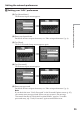
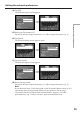
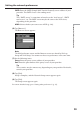
(6) Tap [Enter].
The Network Setup screen appears again.
,
Tip
While inputting password characters, they are indicated as they are. However,
after they have been entered, each character is indicated as “∗” (asterisk). If
you want to enter your password again, delete all asterisks first.
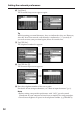
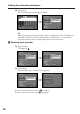
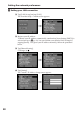
(7) Tap [TEL No.].
The telephone number list appears.
,
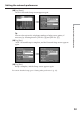
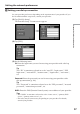
(8) Tap [TEL No. 1].
The character input screen appears.
,
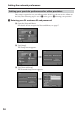
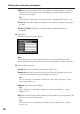
(9) Enter the telephone number of the access point.
For details of how to input characters, see “How to input characters” (p. 9).
Notes
• Before setting your provider preferences with “AOL”, go to keyword:
Handycam on your computer to learn how to simplify the setup procedure.
• Do not insert hyphens or spaces in the telephone number. (e.g. 012345678)
Setting the network preferences