3-080-307-11 (1) Network Function/ Application Operating Instructions Registration code (for a detailed explanation of this code, see page 32.
On trademarks •ImageStation is the registered trademark of Sony Corporation. •“Memory Stick” and are registered trademarks of Sony Corporation. •The BLUETOOTH trademarks are owned by their proprietor and used by Sony Corporation under license. •America Online, AOL, and the AOL Triangle logo are registered trademarks of America Online, Inc. •NetFront by Access Co., Ltd. is adopted for the Internet function of this product. NetFront is a registered trademark of Access Co., Ltd in Japan.
Table of contents Introduction Basic operations of the network function On network operation ................................... 7 How to use the Network Menu ............ 7 How to use the stylus ............................. 8 Inputting characters ....................................... 9 How to input characters ......................... 9 The character input screen ................... 11 The available characters list ................. 12 Character input setting .........................
– Introduction – The network function on your camcorder Congratulations on your purchase of this Sony Handycam.
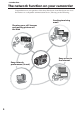
The network function on your camcorder Showing your still images and moving pictures on the Web You can upload still images and moving pictures to your Album on the Web, store them on the Internet, and show them to your friends. You can send or receive email anytime, and attach still images and moving pictures to email messages. Easy access to the Internet Introduction Sending/receiving email* You can view web pages on the LCD screen of your camcorder.
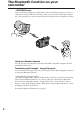
The Bluetooth function on your camcorder – DCR-TRV80 only Your camcorder is designed to communicate with another Bluetooth device, such as a computer, or a PDA. Without connecting a cable, you can transfer still image, and can use your camcorder as a remote camera and shoot remotely from a computer or a PDA. Using as a Remote Camera You can operate your camcorder remotely from a BIP* compatible computer or PDA with Bluetooth function.
– Basic operations of the network function – On network operation This section describes the basic ways to operate your camcorder’s network function. For details of how to hold your camcorder when operating the network function, refer to the operating instructions supplied with your camcorder. How to use the Network Menu Tap the desired network function on the Network Menu. To display the Network Menu, set the POWER switch to MEMORY/NETWORK and tap NETWORK.
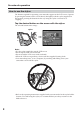
On network operation How to use the stylus The buttons required for operating your camcorder appear on the LCD screen. Operate by pressing the buttons on the screen directly but lightly with the stylus supplied. In this manual, pressing the buttons in this way using the stylus is referred to as “tapping”. Tap the desired button on the screen with the stylus. The selected button turns orange. stylus , Notes •Use the stylus supplied to tap the LCD screen. •Do not tap the LCD screen too hard.
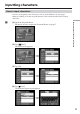
Inputting characters How to input characters You have to frequently enter characters, such as email addresses or web pages addresses (URLs), to use the network function. This section describes how to input characters. (1) Open the Network Menu. For details of how to open the Network Menu, see page 7. (2) Tap [ Mail]. The Send screen appears. Basic operations of the network function 1 , (3) Tap [To]. , (4) Tap [ New]. The character input screen appears.
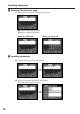
Inputting characters 2 Selecting the character type Tap [abcy123], then tap the desired character type. abc: When inputting alphabets. 123: When inputting numbers. When you select abc When you select 123 3 Inputting characters (1) Tap the characters you want to input. , (2) After you input the characters, tap [Enter]. The Send screen appears again.
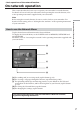
Inputting characters The character input screen 1 2 3 9 6 8 7 1 [abcy123] button A list box appears when you tap the [abcy123] button. Tap the desired type of character (alphabets or numbers) from the list box. 2 [a/A] button The [a/A] button appears when you input alphabets. You can switch between upper case and lower case. 3 Input byte number/maximum byte number 4 Preferences You can change the keyboard arrangement for alphabets.
Inputting characters The available characters list When [abc] is selected The alphabet keyboard has two types of arrangement (PC Style and Alphabetical order). The default setting is PC Style. To change the keyboard settings, see page 17 for details.
Inputting characters When [123] is selected (Numerical order) 1 2 3 + ( ) $ 4 5 7 8 * 0 C \ % 6 – [ ] 9 / { } & ˆ | ˜ ` ” ’ # = < > , . : ; _ To switch between upper and lower case alphabet letters Basic operations of the network function Numbers and symbol characters Tap [a/A] to change the alphabetical keyboard, then enter characters.
Inputting characters E.g., Enter “Hello” into the Subject item on the Send screen 1 (1) Open the Network Menu. For details of how to open the Network Menu, see page 7. (2) Tap [ Mail]. The Send screen appears. , 2 Entering the subject of a message (1) Tap [Subject]. (2) Tap [ New]. The character input screen appears.
Inputting characters 3 (1) Tap [abcy123], then tap [abc]. , Basic operations of the network function (2) Tap [a/A] to enable entry of upper-case letters. (3) Tap [H]. “H” is entered. , (4) Tap [a/A] to enable entry of lower-case letters.
Inputting characters (5) Tap [e]. “e” is entered. , (6) Tap [l], [l] and [o]. “llo” is entered. , (7) Tap [Enter]. “Hello” is entered and the Send screen appears again.
Inputting characters Character input setting Keyboard When [abc] is selected on page 12, you can select between two types of keyboard arrangement (PC Style or Alphabetical order). The default setting is PC Style. in the character input screen. , 2 Tap the desired arrangement. – PC Style (PC arrangement keyboard) – Alphabetical order (ABC arrangement keyboard) PC Style To switch the settings, tap Basic operations of the network function 1 Tap Alphabetical order on the upper right of the LCD screen.
– Preparation for Network Operation – Using the network functions There are three network functions, namely Album on the Web, email, and browser. To use the Album on the Web and “So-net” option, you need to finish customer registration. “So-net” is charged service. For details, refer to the supplied flyer “Getting Online with your Sony Network Handycam® camcorder”. To fully enjoy the network functions, you have to finish the following registrations and setup tasks: 1 2 3 4 5 USB device Setup (p.
Setting up USB devices Here we describe how to connect to the Internet with the USB devices. There are two optional USB devices that can connect to your camcorder below: – USB-PSTN Modem Adaptor (supplied to DCR-TRV39) (p. 20) – USB-Ethernet Adaptor (p. 22) For details of using these USB devices connected to your camcorder, refer also to the operating instructions of the USB devices.
Setting up USB devices Connecting to a telephone line via the USB-PSTN Modem Adaptor Connect your camcorder to a telephone line via a USB Modem Adaptor to access the Internet. The following procedure shows you how to connect to a telephone line via the Sony USB-PSTN Modem Adaptor. (1) Connect the USB-PSTN Modem Adaptor to the telephone line. (2) Open the jack cover of your camcorder. (3) Connect (USB) jack of your camcorder and the USB connector of the USBPSTN Modem Adaptor.
Setting up USB devices (4) Open the Network Menu. For details of how to open the Network Menu, see page 7. Note Connect the USB-PSTN Modem Adaptor with your camcorder directly. Your camcorder cannot access the Internet when connected through a USB hub. To disconnect your camcorder from the telephone line (USB) Preparation for Network Operation (1) Remove the USB connector of the USB-PSTN Modem Adaptor from jack of your camcorder. (2) Close the jack cover of your camcorder.
Setting up USB devices Connecting to LAN with the USB-Ethernet Adaptor Connect your camcorder to the Internet via a LAN (Ethernet) adaptor. The following procedure shows you how to connect to LAN via the Sony USB-Ethernet Adaptor. Notes •You may not be able to use the email function, depending on your provider. •If you use your camcorder in a company, for example, ask the network manager about the proxy settings for the mail server and browser. (1) Connect the USB-Ethernet Adaptor to a LAN cable.
Setting up USB devices (4) Open the Network Menu. For details of how to open the Network Menu, see page 7. To disconnect your camcorder from LAN (1) Remove the USB connector of the USB Ethernet Adaptor from your camcorder. (USB) jack of Preparation for Network Operation Notes •Directly connect the USB-Ethernet Adaptor with your camcorder. Your camcorder cannot access the Internet when connected through a USB hub. •Do not connect an unspecified network or telephone line to the USB-Ethernet Adaptor.
Registering Bluetooth devices – DCR-TRV80 only Before communication What is Bluetooth wireless technology? Bluetooth wireless technology allows communication between various Bluetooth devices without using cables. Devices which can use this technology include PCs, computer peripheral devices, PDAs, and mobile phones. This omnidirectional communication system enables connection even if a Bluetooth device is in a bag, for example, or there is an obstacle between devices.
Registering Bluetooth devices Registering a Bluetooth device To enable your camcorder to communicate with a Bluetooth device, the devices should be registered with each other. Here we describe how to register the Sony Modem Adaptor with Bluetooth Function. Once registration is complete, you do not have to reregister the Bluetooth device as long as you do not cancel registration. You can register up to three Bluetooth devices to your camcorder.
Registering Bluetooth devices 2 Specifying your Modem Adaptor with Bluetooth Function as the connection device (1) Open the Network Menu. For details of how to open the Network Menu, see page 7. (2) Tap [Setup]. The Setup screen appears. , (3) Tap [Bluetooth Setup]. The Bluetooth Setup screen appears.
Registering Bluetooth devices (4) Tap [Select]. The registered Bluetooth device list appears. When registering for the first time, only [ Return] and [ New] appear. The list shows up to three most recently used Bluetooth devices. You can select one of the three Bluetooth devices from the list. Tip The most recently used Bluetooth device is listed next to [ [ New]. Return] and (5) Tap [ New]. Your camcorder starts searching for Bluetooth devices.
Registering Bluetooth devices (7) Tap [Passkey]. The character input screen appears. , (8) Enter the passkey. For details of how to input characters, see “How to input characters” (p. 9). For example, when using the BTA-NW1/BTA-NW1A Modem Adaptor, the passkey is the same as its serial number indicated on the label on the rear panel. ® MODEL NO.
Registering Bluetooth devices (11) Tap [OK]. The selected Bluetooth device is specified. , (12) Tap [Exit]. The Setup screen appears again. For details of how to turn off the Modem Adaptor with Bluetooth Function, refer to the operating instructions supplied with the Modem Adaptor. Preparation for Network Operation Note If the message “Bluetooth Registration Error Check the Passkey” appears, tap [OK], then follow the procedure again from step 4. , (13) Tap [Exit]. The Network Menu appears again.
Registering Bluetooth devices Changing the communication devices Changing from a USB device to a Bluetooth device Unplug the USB device from (USB) jack of your camcorder. When a Bluetooth device is registered, your camcorder automatically selects the Bluetooth device as a communication device. Selecting other Bluetooth devices from the list Tap the Bluetooth device you want to specify in step 4 of 2 on page 27. The device information is indicated. Tap [OK].
Registering Bluetooth devices (3) Tap [Bluetooth Setup]. The Bluetooth Setup screen appears. , , Preparation for Network Operation (4) Tap [Select]. The Bluetooth device list appears. (5) Tap the device you want to delete. The name and address of the selected device are indicated. , (6) Tap [Delete]. The selected device is deleted from the list.
Customer registration DI customer registration Your camcorder offers network functions in addition to its basic functions. To take full advantage of these network functions, you should finish DI (Digital Imaging) customer registration for the services provided. For details of services available, refer to the supplied flyer “Getting Online now with your Sony Network Handycam® camcorder”. Before carrying out DI customer registration, see “Online Privacy Policy” on page 151 and agree to the terms.
Customer registration (1) Open the Network Menu. For details of how to open the Network Menu, see page 7. , Preparation for Network Operation (2) Tap [Setup]. The Setup screen appears. (3) Tap [Online Registration]. The screen for verifying the connection appears. Tap [Connect]. To connect to an outside line, for example in a hotel, check the item “Prefix No.” and enter the prefix number. Your camcorder starts connecting to the site.
Customer registration Notes •When registering, you will need the registration code located on the cover of your operating instructions. After entering this code, follow the on-screen guidance. •When registering online with your camcorder by a dial-up connection, the connection may be disconnected after a certain length of time. However, data entry can be done offline. When your camcorder needs to connect with the online registration site, the screen for verifying the connection appears.
Registering your Album on the Web Finish album registration separately (1) Display the online registration screen following the procedure described in “Online registration with your camcorder” (p. 32). (2) Tap [Login link]. (3) Enter your DI customer ID and password to log in. (4) Tap [Album sign-up link]. (5) Complete album registration following the on-screen guidance.
Setting the Internet connection Internet service provider To access the Internet, you have to sign up with an Internet service provider (ISP). The provider acts as an intermediary between your camcorder and the Internet. After you sign up with a provider, you can view various web pages through the Internet, and you can send/receive email with your email address. The email address is a destination address in an email transmission. Various other services may be available depending on your provider.
Registering with “So-net” You can complete online “So-net” registration with your camcorder. You can also signup with “So-net” in DI customer registration step. “So-net” registration is done by either of the following ways: – Register with “So-net” during DI customer registration (p. 34) – Register with “So-net” separately after DI customer registration is complete (See below.
Setting the network preferences You have to access the Internet to make your Album on the Web, view web pages, or send/receive email. This section describes how to set the network preferences to access the Internet. Setting your provider preferences for “So-net” This setup is required to use “So-net” option and “Album on the Web”. Note You cannot use “So-net” option in a LAN environment that has a firewall, such as in a company. 1 Entering your DI customer ID and password (1) Open the Network Menu.
Setting the network preferences (4) Tap [ID]. The character input screen appears. , (6) Tap [Enter]. The Network Setup screen appears again. Preparation for Network Operation (5) Enter your DI customer ID. For details of how to input characters, see “How to input characters” (p. 9). , (7) Tap [Password]. The character input screen appears. , (8) Enter your password. For details of how to input characters, see “How to input characters” (p. 9).
Setting the network preferences (9) Tap [Enter]. The Network Setup screen appears again. , Tip While inputting password characters, they are indicated as they are. However, after they have been entered, each character is indicated as “∗” (asterisk). If you want to enter your password again, delete all asterisks first. 2 “So-net” settings (1) Confirm that [So-net] is checked. If [So-net] is not checked, tap [So-net] to check it. a changes to . , (2) Tap [Setting].
Setting the network preferences 3 Setting your dial-up connection If you use a dial-up connection, enter the telephone number of your access point. For details of the telephone numbers of access points (p. 146), refer to the supplied flyer “Getting Online with your Sony Network Handycam® camcorder”. (1) Tap [Dial-Up Setup]. The So-net : Dial-Up Setup screen appears. (2) Tap [TEL1]. The character input screen appears.
Setting the network preferences (5) Tap [Exit]. Telephone number registration is complete, and the Provider Setting : So-net screen appears again. (6) Tap [Exit]. Setup is complete, and the Network Setup screen appears again. For a more detailed setup, go to “Setting other preferences” (p. 65). 4 Setting up your LAN connection (1) Tap [LAN Setup]. The So-net : LAN Setup screen appears. , (2) Register your IP address.
Setting the network preferences (5) Tap [IP Address]. The character input screen appears. , (7) Tap [Enter]. The So-net : IP Address Setup screen appears again. Preparation for Network Operation (6) Enter your IP address. For details of how to input characters, see “How to input characters” (p. 9). , (8) Tap [Subnetmask]. The character input screen appears again. , (9) Enter your subnet mask. For details of how to input characters, see “How to input characters” (p. 9).
Setting the network preferences (10) Tap [Enter]. The So-net : IP Address Setup screen appears again. , (11) Tap [Gateway]. The character input screen appears. , (12) Enter the gateway. For details of how to input characters, see “How to input characters” (p. 9). (13) Tap [Enter]. The So-net : IP Address Setup screen appears again. , (14) Tap [Exit]. The So-net : LAN Setup appears again.
Setting the network preferences 5 Setting the DNS server To obtain your DNS information automatically, confirm that [Auto Setting (DHCP)] is selected and go to step 10. You can confirm your detailed settings by tapping [Status]. To set your DNS information manually, follow the procedure below. (2) Tap [Setting]. The So-net : DNS Server Setup screen appears. , Preparation for Network Operation (1) Confirm that [Manual Setting] is checked.
Setting the network preferences (6) Tap [DNS2]. The character input screen appears. , Tips •This entry may be unnecessary, depending on your provider. For details, consult your provider. •This “DNS2” is sometimes referred to as the “secondary DNS server”, etc. (7) Enter DNS2. For details of how to input characters, see “How to input characters” (p. 9). (8) Tap [Enter]. The So-net : DNS Server Setup screen appears again. , (9) Tap [Exit]. The So-net : LAN Setup screen appears again.
Setting the network preferences (10) Tap [Exit]. The Provider Setting : So-net screen appears again. , , Preparation for Network Operation (11) Tap [Exit]. (12) Tap [Exit]. The Setup screen appears again. , For a more detailed setup, go to “Setting other preferences” (p. 65).
Setting the network preferences Setting your provider preferences for “AOL” This setup is required to use your Album on the Web. If you do not use the Album on the Web, after following steps 1 to 3 of 1 below, go to “2 “AOL” settings”. Before setting your provider preferences for “AOL”, go to keyword: Handycam on your computer to learn how to simplify your setup procedure. You cannot access the Internet via “AOL” when your camcorder is connected with a USB-Ethernet Adaptor.
Setting the network preferences (4) Tap [ID]. The character input screen appears. , (6) Tap [Enter]. The Network Setup screen appears again. Preparation for Network Operation (5) Enter your DI customer ID. For details of how to input characters, see “How to input characters” (p. 9). , (7) Tap [Password]. The character input screen appears. , (8) Enter your password. For details of how to input characters, see “How to input characters” (p. 9).
Setting the network preferences (9) Tap [Enter]. The Network Setup screen appears again. , Tip While inputting password characters, they are indicated as they are. However, after they have been entered, each character is indicated as “∗” (asterisk). If you want to enter your password again, delete all asterisks first. 2 “AOL” settings (1) Tap [AOL]. a changes to . , (2) Tap [Setting]. The AOL Network Setup screen appears.
Setting the network preferences 3 Setting your “AOL” preferences (1) Tap [ScreenName]. The character input screen appears. (2) Enter your ScreenName. For details of how to input characters, see “How to input characters” (p. 9). (3) Tap [Enter]. The AOL Network Setup screen appears again. Preparation for Network Operation , , (4) Tap [Password]. The character input screen appears. , (5) Enter your password. For details of how to input characters, see “How to input characters” (p. 9).
Setting the network preferences (6) Tap [Enter]. The Network Setup screen appears again. , Tip While inputting password characters, they are indicated as they are. However, after they have been entered, each character is indicated as “∗” (asterisk). If you want to enter your password again, delete all asterisks first. (7) Tap [TEL No.]. The telephone number list appears. , (8) Tap [TEL No. 1]. The character input screen appears. , (9) Enter the telephone number of the access point.
Setting the network preferences (10) Tap [Enter]. The AOL Network Setup screen appears again. , (11) Tap [Exit]. “AOL” Network Setup is complete, and the Network Setup screen appears again. Preparation for Network Operation Tip You can also register the telephone numbers of other access points, if necessary, by entering them in [TEL No. 2] and [TEL No. 3]. , (12) Tap [Exit]. Setup is complete, and the Setup screen appears again. For a more detailed setup, go to “Setting other preferences” (p. 65).
Setting the network preferences Setting your provider preferences for other providers This setup is required to use your Album on the Web. If you do not use the Album on the Web, after following steps 1 to 3 of 1 below, go to “2 Selecting your provider”. 1 Entering your DI customer ID and password (1) Open the Network Menu. For details of how to open the Network Menu, see page 7. (2) Tap [Setup]. The Setup screen appears. , (3) Tap [Network Setup]. The Network Setup screen appears.
Setting the network preferences (4) Tap [ID]. The character input screen appears. , (6) Tap [Enter]. The Network Setup screen appears again. Preparation for Network Operation (5) Enter your DI customer ID. For details of how to input characters, see “How to input characters” (p. 9). , (7) Tap [Password]. The character input screen appears. , (8) Enter your password. For details of how to input characters, see “How to input characters” (p. 9).
Setting the network preferences (9) Tap [Enter]. The Network Setup screen appears again. , Tip While inputting password characters, they are indicated as they are. However, after they have been entered, each character is indicated as “∗” (asterisk). If you want to enter your password again, delete all asterisks first. 2 Selecting your provider (1) Tap [Custom]. a changes to . , (2) Tap [Setting]. The Provider Setup : Custom screen appears. , If you use a dial-up connection, go to 3 on page 57.
Setting the network preferences 3 Setting your dial-up connection Set your provider preferences depending on the requirements of your provider. If you do not understand the setup items, consult your provider. (1) Tap [Dial-Up Setup]. The Provider Setup : Custom screen appears. (2) Tap [PPP]. Preparation for Network Operation , (3) Set the following items: ID: Enter the login name you use for accessing your provider with a dial-up connection.
Setting the network preferences DNS2: Enter the secondary DNS server address of your provider, if necessary. This entry may be unnecessary, depending on your provider. For details, consult your provider. Tip This “DNS2” is sometimes referred to as the “secondary DNS server”, etc. TEL No. 1: Enter the telephone number of your most convenient access point (p. 146). TEL No. 2/TEL No. 3: Enter second and third telephone numbers, if necessary. (4) Tap [Mail]. The Mail preference screen appears.
Setting the network preferences SMTP: Enter the SMTP (Simple Mail Transfer Protocol) server address of your provider. The SMTP server is for sending email. Tip This “SMTP server” is sometimes referred to as the “mail server”, “SMTP mail server”, etc. The SMTP server may be the same as the POP server, depending on the provider. (6) Tap [Browser]. The Browser screen appears. Preparation for Network Operation APOP: Select whether you want to use APOP (p. 146).
Setting the network preferences 4 Setting your LAN connection (1) Tap [LAN Set up] and tap [LAN]. The Provider Setup : Custom screen appears. , (2) Register your IP address. To obtain your IP address automatically, confirm that [Auto Setting (DHCP)] is selected and go to 5 (p. 63). You can confirm your detailed LAN settings by tapping [Status]. To register your IP address manually, follow the procedure below. (3) Tap [Manual Setting]. a changes to . , (4) Tap [Setting].
Setting the network preferences (5) Tap [IP Address]. , (7) Tap [Enter]. The Custom : IP Address Setup screen appears again. , Preparation for Network Operation (6) Enter your IP address. For details of how to input characters, see “How to input characters” (p. 9). (8) Tap [Subnetmask]. The character input screen appears. , (9) Enter your subnet mask. For details of how to input characters, see “How to input characters” (p. 9).
Setting the network preferences (10) Tap [Enter]. The Custom : IP Address Setup screen appears again. , (11) Tap [Gateway]. The character input screen appears. , (12) Enter the gateway. For details of how to input characters, see “How to input characters” (p. 9). (13) Tap [Enter]. The Custom : IP Address Setup screen appears again. , (14) Tap [Exit]. The Provider Setup : Custom screen appears again.
Setting the network preferences 5 Setting the DNS server To obtain your DNS information automatically, confirm that [Auto Setting (DHCP)] is selected and tap [Exit]. You can confirm your detailed settings by tapping [Status]. To set your DNS information manually, follow the procedure below. (2) Tap [Setting]. The Custom : DNS Server Setup screen appears. , Preparation for Network Operation (1) Confirm that [Manual Setting] is checked. If [Manual Setting] is not checked, tap [Manual Setting] to check it.
Setting the network preferences (6) Tap [DNS2]. The character input screen appears. , Tips •This entry may be unnecessary, depending on your provider. For details, consult your provider. •This “DNS2” is sometimes referred to as the “secondary DNS server”, etc. (7) Enter DNS2. For details of how to input characters, see “How to input characters” (p. 9). (8) Tap [Enter]. The Custom : DNS Server Setup screen appears again. , (9) Tap [Exit]. The Provider Setup : Custom screen appears again.
Setting the network preferences Setting other preferences You can access the Internet with your camcorder using the default settings explained on previous pages. It is not necessary to make the following settings, however, see the following when any changes are necessary in the future. (1) Open the Network Menu and tap [Setup]. The Setup screen appears. Preparation for Network Operation (2) Tap [Network Options]. The Network Options screen appears.
Setting the network preferences Mail Send&Receive: Select whether to check the email inbox after sending email. Save Mail to Server: Select whether to keep copies of the messages on the server. Note If you try to receive email without checking this item, email messages may not be downloaded and may be lost from your server, depending on the type of the received email. For details, see “Note on “Save Mail to Server”” (p. 67). Signature: Set this item if you want to attach your signature to your email (p.
Setting the network preferences Note on “Save Mail to Server” When “Save Mail to Server” is not checked, copies of email messages received will not be stored on your server. However, the error messages described in the table below will appear, depending on the type of email messages. Cause and/or Corrective Actions Memory Stick Memory Full You received email when the “Memory Stick” was already full.
– Network Operation – Making your Album on the Web You can upload and store still images and/or moving pictures to your “Album on the Web” on the Internet. The Album on the Web is provided with “ImageStation”. For details of “ImageStation”, access the “ImageStation” web site “http://www.imagestation.com/us/PC/”. You can make an Album on the Web and send email with its URL as an invitation card to your friends. You can also access your Album on the Web with a computer.
Making your Album on the Web (2) Tap [ Album]. The Album screen appears. , Network Operation (3) Tap [ Upload]. The Album : Upload screen appears. , (4) Tap [Album No.]. The album list page appears. , (5) Tap the desired album. , The number of available albums You can use up to 10 albums (Album 01 to 10).
Making your Album on the Web 2 Selecting still images and/or moving pictures to upload Next, select the still images and/or moving pictures you want to upload. (1) Tap [Image Sel.]. The image index list appears. , (2) Tap the still image or moving picture you want to upload. The selected still image or moving picture is indicated by the checkmark ( ). To page up or down the image index list Tap [<] or [,]. The next or previous page containing six still images and/or moving pictures appears.
Making your Album on the Web (4) Tap [ OK]. The Album : Upload screen appears again. The total number of selected still images and/or moving pictures and the total file size are indicated. , 3 Sending an invitation card (email) Network Operation If you only want to upload still images and/or moving pictures, go to “5 Uploading still images and/or moving pictures” (p. 74). Select the addressee to send the invitation card (email) to. (1) Tap [Invitation]. The Album : Invitation screen appears.
Making your Album on the Web (3) Tap [ New]. The character input screen appears. , (4) Enter the destination email address. For details of how to input characters, see “How to input characters” (p. 9). (5) Tap [Enter]. The Album : Invitation screen appears again. The new email address is listed and its check box is indicated by a checkmark ( ). , (6) If you want to send the invitation card to other addressees, tap other email addresses.
Making your Album on the Web 4 Entering the text of a message Enter the text of the message. You can also select one of your six most recently written messages from the message list and edit it. (1) Tap [Message]. The message list appears. The list shows previously written messages. Tap the message you want to use from the list. When the desired message is selected, tap [OK], and go to “5 Uploading still images and/or moving pictures” (p. 74). If you want to edit the selected text, tap [Edit].
Making your Album on the Web (5) Tap [OK]. The Album : Upload screen appears again. “Yes” is indicated next to [Invitation]. , 5 Uploading still images and/or moving pictures Before following the steps below, set a communication device to connection standby with your camcorder. For details, refer to the operating instructions supplied with the communication device. (1) Tap [Send]. The screen for verifying the connection appears.
Making your Album on the Web (3) Tap [OK]. The Album : Upload screen appears again. To cancel uploading While uploading, tap [Cancel]. To send only an invitation card (email) Network Operation You can send an invitation card without uploading still images and/or moving pictures. Follow the steps below: “1 Selecting an album” (p. 68) “3 Sending an invitation card (email)” (p. 71) “4 Entering the text of a message” (p. 73) “5 Uploading still images and/or moving pictures” (p.
Making your Album on the Web (4) Tap [ View/Edit]. The screen for verifying the connection appears. , (5) Tap [Connect]. If you use a dial-up connection, dial the telephone number displayed on the screen for verifying the connection. If you want to dial other telephone numbers, tap [TEL No.] to display the list of registered telephone numbers. Tap the desired telephone number to select it. To connect to an outside line, for example in a hotel, check the item “Prefix No.” and enter the prefix number.
Making your Album on the Web (7) Tap the desired still image or moving picture. The still image or moving picture is enlarged to fill the screen. Tips •To quit viewing or editing still images and/or moving pictures in your Album on the Web, tap menu on the upper right of the LCD screen, then tap END . •The actual appearance of the screen may be different from those shown in this manual.
Making your Album on the Web (3) Tap [OK]. The message “Downloading” appears. When downloading is complete, the message “Download Complete” appears. , (4) Tap [OK]. The index page or single-image page appears. To cancel downloading While downloading, tap [Cancel]. To view a downloaded still image or moving picture Exit the network function, then view the still image or moving picture following the same procedure as that for viewing a still image or moving picture recorded on a “Memory Stick.
Making your Album on the Web (3) Tap . The screen for verification appears. , Network Operation To select all the still images and/or moving pictures Tap . To cancel an image selection Tap the check box of the still image or moving picture again. To cancel all image selections Tap . To return to the album list page Tap . To select one still image or moving picture displayed on the singleimage page You can select one still image or moving picture displayed on the full-screen and download it.
Making your Album on the Web (3) Tap . The screen for verification appears. , To return to the index page Tap . To return to the album list page Tap . Deleting still images and/or moving pictures from your Album on the Web You can delete still images and/or moving pictures from your Album on the Web. To delete still images and/or moving pictures displayed on the index page You can select two or more still images and/or moving pictures and delete them together.
Making your Album on the Web Finishing viewing or editing your Album on the Web To finish viewing or editing your Album on the Web (1) If the menu bar is not displayed, tap The menu bar appears. menu on the upper right of the LCD screen. Network Operation (2) Tap END . Your Album on the Web is closed. When you use a dial-up connection, the telephone line is disconnected automatically. To only disconnect the line Tap . Only the line is disconnected.
Using email This section describes the basic procedure for sending/receiving email via the Internet. Email is very convenient, since you can send it anytime, and you can also send still images and/or moving pictures stored in a “Memory Stick” by attaching them to email. As of March 2003, “AOL” does not support the receiving of email on this device. For further clarification on this and other “AOL”-specific attributes, go to keyword: Handycam on your computer.
Using email (3) Tap [To]. The address list appears. The list shows the six most recently used addresses in the address book. For details of the address book, see “Using the address book” (p. 93). If you want to select an address listed in the address book, go to step 7. Tips • The most recently used address is listed under [ • Addresses are listed in historical order. Return] and [ New]. Network Operation , (4) Tap [ New]. The character input screen appears.
Using email (7) If you want to send the email message to other addresses, tap other email addresses. Each tapped email address is checked ( ). (8) Tap [ Return]. The Send screen appears again. Note You can register up to 50 addresses in the address book. If you register a 51st address, the least recently used address is overwritten. The message “Address Book Full Overwrite the Data with Current Address?” appears for verification. If you want to overwrite it, tap [OK].
Using email 2 Entering the subject of a message (1) Tap [Subject]. The subject list appears. The list shows the six most recently used subjects. , Tip The most recently selected subject is listed under [ You cannot edit or delete the subject. Return] and [ Network Operation If you want to use a subject shown on the list, tap it. After selecting the subject, go to “3 Entering the text of a message” (p. 86). New]. (2) Tap [ New]. The character input screen appears. , (3) Enter the subject.
Using email 3 Entering the text of a message Enter the text of the message. You can select one of your six most recently written messages from the message list and edit it. (1) Tap [Message]. The message list appears. , The list shows previously written messages. Tap the message you want to use from the list. When the desired message is selected, tap [OK], and go to “4 Sending email” (p. 87). If you want to edit the selected text, tap [Edit]. The character input screen appears. Go to step 3.
Using email 4 Sending email Tip You can send email messages with your signature. For details, see “Attaching your signature to messages” (p. 92). (1) Select the still images and/or moving pictures to attach to the email message. For details, see “Attaching still images and/or moving pictures to email” (p. 90). (3) Set a communication device to connection standby with your camcorder. For details, refer to the operating instructions supplied with the communication device.
Using email (6) Tap [OK]. The Send screen appears again. To cancel sending email While sending email, tap [Cancel]. Tip You can have your camcorder check the email inbox automatically after sending email. For details, see “Setting other preferences” (p. 65). Checking or editing a message (1) Follow steps 1 and 2 of 1 on page 82. The Send screen appears. (2) Tap [Message]. The message list appears. , (3) Tap the message you want to check or edit. The following screen appears.
Using email (4) Check or edit the message. If the message is long, tap the message area, then tap the scroll button V to scroll the message. To only check the message: After checking the message, tap [OK]. The Send screen appears again. To edit the message: Follow steps 5 to 7 below. , Network Operation (5) Tap [Edit]. The character input screen appears. (6) Edit the message. For details of how to input characters, see “How to input characters” (p. 9). (7) Tap [Enter]. The Send screen appears again.
Using email Attaching still images and/or moving pictures to email You can send still images and/or moving pictures by attaching them to email messages. Before operation Insert the “Memory Stick” that contains the desired still images and/or moving pictures into your camcorder. (1) Finish the following procedure: “1 Specifying a destination address” (p. 82) “2 Entering the subject of a message” (p. 85) “3 Entering the text of a message” (p. 86) The Send screen appears. (2) Tap [Attach].
Using email (3) Tap the still images and/or moving pictures you want to attach. Selected still images or moving pictures are indicated by a check mark ( ). To cancel an image selection Tap the still image or moving picture again. The check mark will disappear from the still image or moving picture. Network Operation To page up or down the index list Tap [<] or [,]. The next or previous page appears. To cancel all the image selection Tap [ CLR].
Using email Attaching your signature to messages You can attach your signature to the last column of the email message. You can enter information such as your name, address and telephone number as a signature. (1) Open the Network Menu. For details of how to open the Network Menu, see page 7. (2) Tap [Setup]. The Setup screen appears. , (3) Tap [Network Options]. The Network Options screen appears. , (4) Tap [Signature]. The character input screen appears.
Using email (5) Enter your signature. For details of how to input characters, see “How to input characters” (p. 9). Note You can enter up to 256 characters in a signature. (6) Tap [Enter]. The setup of your signature is complete, and the Network Options screen appears again. “Yes” is indicated next to [Signature]. Network Operation , (7) Tap [Exit]. The Setup screen appears again. (8) Tap [Exit]. The Network Menu appears again.
Using email (2) Tap [ Mail]. If the Address screen does not appear, tap Address. The Address screen will appear. , (3) Tap [New]. The Address Book : New screen appears. , (4) Tap [Name]. The character input screen appears. , (5) Enter the destination name. For details of how to input characters, see “How to input characters” (p. 9). Note You can enter up to 24 characters in the [Name] box.
Using email (6) Tap [Enter]. The Address Book : New screen appears again. , Network Operation (7) Tap [Address]. The character input screen appears. , (8) Enter the email address. For details of how to input characters, see “How to input characters” (p. 9). When addressing email, including to other “AOL” members, be sure to enter the recipients entire email address into the “To” field. (e.g. johndoe@aol.com) (9) Tap [Enter]. The Address Book : New screen appears again. , (10) Tap [Return].
Using email (11) Tap [Exit]. The Network Menu appears again. Tips •The addresses are listed in alphabetical order. •When you reply to the address of a previously received email message (p. 102), the address is automatically registered in the address book. To edit the address, see “Editing or deleting the address book” below. Editing or deleting the address book You can edit or delete names or email addresses in the address book.
Using email (4) Tap [Name] or [Address]. To edit the registered name, tap [Name], and to edit the registered address, tap [Address]. The character input screen appears. , Network Operation If you want to delete an address, tap [Delete]. When the verification screen appears, tap [OK]. To stop deleting, tap [Cancel]. (5) Edit the name or address. For details of how to input characters, see “How to input characters” (p. 9). (6) Tap [Enter]. The Address Book : Edit screen appears again. , (7) Tap [Return].
Using email Selecting a destination address from the address book You can select a destination address from the address book. (1) Follow steps 1 and 2 in “Registering destination addresses in the address book” (p. 93). The Address screen appears. (2) Display the address you want to send email to by tapping or . (3) Tap [-> To]. The Send screen appears. The selected address is set as the destination address. , (4) Follow the procedures described in “2 Entering the subject of a message” (p.
Using email Receiving email After receiving email, you can reply to it or forward it. Before operation •Release the lock on the “Memory Stick.” •Insert the “Memory Stick” into your camcorder, for storing email. Checking your email inbox Tip You can leave a copy of your incoming messages on the mail server even if you download the message with your camcorder. For details, see “Setting other preferences” (p. 65).
Using email (4) Tap [Receive]. The screen for verifying the connection appears. , If you use a dial-up connection, dial the telephone number displayed on the screen for verifying the connection. If you want to dial other telephone numbers, tap [TEL No.] to display the list of registered telephone numbers. Tap the desired telephone number to select it. To connect to an outside line, for example in a hotel, check the item “Prefix No.” and enter the prefix number.
Using email (7) Tap [Return]. The Receive screen appears again. To cancel receiving email Tap [Cancel] while downloading. Email you did not download remains on the mail server. If the message is long Tap the scroll button V to scroll the message. Your camcorder can receive files with the following extensions: .jpg, .mpg, .jpeg and .mpeg. If you receive files other than these files, the message “Attached Invalid File Deleted” is inserted in the email message.
Using email Sending your answer – Reply You can reply to an email message promptly without entering the address. (1) Display the Receive screen. (2) Tap the area where the message is displayed or tap [Message]. The selected message is displayed. , (3) Tap [Reply]. The Send screen appears. , Tip “Re:” is added to the beginning of the subject line. (4) Follow the procedure described in “3 Entering the text of a message” (p. 86) to enter the text of the message.
Using email Forwarding a message to others – Forward You can forward a received message to others. (1) Display the Receive screen. Network Operation (2) Display the email containing the message that you want to forward by tapping or . (3) Tap the area where the message is displayed or tap [Message]. The selected message is displayed. , (4) Tap [Forward]. The Send screen appears. , Tips •An attached file is not automatically forwarded.
Using email (6) Follow the procedure described in “3 Entering the text of a message” (p. 86) to modify the message. Tip You can enter up to 512 characters in a message. The excess characters are deleted. (7) Follow the procedure described in “4 Sending email” (p. 87) from step 3. Deleting received email You can receive and store up to 50 email messages on a “Memory Stick.” The 51st email message cannot be received and an error message appears. Before operation •Release the lock on the “Memory Stick.
Using email (3) Select the email message you want to delete by tapping The selected message appears. or . , Network Operation (4) Tap [Delete]. The verification message “Delete This Mail?” appears. , (5) Tap [OK]. The selected email message is deleted. To cancel deleting email Tap [Cancel] in step 5.
Viewing web pages A site that posts information on the Internet is called a “web page” or “web site”. You can easily retrieve information by accessing a web site on the Internet. Viewing web pages 1 Entering the URL needed to access the web page Enter the address of the web page, then access the Internet. Be sure to enter the address correctly. Tip on URLs A web site has a unique address on the Internet. The address is called a URL. This URL is required to access a web site. (1) Open the Network Menu.
Viewing web pages (4) Enter the URL. For details of how to input characters, see “How to input characters” (p. 9). (5) Set a communication device to connection standby with your camcorder. For details, refer to the operating instructions supplied with the communication device. (6) Tap [Enter]. The screen for verifying the connection appears. Network Operation , If you use a dial-up connection, dial the telephone number displayed on the screen for verifying the connection.
Viewing web pages How to use the menu bar of the browser When you access the Internet and view a web page, you can carry out various operations with the menu bar. While the browser screen is displayed, tap menu on the upper right of the LCD screen to display the menu bar. To display the menu bar Tap menu on the upper right of the LCD screen. The following menu bar appears. To hide the menu bar Tap menu or on the menu bar. The menu bar disappears.
Viewing web pages When you fail to load a web page The message [Loading Error] appears. Tap [OK], then tap menu on the upper right of the LCD screen, and tap END in the menu bar. The Network Menu appears again. Note The buttons may not function when viewing certain web pages. Note on connection status indication Off Line: being offline Loading: Loading a web page Network Operation The connection status is indicated at the top of the screen.
Viewing web pages 2 Bookmarking a web page – Bookmark You can bookmark web pages you frequently access. You can bookmark up to 30 web pages. (1) Display the web page you want to bookmark. (2) If the menu bar is not displayed, tap The menu bar appears. menu on the upper right of the LCD screen. (3) Tap (Bookmark). The bookmark list appears. , (4) Tap [ Add]. The bookmark is added, and the display returns to the web page.
Viewing web pages To edit a bookmark You can edit the title of a bookmark. (1) Tap (Bookmark). The bookmark list appears. (2) Tap the bookmark you want to edit. The title and URL are indicated. Network Operation , , (3) Tap [Edit]. The character input screen appears. , (4) Edit the name. For details of how to input characters, see “How to input characters” (p. 9). (5) Tap [Enter]. The title of the bookmark is modified. , (6) Tap [ Return]. The browser screen appears again.
Viewing web pages To delete bookmarks You can delete bookmarks. We recommend that you delete unnecessary bookmarks since you can only store up to 30 bookmarks. (1) Tap (Bookmark). The bookmark list appears. , (2) Tap the bookmark you want to delete. , (3) Tap [Delete]. The verification message “Delete This Bookmark?” appears. , (4) Tap [OK]. The selected bookmark is deleted. , To cancel deleting the bookmark 112 Tap [Cancel] in step 4.
Viewing web pages 3 Jumping to a web page specified by a bookmark (1) If the menu bar is not displayed, tap The menu bar appears. menu on the upper right of the LCD screen. Network Operation (Bookmark). (2) Tap The bookmark list appears. , (3) Tap the bookmark. , (4) Set a communication device to connection standby with your camcorder. For details, refer to the operating instructions supplied with the communication device.
Viewing web pages (5) Tap [Go]. The screen used for verifying the connection appears. , If you use a dial-up connection, dial the telephone number displayed on the screen for verifying the connection. If you want to dial other telephone numbers, tap [TEL No.] to display the registered telephone number list. Tap the desired telephone number to select it. To connect to an outside line, for example in a hotel, check the item “Prefix No.” and enter the prefix number.
Viewing web pages (3) Tap (Page Memo). The page memo list appears. , Network Operation (4) Tap [ Add]. The message “Saving Page Memo Do Not Remove Memory Stick” appears. When the message disappears, storing is complete. , (5) The browser screen appears again. To cancel storing the web page While storing, tap [Cancel]. Note You cannot store the web page while it is still being loaded. Editing the title of a page memo You can edit the title of a page memo stored on a “Memory Stick.
Viewing web pages (2) Tap (Page Memo). The page memo list appears. , (3) Tap the page memo you want to edit. The title and URL of the selected page memo are indicated. , (4) Tap [Edit]. The character input screen appears. , (5) Edit the name. For details of how to input characters, see “How to input characters” (p. 9). (6) Tap [Enter]. The title of the page memo is modified.
Viewing web pages (7) Tap [ Return]. The browser screen appears again. To delete a page memo You can delete page memos. We recommend that you delete unnecessary page memos since you can only store up to 30 page memos. (1) If the menu bar is not displayed, tap The menu bar appears. menu on the upper right of the LCD screen. Network Operation Before operation •Release the lock on the “Memory Stick.” •Insert the “Memory Stick” that contains the page memo you want to delete into your camcorder. .
Viewing web pages (4) Tap [Delete]. The verification message “Delete This Page Memo Item?” appears. , (5) Tap [OK]. The selected page memo is deleted and the page memo list appears again. (6) Tap [ Return]. The browser screen appears again. To cancel deleting the page memo Tap [Cancel] in step 5. Displaying a web page stored in a page memo You can display a page memo stored on a “Memory Stick.
Viewing web pages (3) Tap the page memo you want to display. , To select another page memo Tap [Return] in step 3. The page memo list appears. Tap another page memo. Network Operation (4) Tap [Open]. The web page stored in the page memo appears. Shutting down the browser To finish viewing a web page (1) Tap menu on the upper right of the LCD screen to display the menu bar. (2) Tap END . The browser is closed. When you use a dial-up connection, the telephone line is disconnected automatically.
– Bluetooth Application Operation – Using as a Remote Camera – DCR-TRV80 only You can operate your camcorder remotely from a BIP compatible computer or PDA with Bluetooth function.
Using as a Remote Camera Operating the Remote Camera For details of operating the Remote Camera, refer to the operating instructions of the connected Bluetooth device. The following procedure shows you how to operate the Remote Camera function using a Sony PDA with Remote Camera Ver.1.1 installed. (4) Turn on the PDA. (5) Start up Remote Camera Ver.1.1 on the PDA. For details, refer to the operating instructions of the PDA. Bluetooth Application Operation (6) Tap “Search”.
Using as a Remote Camera Ending the Remote Camera (1) Tap END on the LCD screen of your camcorder to return to PAGE3. (2) Tap EXIT on the LCD screen of your camcorder to return to FN. Notes •When START/STOP or PHOTO is pressed, melody or shutter sound is output even if you set BEEP in to OFF in the menu settings. •Camera recording lamp lights up during recording even if you set REC LAMP in to OFF in the menu settings.
Using as a Remote Camera Tips •If you leave your camcorder on standby for more than five minutes: – While using Remote Camera, your camcorder does not turn off. – Standby is canceled. – Next time you record, it will take some time for recording to start. •You can check the status of your camcorder from the connected device. You can select DSPL ON or DSPL OFF in CAM INFO in RMTCAM SET in menu settings.
Transferring still images with Bluetooth function – Image Transport – DCR-TRV80 only You can transfer still images between your camcorder and Bluetooth devices that are compatible with BIP . Sending a still image Before operation • Insert the “Memory Stick” that contains a still image you want to send to other Bluetooth device into your camcorder. • Set a Bluetooth device to connection standby with your camcorder. Tips • You can send only JPEG files.
Transferring still images with Bluetooth function – Image Transport (5) Tap –/+ to display the desired still image. – : To see the previous image + : To see the next image , Bluetooth Application Operation (6) Tap SEND. The history of recently connected Bluetooth devices appears. If the history does not appear, tap [Search]. The message “Searching for Bluetooth Devices” appears on the screen and your camcorder starts searching for available Bluetooth devices.
Transferring still images with Bluetooth function – Image Transport (7) Tap the Bluetooth device that you want to send a still image to. , (8) Tap [OK]. Your camcorder starts sending the still image. If the Bluetooth authentication is required, tap [Passkey] and enter the passkey within 30 seconds. (9) Tap [OK]. The screen in step 5 appears again. Viewing the history (1) Set the POWER switch of your camcorder to MEMORY/NETWORK. (2) Tap FN and select PAGE3. (3) Tap IMAGE TRANS. (4) Tap LOG.
Transferring still images with Bluetooth function – Image Transport Deleting a Bluetooth device from the history You can delete a Bluetooth device from the history. (1) Follow steps 1 and 4 on page 126 and the Bluetooth Device History screen appears. The Connection Log screen appears. , Bluetooth Application Operation (2) Tap the Bluetooth device that you want to delete from the history. The Bluetooth Device screen appears. (3) Tap [Delete]. The screen for verification appears. , (4) Tap [OK].
Transferring still images with Bluetooth function – Image Transport Receiving still images Tip You can receive only JPEG files. Before operation •Release the lock on the “Memory Stick.” •Insert a “Memory Stick” into your camcorder, for storing a still image. (1) Set the POWER switch of your camcorder to MEMORY/NETWORK. (2) Tap FN and select PAGE3. (3) Tap IMAGE TRANS. (4) Tap RECV. The message “Waiting for Connection” and information of your camcorder appear.
Transferring still images with Bluetooth function – Image Transport (5) Tap [Cancel] after receiving still images. The screen in step 4 appears again. To cancel receiving still images Tap [Cancel] in step 4. The received image files are not saved. Tip If you leave your camcorder on standby for more than five minutes, the existing connection may be discontinued or a new connection may not be possible. In this case, connect your camcorder to the device again.
– Additional Information – File storage destinations and file names Files are grouped in the following folders. You can only view these folders on a computer. The meanings of the file names are as follows. ssss stands for any number within the range from 0001 to 9999. Folder containing still image files, moving picture files, files attached to received email, files downloaded from the Album on the Web and files received by IMAGE TRANS. Folder containing the text data of email, etc.
Troubleshooting Trouble accessing the Internet The message “...Incomplete” or “Authentication Error...” appears and your camcorder cannot access the Internet. c When setting network preferences with the “So-net” option Check your setup by the procedure described in “Setting your provider preferences for “So-net”” (p. 38). c When setting network preferences with the “AOL” option Check your setup by the procedure described in “Setting your provider preferences for “AOL”” (p. 48).
Troubleshooting Trouble with email The message “DNS Error The Requested URL Could Not Be Found” appears and your camcorder cannot send or receive email. c When setting network preferences with the custom setup The DNS setup may be wrong. Check the PPP setting or LAN setting. Your camcorder cannot send email. c The clock of your camcorder is not set. Set the clock.
Troubleshooting You received an email message sent from Mailer Daemon. c Email you sent has not been delivered to the addressee. Check the email address. If you receive an email message from Mailer Daemon and the destination address is correct, the server may be down, or the email address may have been changed. Trouble viewing web pages Images do not appear. c Check the item “Image Display” on the Network Options screen. Additional Information Attached files are not saved on the “Memory Stick.
Troubleshooting Troubles about the Album on the Web The message “DI Customer ID profile Incomplete” appears and your camcorder cannot access the Album on the Web. c The DI customer ID is required to use the Album on the Web. You cannot view or edit your album, send an invitation card, or upload still images and/or moving pictures. (A four-digit error code appears.) c See “Album error codes” (p. 145). It takes some time to load the album. c The web page may be busy.
Troubleshooting Troubles about receiving a still image – DCR-TRV80 only The message “Bluetooth Authentication Error” appears, and you cannot receive a still image. c The authentication time limit (30 seconds) is over. c You did not enter the correct passkey. c The connected device disconnects or ends the connection. c The passkey you entered is wrong. Enter the correct passkey. The message “Bluetooth connection Timeout” appears.
Troubleshooting Adjusting the LCD screen (CALIBRATION) If the buttons on the touch panel do not work correctly, follow the procedure below. (1) Set the POWER switch to OFF (CHG). (2) Eject the tape from your camcorder, then disconnect any connecting cable from your camcorder. (3) Set the POWER switch to VCR while pressing DISPLAY/BATTERY INFO on your camcorder, then keep pressing DISPLAY/BATTERY INFO on your camcorder for about five seconds. (4) Tap displayed on the screen with the supplied stylus.
Troubleshooting Displaying information on your camcorder You can check information of your camcorder on the LCD screen. The Self Info. screen The model name Device category To display information of your camcorder from Network Menu (1) Open the Network Menu. For details of how to open the Network Menu, see page 7. Additional Information Device Address This is the unique address assigned to each camcorder at the factory. This address is used when exchanging information between devices.
Troubleshooting (3) Tap [Bluetooth Setup]. The Bluetooth Setup screen appears. , (4) Tap [Self Info.]. The Self Info. screen appears. To return to the Bluetooth Setup screen Tap [Exit]. To display information of your camcorder from the history (1) Follow steps 1 to 4 on page 126 to display the Bluetooth Device History screen. (2) Tap [Self Info.]. The Self Info. screen appears. To return to the Connection Log screen Tap [Exit].
Specifications Bluetooth (DCR-TRV80 only) The number of registered devices available For Dial-up: 3 For Transferring Images: 10 For details, refer to the operating instructions of your camcorder.
Messages Various messages appear on the screen. Check the corresponding descriptions in the following list to correct the problems. General 140 Message Cause and/or Corrective Actions USB Connection Error A USB device is not connected correctly. c Connect correctly (p. 19). USB Communication Error • An invalid USB device is connected. • The connection was interrupted by the USB device. The Connected USB Device is not Compatible An incompatible USB device is connected.
Messages Message Cause and/or Corrective Actions Password Already Set Check the Password Profile For details of “Verify Password”, see “Setting other preferences” (p. 65). Memory Stick Error The “Memory Stick” may be broken. Do the following: exit the network function, turn off your camcorder, remove and insert the “Memory Stick,” then operate your camcorder. If the message still appears, use another “Memory Stick.
Messages Email Message Cause and/or Corrective Actions POP Server Disconnected The POP server may be down. Connect to the page again after a while. POP Server Connection Error • Your password entered on the Mail screen during manual setup may be wrong. Check your password. • Connect to the page after a while. SMTP Server Disconnected Connect to the page again after a while. SMTP Server Connection Error • Your password entered on the Mail screen during manual setup may be wrong. Check your password.
Messages Message Cause and/or Corrective Actions DNS Error The Requested URL Could Not Found • The URL may be wrong. • The DNS entry on the PPP screen during manual setup may be wrong. Check this item. • Connect to the page again after a while. Loading Error Tap Read-Only File in Directory Unable to Delete the File Check the File Status You may be unable to delete files modified with a computer by using your camcorder. menu on the upper right of the LCD screen, then tap END .
Messages Receiving a still image – DCR-TRV80 only 144 Message Cause and/or Corrective Actions Input at Least One Letter Enter the passkey between one to 16 characters. Error Receiving • Disconnected from the connected Bluetooth device c After confirming the connection to the Bluetooth device, receive the still image again. • The radio waves between your camcorder and the connected device were blocked while receiving still images.
Album error codes ImageStation Cause Corrective Actions 1000 Authentication error occurred. Please check ID and Password. Login error. ID or password may be incorrect on your camcorder. Check your ID and password, and try to login again. 1001 Upload error occurred. Please try to upload again later. Error in finding album. Check your selection and try again. 1002 Your ID is not registered. Please register. ID is not registered.
Glossary Access point (p. 41, 58) A telephone number used to access the Internet, which is provided by an Internet service provider. Most providers install access points in various areas. We recommend that you select the most convenient access point with the lowest telephone charges. Address book (p. 93) Used to register email destination addresses. APOP (p. 59) An abbreviation for Authenticated Post Office Protocol. APOP is an authentication protocol for security.
Glossary Email (p. 82) Using a network, such as the Internet, you can send and receive messages very quickly. Email is easy to edit or store. Email address (p. 58) This is the destination address for email. There is no need to specify the country and the house number. Every address in the world is unique. You can receive email even if you are in another country. Forward (p. 103) To forward a received email message to another person.
Glossary Reply (p. 102) To reply to a previously received email message. When replying, “Re:” (Reply) is added to the beginning of the title to indicate that the email is a reply. Security Computer security means the overall preservation of safety of a computer system. It includes the protection of data against vandalism and accidents, and the prevention of illegal use of data. Signature (p. 92) Used to add your name, address, etc., to the end of a message. SMTP (p.
Setup memo Write down information setting on your camcorder. Be careful not to reveal these entries. Network Menu Network Setup DI Customer Setup Example ID Password Provider Setup So-net TEL1 XXXXXXX TEL2 TEL3 LAN Setup IP address IP address XXX.XXX.X.X Subnet mask XXX.XXX.X.X Gateway XXX.XXX.X.X Additional Information Dial-Up Setup DNS DNS1 XXX.XXX.X.X DNS2 XXX.XXX.X.X AOL ScreenName Password TEL No. 1 XXXXXXX TEL No. 2 TEL No.
Setup memo Custom Dial-Up Setup PPP ID abc123@xxx.so-net.com Password hcHZ7yd DNS1 192.168.0.1 DNS2 192.168.0.2 TEL No. 1 XXXXXXX TEL No. 2 TEL No. 3 Mail User ID abc123 Password hcHZ7yd Address abc123@xxx.so-net.com POP Server pop.xxx.so-net.com SMTP Server smtp.xxx.so-net.com Browser Proxy proxy.xxx.so-net.com Port 8080 LAN Setup LAN IP address IP address XXX.XXX.X.X Subnet mask XXX.XXX.X.X Gateway XXX.XXX.X.X DNS DNS1 XXX.XXX.X.X DNS2 XXX.XXX.X.
Online Privacy Policy Sony Electronics Inc. Effective: June 21, 2001 Last Update: June 3, 2002 Your Privacy While SEL does not generally require that you provide us with personally identifiable information in order to visit and use the SEL sites, please note that in order to participate in some activities, it will be necessary for you to provide this information. If you choose not to provide it for those activities, you may not be able to participate in them.
number held in a cookie) which is associated with individually identifiable information, to enable you to participate in contests, chat rooms, on bulletin boards, to fill out a registration, or to order products and services using these sites. SEL may combine the information you provide on our Web sites with information we may collect offline from you or from third parties so that we can more effectively tailor our site, services and offerings to you.
Notice To/Regarding Children Under the Age of 13 SEL believes that children using the Internet require special protection, and we urge parents or guardians to explain Internet safety to their children. Parents are urged to spend time online with their children to become familiar with the types of content available on the SEL sites and the Internet in general. Control tools are available from online services and software manufacturers to help create a safer environment for children.
agree to use personal information of site visitors only for the purposes of carrying out these operations and to keep such information confidential. A parent or guardian has the option of consenting to the collection and use of the child’s personal information without consenting to the disclosure of that information to third parties.
Questions: If you have any questions or comments about our personal information practices or about this Privacy Statement, please feel free to send us an email at PIM@am.sony.com or write us at: Sony Electronics Inc. Personal Information Management Office 1 Sony Drive MD TA3-12 Park Ridge, New Jersey 07656 Please check “http://www.sel.sony.com/SEL/legal/privacy.html” for latest information.
ImageStation Membership Agreement Membership Agreement (paper copy of terms as of July 2002 provided for convenience, please visit online for current terms). This Membership Agreement sets forth the terms and conditions on which ImageStation, a division of Sony Electronics Inc., offers products and services to registered users (each a “Member”) of the website www.imagestation.com. PLEASE READ THIS MEMBERSHIP AGREEMENT CAREFULLY BEFORE REGISTERING TO BECOME A MEMBER.
user ID or another breach of security in relation to the Service. You may use the Service only for your personal, non-commercial use. You may not take the results from your use of the Service and link to them, or mirror pages from the Site on another website, or create links from other websites onto any area of the Site. 4. Member Content; Member Private Area; Community Area You may store, display and publish your “Member Content” on the Site.
hardware sales, are subject to charges and specific terms and conditions, which are explained in connection with such content and services. The Service and certain other content, product, services or information on the Site are presently available free of charge, exclusive of Internet or other telecommunications fees. ImageStation may, at its discretion, elect to modify, delete, reduce, augment, or discontinue the Service or any product, service, feature, functionality on the Site, or institute a fee.
8. Responsibility for Member Content ImageStation does not as a policy review or screen any images, video, text, music, sound, audio files or other Member Content that a Member posts, displays or stores before they appear on the Site. Generally, ImageStation’s automated machinery and computers index the Member Content. ImageStation does not endorse the content or views expressed in any Member Content and is not responsible or liable in any manner for any conduct by any Member or for any Member Content.
10. Illegal Activities It is ImageStation’s policy to report suspected illegal activities to law enforcement agencies and to cooperate fully with their investigations. 11. Warranty, Disclaimer of Warranty The Service and the Site, including all content, products, services and information made available or accessed through the Site, are provided “AS IS”, with no warranties of any kind.
Some jurisdictions do not allow the exclusion or limitation of consequential or incidental damages, and therefore, the above limitation may not apply to you. Some Members may have additional rights. If, despite the above limitations, Sony and/or ImageStation were found responsible to a Member for any reason whatsoever, this liability will not exceed one hundred dollars ($100).
ImageStation will promptly take down or block access to infringing or allegedly infringing material on its servers if ImageStation becomes aware that such material infringes the copyright rights of a third party, whether ImageStation identifies such infringement in the course of its ordinary and reasonable business activities, or through notification by a third party.
16.
19. Notices; Questions All notices from a Member to ImageStation shall be in writing, and shall be made or delivered to ImageStation via email or conventional mail. If you have any question about the Service or this Membership Agreement, please feel free to contact us at support@imagestation.com 20. Choice of Law This Membership Agreement shall be constructed and controlled by the laws of the State of California, excluding its conflict of law provisions.
Printed on 100% recycled paper using VOC (Volatile Organic Compound)-free vegetable oil based ink.