3-091-630-12 (1) Cyber-shot Station Operating Instructions GB Mode d’emploi FR CSS-PHA CSS-FEB 2004 Sony Corporation
English Before operating the unit, please read this manual thoroughly and retain it for future reference. WARNING To prevent fire or shock hazard, do not expose the unit to rain or moisture. For the Customers in the U.S.A. This symbol is intended to alert the user to the presence of important operating and maintenance (servicing) instructions in the literature accompanying the appliance.
CAUTION You are cautioned that any changes or modifications not expressly approved in this manual could void your authority to operate this equipment. Note: This equipment has been tested and found to comply with the limits for a Class B digital device, pursuant to Part 15 of the FCC Rules. These limits are designed to provide reasonable protection against harmful interference in a residential installation.
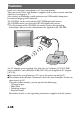
Features Easily view and print your photos via Cyber-shot Station. This convenient Cyber-shot Station is supplied with wireless remote cotrol for effort-less viewing on a TV. Also attaches to PictBridge enabled printers and USB enabled computers. In-camera charging while stationed. The CSS-PHA can be used with the DSC-P100 digital still camera. The CSS-FEB can be used with the DSC-F88 digital still camera. * The illustrations of the CSS-PHA are mainly used in this operating instructions.
z When the CSS-PHA or CSS-FEB is connected to a PictBridge enabled printer, you can easily print images just by pressing PRINT button on the Remote Commander (p.19). The photo currently shown on the TV can be printed by remote control. Note: If you want to print one of the images in a Slide Show, cancel the Slide Show first, then press PRINT button. * You must connect an AC adaptor to the Cyber-shot Station for remote control operations. Index Precautions .................................................
Precautions • Do not use or keep the Cyber-shot Station in locations subject to the following conditions: – Locations with extremes of temperature In closed automobiles during summer, the ambient temperature may be very hot, causing deformation or malfunction of the Cyber-shot Station. – Locations in direct sunlight or near heaters This may cause deformation or malfunction of the Cyber-shot Station.
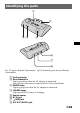
Identifying the parts 1 2 3 4 5 6 7 8 See “Using the Remote Commander” (p.13) to identify parts of your Remote Commander. 1 Multi connector 2 Blue illumination Lights up in blue when the AC adaptor is connected. Goes off when the camera is placed on the Cyber-shot Station. 3 POWER lamp Lights up in green when the AC adaptor is connected. 4 CHARGE lamps Light up while the battery is charging.
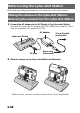
Before using the Cyber-shot Station Refer to the operating instruction for your camera as well as this manual. Placing the camera on the Cyber-shot Station / Removing the camera from the Cyber-shot Station 1 Connect the AC adaptor to the DC IN jack of the Cyber-shot Station. You must use either the AC adaptor (AC-LS5/LS5B) comes with the Cybershot, or an optional AC adaptor (AC-LS5).
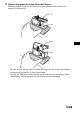
3 Remove the camera from the Cyber-shot Station. Holding both the camera and the Cyber-shot Station, then remove the camera as illustrated. – Be sure to turn off the camera before placing it on the Cyber-shot Station or removing it from the Cyber-shot Station. – During the USB connection, do not remove the camera from the Cybershot Station. The image data in the camera may be damaged.
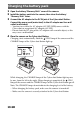
Charging the battery pack 1 2 Open the battery/“Memory Stick” cover of the camera. 3 Connect the AC adaptor to the DC IN jack of the Cyber-shot Station. Connect the power cord (mains lead) to the AC adaptor and to a wall outlet (wall socket). – You must use either the AC adaptor (AC-LS5/LS5B) comes with the Cyber-shot, or an optional AC adaptor (AC-LS5). – Do not short the DC plug of the AC adaptor with a metalic object, as this may cause a malfunction. 4 Place the camera on the Cyber-shot Station.
Connecting the camera to your computer via the Cyber-shot Station 1 2 Turn on your computer. 3 Connect the USB cable (supplied) to the USB jack of the Cyber-shot Station. Insert the “Memory Stick” with the images you want to copy into the camera. Connect the AC adaptor, then plug the adaptor into a wall outlet (wall socket). – You must use either the AC adaptor (AC-LS5/LS5B) comes with the Cyber-shot, or an optional AC adaptor (AC-LS5).
5 Place the camera on the Cyber-shot Station and turn on the camera. POWER button POWER button* * You can turn the camera on either by pressing POWER button or rotating the lens portion for DSC-F88. For further details, see the operating instructions supplied with the camera. – Make sure the camera is securely attached to the Cyber-shot Station. 6 “USB Mode Normal” appears on the LCD screen of the camera.
Using the Remote Commander x Identifying the parts PRINT button POWER button / (Playback zoom) button MENU button Control buttons (v/V/b/B/ ) (Display / LCD on/off) button The buttons on the Remote Commander have the same functions as those on your camera. WARNING Battery may explode if mistreated. Do not recharge, disassemble or dispose of in fire. CAUTION Danger of explosion if battery is incorrectly replaced. Replace only with the same or equivalent type recommended by the manufacturer.
x Removing the insulation sheet Insulation sheet x Replacing the button type lithium battery * A button type lithium battery (CR2025) is already installed in the Remote Commander. Do not use any batteries other than CR2025. 1 Pull out the battery holder while pushing the tab on the holder. 2 Take out the button type lithium battery from the holder. 3 Put a new battery into the holder with its + side facing upward. 4 Insert the holder into the Remote Commander until it clicks.
Viewing images on a TV screen 1 Connect the AC adaptor, then plug the adaptor into a wall outlet (wall socket). Connect the A/V connecting cable (supplied) to the A/V OUT (MONO) jack of the Cyber-shot Station and the audio/video input jacks of the TV. You must use either the AC adaptor (AC-LS5/LS5B) comes with the Cybershot, or an optional AC adaptor (AC-LS5).
Connecting to a PictBridge compliant printer Even if you do not have a computer, you can easily print images shot using your camera by connecting the camera directly or via Cyber-shot Station to a PictBridge compliant printer. • The available print functions may differ depending on the printer. • Using the AC adaptor is recommended to prevent the power from turning off partway through printing. 1 Insert the “Memory Stick” with the images you want to copy into the camera.
4 Set the USB mode on the camera to PictBridge. Mode dial Control button (v/V/b/B/z) Mode dial 1 Set the mode dial to SET UP. 2 Select (Setup 2) with V, then select [USB Connect] with v/V/B. 2 3 Select [PictBridge] with B/v, then press z. 1 Setup 2 File Number: USB Connect: PictBridge PTP Video Out: Normal Clock Set: 2 The USB mode is set.
5 Connect the USB cable (supplied) to the USB jack of the Cyber-shot Station. 6 Connect the USB cable to the USB jack of the printer. Printer 1M 101 101-0002 BACK/NEXT 2/9 After the connection is made, the indicator appears on the LCD screen. 2005 1 1 10:30AM VOLUME When [USB Connect] is not set to [PictBridge] on the SET UP screen, you cannot use the PictBridge function even if you turn on the camera. Set [USB Connect] to [PictBridge].
Printing images using the Remote Commander • You cannnot print movies. • When an error notification is received from the connected printer, the indicator flashes for approximately 5 seconds. Check the connected printer. x Printing still images using the Remote Commander (In single-image mode) PRINT button Control buttons 1 2 Display the image you want to print with b/B. Press PRINT. The print setting screen appears.
4 Select [OK] with V/B, then press The image is printed. . Printing 1/3 Exit – When printing is completed, the screen returns to the previous screen. – Do not disconnect the USB cable while the cable) indicator appears on the LCD screen. (Not disconnect USB To cancel printing Select [Exit] in step 2 or 4. To insert the date and time on images • Select [Date] in step 3, then select the date format with b/B. You can select from [Day & Time] or [Date].
2 Press PRINT. The print setting screen appears. 1M 101 2/9 Print Index Off Date Off Quantity 1 Exit OK – Setting items that the printer does not support cannot be displayed. 3 Select [Quantity] with v/V, select the number of sheets with b/B. You can select the number up to 20. 4 Select [OK] with V/B, then press The image is printed. . Printing 1/3 Exit – Do not disconnect the USB cable while the LCD screen. indicator appears on the To cancel printing Select [Exit] in step 2 or 4.
Troubleshooting If you have trouble with your camera, try the following solutions. If the trouble persists, contact your Sony dealer. Symptom Cause/Solution You cannot charge the battery pack • The camera is turned on. t Turn the camera off. • The battery pack is not installed correctly. t Install the battery pack correctly. The /CHG lamp does not light up when charging a battery pack • The AC adaptor is disconnected. t Properly connect the AC adaptor.
Symptom Cause/Solution Your computer does not recognize your camera • The camera is turned off. t Turn on the camera. • You are not using the supplied USB cable. t Use the supplied USB cable. • The USB cable is not connected firmly. t Disconnect the USB cable from both the computer and the Cyber-shot Station, and connect it again firmly. Make sure that “USB Mode” is displayed on the LCD screen. • The camera is not placed on the Cyber-shot Station correctly. t Place the camera correctly.
Symptom Cause/Solution You cannot print images • The camera is not connect to the printer. t Check that the camera and the printer are properly connected using the USB cable. • The printer is not turned on. t Turn on the printer. For further infomation, refer to the operating instructions supplied with the printer. • Movies cannot be printed. • Images modified with a computer or images shot using other than this camera may not be able to be printed.
Specifications Cyber-shot Station Input/Output connectors A/V OUT (MONO) jack (Monaural) Minijack 1 Vp-p, 75 Ω, unbalanced, sync negative Video*: Audio*: 327 mV (47 kΩ loaded) Output impedance: 2.2 kΩ * When the DSC-P100 or the DSC-F88 is connected. USB jack: mini-B DC IN connector Multi connector General Dimensions (Approx.): 114 × 36 × 66 mm (4 1/2 × 1 7/16 × 2 5/8 inches) (w/h/d) Mass (Approx.): 77 g (2.
Français Avant d’utiliser cet appareil, lisez attentivement ce mode d’emploi et conservezle pour toute référence ultérieure. AVERTISSEMENT Pour ne pas risquer un incendie ou une décharge électrique, n’exposez pas cet appareil à la pluie ou à l’humidité. Note pour les clients européens Ce produit a fait l’objet d’essais ayant permis de constater qu’il respectait les limites prescrites par la directive sur la CEM sur l’utilisation de câbles de raccordement de moins de 3 mètres (9,8 pieds).
Fonctions Visualisez et imprimez facilement vos photos grâce à la Station d’accueil Cybershot. Cette Station d’accueil Cyber-shot très pratique est fournie avec une télécommande sans fil pour vous permettre de visualiser sans effort vos photos sur un téléviseur. Cet appareil peut également être raccordé à des imprimantes compatibles PictBridge et à des ordinateurs équipés d’une connexion USB. Chargement sur l’appareil photo au repos. La CSS-PHA peut être utilisée avec l’appareil photo numérique DSC-P100.
z Lorsque la CSS-PHA ou la CSS-FEB est raccordée à une imprimante compatible PictBridge, vous pouvez facilement imprimer des images en appuyant simplement sur la touche PRINT de la télécommande (page 18). Grâce à la télécommande, vous pouvez imprimer la photo affichée sur votre téléviseur. Remarque : si vous souhaitez imprimer l’une des images d’un diaporama, commencez par annuler le diaporama, puis appuyez sur la touche PRINT.
Précautions • N’utilisez pas et ne rangez pas la Station d’accueil Cyber-shot dans les endroits suivants : – Endroits soumis à des températures extrêmes. La température à l’intérieur d’une voiture fermée pendant l’été peut être très élevée et risque de déformer la Station d’accueil Cyber-shot ou d’entraîner un problème de fonctionnement. – Endroits soumis à la lumière directe du soleil ou près de radiateurs.
Identification des différents éléments 1 2 3 4 5 6 7 8 Reportez-vous à la section « Utilisation de la télécommande » (page 12) pour identifier les différents éléments de la télécommande. 1 Multi-connecteur 2 Voyant bleu S’allume en bleu lorsque l’adaptateur secteur est raccordé. S’éteint lorsque l’appareil photo est placé sur la Station d’accueil Cyber-shot. 3 Témoin POWER S’allume en vert lorsque l’adaptateur secteur est raccordé. 4 Témoins CHARGE S’allument lorsque la batterie est en cours de charge.
Avant d’utiliser la Station d’accueil Cybershot Consultez le mode d’emploi de votre appareil photo, ainsi que ce manuel. Placement de l’appareil photo sur la Station d’accueil Cyber-shot / Retrait de l’appareil photo de la Station d’accueil Cyber-shot 1 Raccordez l’adaptateur secteur à la prise DC IN de la Station d’accueil Cyber-shot. Utilisez l’adaptateur secteur (AC-LS5/LS5B) fourni avec le Cyber-shot ou un adaptateur secteur en option (AC-LS5).
3 Retirez l’appareil photo de la Station d’accueil Cyber-shot. Tenez l’appareil photo et la Station d’accueil Cyber-shot, puis retirez l’appareil photo, comme illustré. – Mettez l’appareil photo hors tension avant de le placer sur la Station d’accueil Cyber-shot ou de l’en retirer. – Lors de la connexion USB, ne retirez pas l’appareil photo de la Station d’accueil Cyber-shot. Cela risque d’endommager les données d’images contenues dans l’appareil photo.
Charge de la batterie 1 Ouvrez le couvercle du logement de batterie/« Memory Stick » de l’appareil photo. 2 Placez la batterie dans l’appareil photo, puis fermez le couvercle du logement de batterie/« Memory Stick ». 3 Raccordez l’adaptateur secteur à la prise DC IN de la Station d’accueil Cyber-shot. Raccordez le cordon d’alimentation à l’adaptateur secteur et à une prise murale. – Utilisez l’adaptateur secteur (AC-LS5/LS5B) fourni avec le Cyber-shot ou un adaptateur secteur en option (AC-LS5).
Raccordement de l’appareil photo à votre ordinateur via la Station d’accueil Cybershot 1 2 Mettez votre ordinateur sous tension. 3 Raccordez le câble USB (fourni) à la prise USB de la Station d’accueil Cyber-shot. Insérez le « Memory Stick » contenant les photos que vous souhaitez copier dans votre appareil photo. Raccordez l’adaptateur secteur à l’appareil, puis à une prise murale. – Utilisez l’adaptateur secteur (AC-LS5/LS5B) fourni avec le Cyber-shot ou un adaptateur secteur en option (AC-LS5).
5 Placez l’appareil photo sur la Station d’accueil Cyber-shot et mettez l’appareil photo sous tension. Touche POWER* Touche POWER * Vous pouvez allumer l’appareil photo en appuyant sur la touche POWER ou en tournant l’objectif dans le cas du DSC-F88. Pour plus d’informations, reportez-vous au mode d’emploi fourni avec l’appareil photo. – Vérifiez que l’appareil photo est correctement fixé à la Station d’accueil Cyber-shot. 6 « Mode USB Normal » apparaît sur l’écran LCD de l’appareil photo.
Utilisation de la télécommande x Identification des différents éléments Touche PRINT Touche POWER Touche / (zoom de lecture) Touche MENU Touches de commande (v/V/b/B/ ) Touche (activation / désactivation de l’affichage / écran LCD) Les fonctions des touches de la télécommande sont les mêmes que celles de votre appareil photo. AVERTISSEMENT Une mauvaise manipulation de la batterie risque de provoquer son explosion. Ne rechargez pas la batterie, ne la démontez pas et ne la jetez pas dans un feu.
x Retrait de la feuille isolante Feuille isolante x Remplacement de la pile bouton au lithium * Une pile bouton au lithium (CR2025) est déjà placée dans la télécommande. N’utilisez pas de pile autre qu’une pile CR2025. 1 Retirez le support de la pile tout en appuyant sur sa languette. 2 Retirez la pile bouton au lithium de son support. 3 Placez une pile neuve dans le support, pôle + vers le haut. 4 Insérez le support dans la télécommande jusqu’à ce qu’il s’encliquette.
Visualisation d’images sur un écran de téléviseur 1 Raccordez l’adaptateur secteur à l’appareil, puis à une prise murale. Raccordez le câble de liaison audio/vidéo (fourni) à la prise A/V OUT (MONO) de la Station d’accueil Cyber-shot et aux prises d’entrée audio/ vidéo du téléviseur. Utilisez l’adaptateur secteur (AC-LS5/LS5B) fourni avec le Cyber-shot ou un adaptateur secteur en option (AC-LS5).
Raccordement à une imprimante compatible PictBridge Même si vous ne disposez pas d’ordinateur, vous pouvez facilement imprimer vos images à l’aide de votre appareil photo en le raccordant directement à une imprimante compatible PictBridge ou via la Station d’accueil Cyber-shot. • Les fonctions d’impression disponibles peuvent varier selon l’imprimante. • Il est recommandé d’utiliser l’adaptateur secteur pour éviter une coupure d’alimentation en cours d’impression.
4 Réglez le mode USB de l’appareil photo sur PictBridge. Sélecteur de mode Touche de commande Sélecteur de mode (v/V/b/B/z) 1 Réglez le sélecteur de mode sur SET UP. 2 Sélectionnez 2 (Réglages 2) à l’aide de V, puis [Connexion USB] à l’aide de v/V/B. 3 Sélectionnez [PictBridge] à l’aide de B/v, puis appuyez sur z. 1 Réglages 2 N˚ de fichier: Connexion USB: PictBridge PTP Sortie Vidéo: Réglage heure: Normal 2 L’appareil est réglé en mode USB.
5 Raccordez le câble USB (fourni) à la prise USB de la Station d’accueil Cyber-shot. 6 Raccordez le câble USB à la prise USB de l’imprimante. Imprimante 1M 101 101-0002 PRÉC/SUIV 2/9 Lorsque la connexion est établie, le témoin apparaît sur l’écran LCD. 2005 1 1 10:30AM VOLUME Si l’option [Connexion USB] n’est pas réglée sur [PictBridge] dans l’écran SET UP, vous ne pouvez pas utiliser la fonction PictBridge, même avec l’appareil photo sous tension. Réglez [Connexion USB] sur [PictBridge].
Impression de photos à l’aide de la télécommande • Vous ne pouvez pas imprimer de film. • Lorsqu’un message d’erreur est reçu de l’imprimante raccordée, le témoin clignote pendant environ 5 secondes. Vérifiez l’imprimante raccordée. x Impression d’images fixes à l’aide de la télécommande (en mode d’image unique) Touche PRINT Touches de commande 1 2 Affichez l’image que vous souhaitez imprimer à l’aide de b/B. Appuyez sur PRINT. L’écran de réglage de l’impression apparaît.
4 Sélectionnez [OK] à l’aide de V/B, puis appuyez sur La photo s’imprime. . Impression en cours 1/3 Sortie – Lorsque l’impression est terminée, l’écran précédent réapparaît. – Ne débranchez pas le câble USB lorsque le témoin déconnecter le câble USB) apparaît sur l’écran LCD. (ne pas Pour annuler l’impression Sélectionnez [Sortie] à l’étape 2 ou 4. Pour insérer l’heure et la date sur des images • Sélectionnez [Date] à l’étape 3, puis le format de la date à l’aide de b/B.
2 Appuyez sur PRINT. L’écran de réglage de l’impression apparaît. 1M 101 2/9 Imprim Index Désact Date Désact Quantité 1 Sortie OK – Il est impossible d’afficher des éléments de réglage non pris en charge par l’imprimante. 3 Sélectionnez [Quantité] à l’aide de v/V, puis le nombre de tirages à l’aide de b/B. Vous pouvez sélectionner jusqu’à 20 tirages. 4 Sélectionnez [OK] à l’aide de V/B, puis appuyez sur La photo s’imprime. .
Dépannage Si vous rencontrez des problèmes avec votre appareil photo, essayez les solutions suivantes. Si les problèmes persistent, contactez votre revendeur Sony. Symptôme Cause/Solution Impossible de charger la batterie • L’appareil est sous tension. t Mettez-le hors tension. • La batterie n’est pas installée correctement. t Installez correctement la batterie. Le témoin /CHG ne s’allume pas lorsque vous chargez la batterie • L’adaptateur secteur est débranché.
Symptôme Cause/Solution Votre ordinateur ne reconnaît pas votre appareil photo • L’appareil photo est hors tension. t Mettez l’appareil photo sous tension. • Vous n’utilisez pas le câble USB fourni. t Utilisez le câble USB fourni. • Le câble USB n’est pas raccordé correctement. t Débranchez le câble USB de l’ordinateur et de la Station d’accueil Cyber-shot et raccordez-le de nouveau fermement. Vérifiez que l’indication « Mode USB » est affichée sur l’écran LCD.
Symptôme Cause/Solution Impossible d’imprimer des photos • L’appareil photo n’est pas raccordé à l’imprimante. t Vérifiez que l’appareil photo et l’imprimante sont raccordés correctement à l’aide du câble USB. • L’imprimante est hors tension. t Mettez l’imprimante sous tension. Pour plus d’informations, reportez-vous au mode d’emploi fourni avec l’imprimante. • Il est impossible d’imprimer des films.
Spécifications Station d’accueil Cyber-shot Connecteurs d’entrée/de sortie Prise A/V OUT (MONO) (monaural) Miniprise Vidéo* : 1 Vp-p, 75 Ω, asymétrique, sync négative Audio* : 327 mV (à une charge de 47 kΩ) Impédance de sortie : 2,2 kΩ * Lorsque l’appareil photo DSC-P100 ou DSC-F88 est raccordé.
Printed on 100% recycled paper using VOC (Volatile Organic Compound)-free vegetable oil based ink. Imprimé sur papier 100 % recyclé avec de I’encre á base d’huile végétale sans COV (composés organiques volatils).