
User's Manual Part 2






Adding and Editing VPN Sites using Safe@Office 110 and 225
Chapter 10: Working With VPNs 223
N site.
5.
traffic between the Safe@Office appliance and the VPN site, select
Keep this site alive.
6. Click Next.
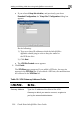
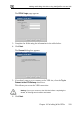
• If you selected Keep this site alive, and previously you chose
Download Configuration, the "Keep Alive" Configuration dialog box
appears.
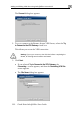
4. Enter a name for the VP
You may choose any name.
To keep the tunnel to the VPN site alive even if there is no network
Do the fol
1) Type u
appliance should ping in order to keep the tunnel to
the VPN site alive.
2) Click Next.
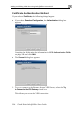
• The VPN Site Created screen appears.
7. Click Finish.
The VPN Sites page reappears. If you added a VPN site, the new site
appears in the VPN Sites list. If you edited a VPN site, the modifications
are reflected in the VPN Sites list.
lowing:
p to three IP addresses which the Safe@Office