
User's Manual Part 2



Viewing SecureDesk Reports
196 Check Point Safe@Office User Guide
3. Click O
Secure
ing appears.
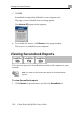
The Antivirus Off popup window appears.
K.
Desk is temporarily disabled for your computer only.
The page you were blocked from access
4. To re-enable the service, click Resume in the popup window.
The service is re-enabled for your computer.
Viewing SecureDesk Reports
You can view reports on SecureDesk's activities for all computers in your
network.
Note: You must be connected to the Internet to view SecureDesk
reports.
To view SecureDesk reports
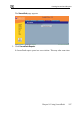
1. Click Services in the main menu, and click the SecureDesk tab.