
User's Manual Part 2







Checking Antivirus Compliancy
Chapter 9: Using SecureDesk 189
n all computers in the network.
Checking Antivirus Compliancy
VirusScan is updated o
For information on updating VirusScan on all compters in the network,
see Updating McAfee VirusScan ASaP on All Computers on page 186.
You can check whether a computer's antivirus software complies with the
SecureDesk security level conditions.
To check antivirus compliancy for your computer
1. Click Security in the main menu, and click the SecureDesk tab.
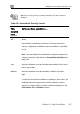
The SecureDesk page appears, and the Current Device Status and Actions
area displays a color-coded status message indicating whether the
computer complies with the SecureDesk security level conditions. For an
explanation of the status message and its color, see the table below.
If the antivirus software installed on your computer does not meet the
security level conditions, the Update your antivirus software to the latest
version link appears.
2. To view detailed information about the antivirus status and
component versions, point to the status message.
e desired information. A popup window displays th
3. If necessary, update your antivirus software by doing the following:
a. Click Update your antivirus software to the latest version.