
User's Manual Part 2







Updating McAfee VirusScan ASaP on All Computers
186 Check Point Safe@Office User Guide
n All Updating McAfee VirusScan ASaP o
Computers
If the version of VirusScan installed on a computer is not up-to-date,
SecureDesk may block access through the firewall for that computer,
depending on ureDesk security level. You can update the installed
version of Vi ng
the Pus Ins
For information on how to check whether version of VirusScan installed on a
ing Antivirus Compliancy on page 189.
To ASaP on all computers
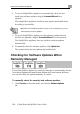
1. C ck Security in the main menu, and click the SecureDesk tab.
rs.
2.
The McAfee Security page opens in a new window, with the McAfee
Secure-1 VirusScan ASaP popup window on top.
3. Follow the online instructions to complete updating.
VirusScan is updated on all computers in the network.
Setting the SecureDesk Security Level
the Sec
rusScan on all computers in the network simultaneously, usi
taller. h
computer is up-to-date , see Check
update McAfee VirusScan
li
The SecureDesk page appea
Click Run the desktop security software Push Installer.
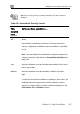
The SecureDesk security level determines what conditions a computer's
antivirus software must meet before the computer can access the Internet.
You control the SecureDesk security level using a simple lever available on
the SecureDesk page. You can set the lever to four states.