
User's Manual Part 2



Configuring Syslog Logging
Chapter 12: Maintenance 263
3.
4.
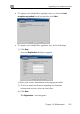
first Registration dialog box appears.
6.
istration dialog box appears.
and
heck box.
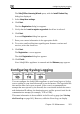
The third Registration
10. Cl ck F
me page appears.
Config
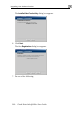
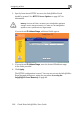
The Safe@Office Licensing Wizard opens, with the Install Product Key
dialog box displayed.
Select Keep these settings.
Click Next.
The
5. Verify that the I want to register my product check box is selected.
Click Next.
A second Reg
7. Enter your contact information in the appropriate fields.
8. To receive email notifications regarding new firmware versions
services, select the c
9. Click Next.
The Registration… screen appears.
dialog box appears.
inish. i
Your Safe@Office appliance is restarted and the Welco
uring Syslog Logging
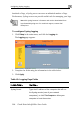
You can configure the Safe@Office appliance to send event logs to a
ver residing in your internal network or on the Internet. The log
Syslog
ser s detail the
atte that was rejected by the firewall, the event details include the source
and for the
com ication attempt (for example, TCP or UDP).
This same information is also available in the Event Log page (see Viewing
the Event Log on page 141). However, while the Event Log can display
date and the time each event occurred. If the event is a communication
mpt
destination IP address, the destination port, and the protocol used
mun