
User's Manual Part 1



Before You Install the Safe@Office Appliance
36 Check Point Safe@Office User Guide
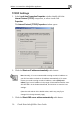
4. Click the IP Address tab, and click the Obtain an IP address
automatically radio button.
Note: Normally, it is not recommended to assign a static IP address to
your PC but rather to obtain an IP address automatically. If for some
reason you need to assign a static IP address, select Specify an IP
address, type in an IP address in the range of 192.168.10.129-254, enter
255.255.255.0 in the Subnet Mask field, and click OK to save the new
settings.
(Note that 192.168.10 is the default value, and it may vary if you
changed it in the My Network page.)
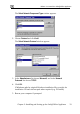
5. Click Yes when prompted for “Do you want to restart your
computer?”.
Your computer restarts, and the new settings to take effect.
Your computer is now ready to access your Safe@Office appliance.