
User's Manual Part 1
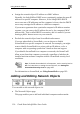





Using Network Objects
134 Check Point Safe@Office User Guide
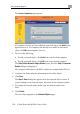
The Active Computers page appears.
If a computer has not yet been added as a network object, the Add button
appears next to it. If a computer has already been added as a network
object, the Edit button appears next to it.
2. Do one
• To
• To edit a network object, click Edit next to the desired computer.
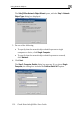
The Safe@Office Network Object Wizard opens, with the Step 2: Computer
Details dialog box displayed.
The computer's IP address and MAC address are automatically filled in.
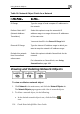
3. Complete the fields using the information in the tables below.
4. Click Next.
The Step 3: Save dialog box appears with the network object's name. If
you are adding a new network object, this name is the computer's name.
5. To change the network object name, type the desired name in the
field.
6. Click Finish.
The new object appears in the Network Objects page.
of the following:
add a network object, click Add next to the desired computer.