
User's Manual Part 1





Using Network Objects
130 Check Point Safe@Office User Guide
• network obj ess to a MAC address
e Safe@ P server consistently assigns the same IP
dress to a specific @Office DHCP
r runs out of IP a down, then the DHCP
server may reassign
If you want to guara ains
constant, you can re ress for use by the computer's MAC
address only. This is called vation, and it is useful if you are
nt
If you are subscribed to SecureDesk, you can choose to disable
SecureDesk for a specific computer or network. For example, you might
want to disable SecureDesk for a printer with an IP address, or for a
ing system that VirusScan does not support.
rewall will
her the
l
Assign the
Normally, th
ect's IP addr
Office DHC
ad
serve
computer. However, if the Safe
ddresses and the computer is
the IP address to a different computer.
ntee that a particular computer's IP address rem
serve the IP add
DHCP reser
hosting a public Internet server on your network.
• Exclude the network object from SecureDesk enforceme
computer with an operat
If you disable SecureDesk for a computer or network, the fi
allow access from that computer or network, regardless of whet
installed antivirus software complies with the SecureDesk security leve
conditions.
Note: To disable SecureDesk f
Off. For instructions on setting the security level, see Setting th
SecureDesk Security Level on page 186.
or all computers, set the security level to
e
183.
Adding and Editing Network Objects
For information on SecureDesk, see Using SecureDesk on page
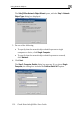
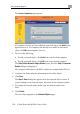
You can add or edit network objects via:
• The Network Objects page
This page puters and networks. enables you to add both individual com