
User's Manual Part 1





Configuring Network Settings
104 Check Point Safe@Office User Guide
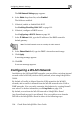
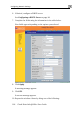
The Edit Network Settings page appears.
4. In the Mode drop-down list, select Enabled.
fields are e
5. If desired, enable d
See Enabling/Disabl
6. If desired, configure erver.
See Configuring
7. In the IP Address fiel k's
default gateway.
The nabled.
or isable Hide NAT.
ing Hide NAT on page 101.
a DHCP s
a DHCP Server on page 94.
d, type the IP address of the DMZ networ
Note: The DMZ
8. In the Subnet Mask fi e.
9. Click Apply.
A warning message a
10. Click OK.
A success message a
Configuring a W
In addition to the LAN a eless internal
network called a WLAN fe@Office
300W.
By default, all traffic is allowed from the LAN network to the WLAN
network, and no traffic is allowed from the WLAN network to the LAN or
DMZ networks. You can easily customize this behavior by creating firewall
user rules. For further information, see Using Rules on page 154.
By default, access from the WLAN network to Safe@Office Portal
(my.firewall and my.vpn) is not allowed. You can enable access from the
WLAN to the Safe@Office Portal in either of the following ways:
network must not overlap the LAN network.
eld, type the DMZ’s internal network rang
ppears.
ppears.
LAN Network
nd DMZ networks, you can define a wir
(wireless LAN) network, when using Sa