
User's Manual Part 1





Configuring Network Settings
100 Check Point Safe@Office User Guide
s
7. If y onfigured to obtain its IP address automatically
DH start your computer.
h
A uccess message appears
our computer is c
(using DHCP), and either the Safe@Office DHCP server or another
CP server is enabled, re
Your computer obtains an IP address in the DHCP address range.
C anging IP Addresses
If desired, you can change your Safe@Office appliance’s internal IP address.
Using Safe
addresses if,
for ex mpl g
network an hange that network’s IP address range, or if you
are using a DHCP server other than the Safe@Office appliance, that assigns
addresses within a different range.
To change IP addresses
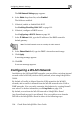
1. Click Network in the main menu, and click the My Network tab.
The My Network page appears.
2. In the LAN network's row, click Edit.
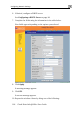
The Edit Network Settings page appears.
3. To change the Safe@Office appliance’s internal IP address, enter
the new IP address in the IP Address field.
4. To change the internal network range, enter a new value in the
Subnet Mask field.
@Office 110 or 225, you can also change the entire range of IP
in your internal network. You may want to perform these tasks
e, you are adding the Safe@Office appliance to a large existin
d don't want to c
a