
Operation Manual




46
Return to contents
5.12
The Syrius comes with the facility to wirelessly connect to other
Bluetooth enabled devices such as mobile phones.
5.12.1 Activating Bluetooth on the Syrius
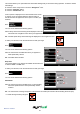
l Press the centre of the display to enter the ‘Navigate to’ menu.
l Press ‘Congure’.
l Press the black arrow
once.
l Press ‘Bluetooth’.
l Press ‘Congure’.
l Press the box to the left of ‘Enable’ – a red tick will appear
l Press ‘OK’ at the bottom of the screen.
5.12.2 Pairing the Syrius to another Bluetooth Device
IMPORTANT: Please make sure that Bluetooth is enabled
on your mobile device and that the device is visible before
attempting to pair it with the Syrius.
l Press the centre of the screen to enter the ‘Navigate to’ menu.
l Press ‘Congure’.
l Press the black arrow
once.
l Press ‘Bluetooth’.
l Press ‘Search’ – the device will search for and display a list of
Bluetooth devices.
l Select the Bluetooth device you wish to pair with the Syrius.
l Enter the passkey onto the Bluetooth device provided on the
screen of the Syrius.
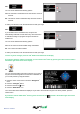
l Your Bluetooth device is now paired with the Syrius
Note: When both Bluetooth devices are paired, you will see
a symbol in the top left hand corner of the display as shown
below. This symbol is ‘Blue’ when the devices are connected
and ‘Red’ when the devices are not connected.
5.12.3 Making a call using the Syrius
l Press the ‘Phone’ icon
l Press ‘Dial’
l Enter the telephone number using the keypad
l Press the
button
l To adjust the volume during the call press the ‘Phone’ icon – use
the and symbols to adjust.
l To end the call, press the
button.
l To dial the last number used press ‘Re-Dial’.
5.12.4 Receiving a call using the Syrius
l Press the
button on the display when receiving a call.
l Press the
button to reject the call.