
Operation Manual




41
Return to contents
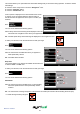
The screen will now show a list of POI’s stored on your unit with a
‘tick’ box to the left of each type of POI. Simply press the tick box
to select or deselect the POI. A red tick in the box indicates that the
POI will appear on your map, an un-ticked box will remove the POI
from the map view. To scroll through the list of POI’s you can press
either the up or down arrows located on the right hand side of the
display.
To deselect all POI’s from the map un-tick the ‘ALL’ tick box at the
top of the list of POI’s
To save the changes press the ‘OK’ button at the bottom of the
display.
If you wish to exit the ‘Show POI’ list without saving any
changes press the return arrow located in the bottom
right hand corner of the display.
5.6
Auto Scale is switched ‘On’ by default during manufacture. Auto Scale automatically magnies the map as you approach
a junction or roundabout, where you may need to make a turning, so that you can see it in more detail.
Auto Scale can be turned on and off as you wish. To change this
setting:
l Press the centre of the screen to enter the ‘Navigate to’ menu.
l Press the ‘Congure’ button.
l Press the ‘Auto scale’ icon.
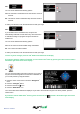
The screen will now show two options ‘Yes’ and ‘No’. To make
your selection, touch the relevant tick box with your nger.
To save the changes press the ‘OK’ button at the bottom of the
display.
If you wish to exit the ‘Auto scale’ menu without saving any changes press the return arrow
located in the
bottom right hand corner of the display.
5.7
In order for this feature to operate you will need to subscribe to and download the Enigma™ Camera Database
onto your Syrius. See ‘Registering your Syrius’ (Page 6) and ‘System Requirements & Downloading’ (page 9) for
further details.