
Operation Manual




40
Return to contents
5.4.2
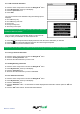
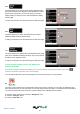
This option allows you to change the information displayed in the
bottom left hand side of the navigation screen between the vehicle
speed and the current time. You can also specify if you want to
display a twelve or twenty-four hour clock and whether to display
‘am’ and ‘pm’.
To make your selection, touch the relevant tick box with your nger.
5.4.3
This option allows you to switch the information on the Syrius
between imperial and metric measurement.
To make your selection, touch the relevant tick box with your nger.
5.4.4
This option allows you to display either the estimated time of arrival
(ETA) or the estimated remaining time left for your journey towards
the bottom of the navigation screen.
To make your selection, touch the relevant tick box with your nger.
To save any of the changes press the ‘OK’ button at the
bottom of the display.
If you wish to keep the settings unchanged you can exit the ‘Setup’ menu by pressing the return arrow
located in the bottom right hand corner of the display.
Your new settings will now be saved and will appear on the screen each time you use your Syrius.
5.5
The Syrius comes complete with a comprehensive list of POI’s (Point’s of Interest). You can search for addresses using
POI’s and save POI’s in your list of favourites. You can also choose which of the POI’s you would like to have indicated on
your map. As standard ALL POI’s are shown, however this list can be edited within the POI Menu.
l Press the centre of the screen to enter the ‘Navigate to’ menu.
l Press the ‘Congure’ button.
l Press the ‘Show POI’ icon.