
Operation Manual




34
Return to contents
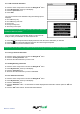
4.3.1 Editing user points
Once a user point has been stored onto the Syrius the location requires editing so that the correct alert will be given when
you approach the user stored coordinate. To edit the user point:
l Press the centre of the display to enter the ‘Navigate to’ menu.
l Press ‘My Favourite’ at the top of the display.
l Press the ‘User Point’ icon
l Select the user point you wish to edit.
You can scroll through the list of user points by using the up, down arrows located on the right hand side of the display.
The following screen is displayed.
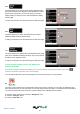
l Press ‘Change’ to edit the selected ‘User Point’
> Select the ‘user point type’ that corresponds to the location. To see
more types press the arrow
on the display.
Please Note: If you select the user point type as ‘SPECs’ the ‘Specs
num’ option becomes available. This option is NOT available for any
other location type.
> Select ‘Direction’ to specify the compass direction of the user point.
> Select ’Limit Speed’ to specify the speed limit of the user point.
l Once you have nished editing the user point save your changes by
pressing the ‘OK’ button at the bottom of the display.
The new user point information has now been stored.
4.3.2 Changing the name of your user point
You also have the facility to name the user point to make it easier to nd.
l Press the centre of the display to enter the ‘Navigate to’ menu.
l Press ‘My Favourite’ at the top of the display.
l Press the ‘User Point’ icon
l Select the user point you wish to edit.
l Press ‘Name’ and a keyboard will be displayed with the road name of the destination you selected.
l Press the key to erase this data then input the new name using the keyboard.
l Press ‘Save’ to store the new name
Please note: You can enter a new name for the favourite using up to a maximum of sixteen characters.