
User Manual


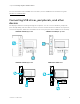


Table Of Contents
- Cover
- Important information
- Contents
- Chapter 1 Welcome
- Chapter 2 Using basic features
- Chapter 3 Using the iQ apps
- Chapter 4 Connecting computers and other devices
- Chapter 5 Troubleshooting
- The display isn’t turning on
- The screen is blank or there’s a problem with the image on the screen
- There’s no sound or there’s a problem with the sound
- Touch isn’t working as expected
- The pens and erasers aren’t working as expected
- iQ apps aren’t working as expected
- SMART software on connected computers isn’t working as expected
- The SMART OPS PC module isn’t working as expected
- The Intel Compute Card isn’t working as expected
- Contacting your reseller for additional support
- Certification and compliance

Chapter 4 Connecting computers and other devices
smarttech.com/kb/171554 37
The following table presents the recommend resolutions and refresh rates for the display’s VGA input
source:
Resolution Input source
aspect ratio
Mode Refresh rate
1920 × 1080 16:9 [N/A] 60.000 Hz
1600 × 1200 4:3 [N/A] 60.000 Hz
1360 × 768 16:9 [N/A] 60.015 Hz
1280 × 1024 5:4 SXGA 60 60.020 Hz
1024 × 768 4:3 XGA 60
XGA 70
XGA 75
60.004 Hz
70.069 Hz
75.029 Hz
800 × 600 4:3 SVGA 60
SVGA 72
SVGA 75
60.317 Hz
72.188 Hz
75.000 Hz
640 × 480 4:3 VGA 60 59.940 Hz
If possible, set any connected computers to these resolutions and refresh rates. See the connected
computers’ operating system documentation for instructions.
Connecting USB drives, peripherals, and other devices
You can use USB drives, peripherals, and other devices with a computer connected to the display using
the USB receptacles on the display.
For more information, see
Connecting USB drives, peripherals, and other devices
on the next page.
Troubleshooting connected computers
For troubleshooting information for connected computers, see
Chapter 5 Troubleshooting
on page40.
Connecting a SMART OPS PC module
If your organization has purchased a SMART OPS PC module, you or your
organization’s installers can install the OPS PC module in the display’s
accessory slot following the OPS PC module’s installation instructions
(smarttech.com/kb/171544). You can then view the OPS PC module’s input on
the display.