
Installation guide







13
Figure 10
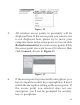
5. All wireless access points in proximity will be
displayed here. If the access point you want to use
is not displayed here, please try to move your
computer closer to the access point, or you can click
Refresh network list to rescan access points. Click
the access point you want to use if it’s shown, then
click Connect, shown in Figure 11.
Figure 11
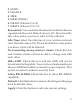
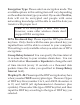
6. If the access point is protected by encryption, you
have to input its security key or passphrase. It must
match the encryption setting on the access point. If
the access point you selected does not use
encryption, you’ll not be prompted for security
key or passphrase